The Pending Order queue
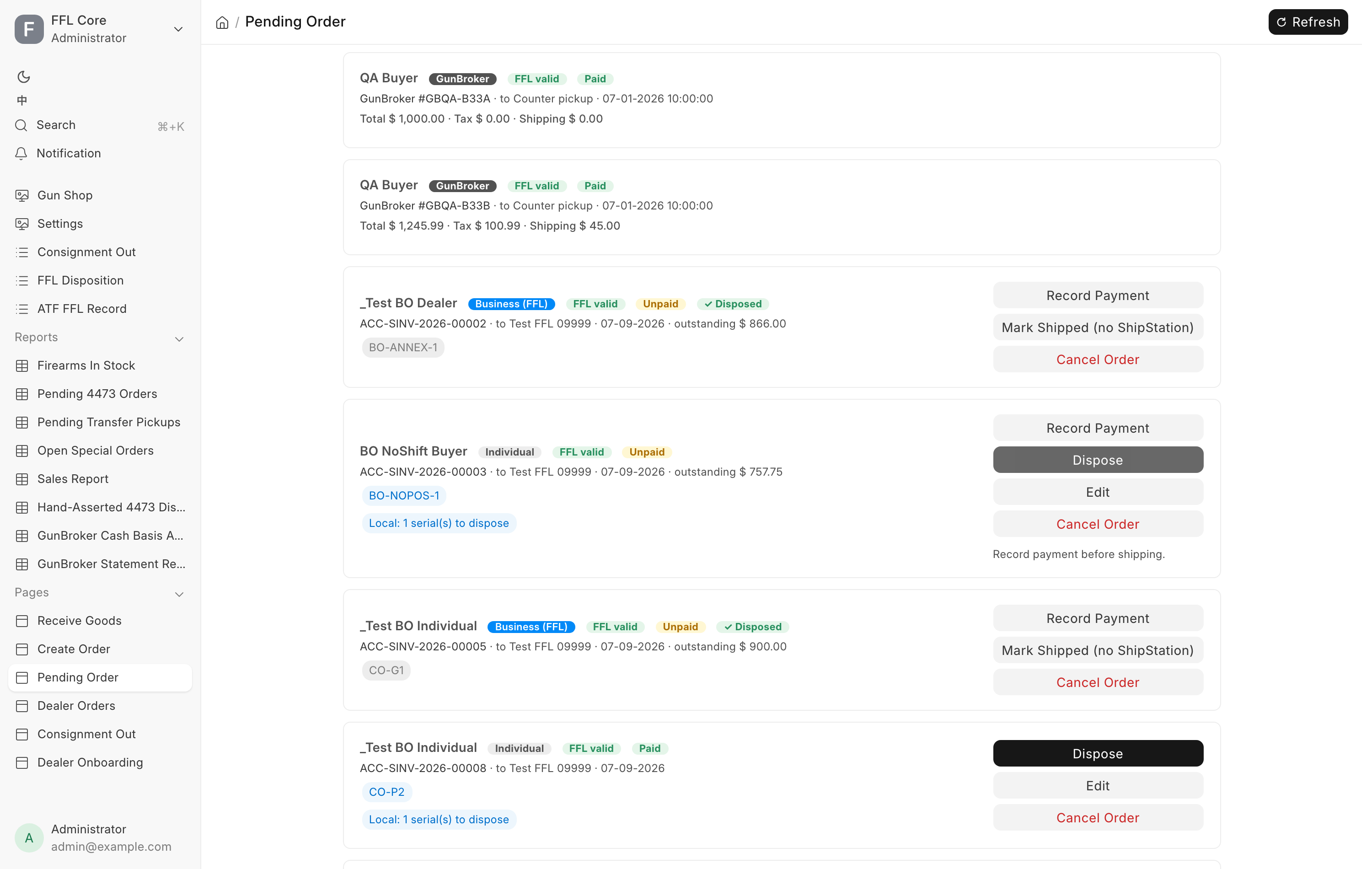
Pending Order is the one screen that shows every order still owing something:
a firearm to book out of the bound book, money to collect, goods to order or
receive, or a parcel to ship. Counter staff work it several times a day. Open it
from Orders under Sales in the
sidebar; the page itself is titled
Pending Order. The address is /app/pending-dispositions.
Before you start
- You need one of these roles: Sales User, Sales Manager, Stock Manager, or System Manager.
- Refresh at the top right reloads the queue. The page also reloads itself every time you return to it and after every action.
- When there is nothing left to do the page reads "Nothing waiting — every order is shipped and paid."
- New web and GunBroker orders, and distributor parcels shipped to the store, also ring the notifications bell.
Three kinds of row
The queue merges three sources into one card layout. What a card can do depends entirely on which one it came from.
| Row | Where it comes from | Tag on the card |
|---|---|---|
| Counter order | An order built on Create Order | Individual or Business (FFL) |
| Web order | A paid WooCommerce order | Web |
| GunBroker order | A sale won on GunBroker | GunBroker |
Web orders are covered in more depth under web orders, GunBroker under GunBroker.
A row leaves the queue once there is nothing left to dispose, collect, or ship, and no distributor leg is still open.
Finding a row
Above the list, chips filter the queue: All (the default), Counter, Web and GunBroker. The search box, "Customer, order, serial…", matches the customer, the order number and the serials. When nothing fits, the page reads "Nothing matches this filter."
Each card shows how many days it has waited, for example · 3d. Past the number of days set in FFL Settings under Pending Order overdue after (days) (7 unless changed) the count turns red. Every morning managers get an email listing the counter orders that are blocked or overdue. Nothing is sent when nothing is stuck.
The sections
Rows are grouped by the next thing somebody has to do, in this order, oldest first within each section. The count beside each heading is how many rows it holds.
| Section | What is in it |
|---|---|
| Needs attention | Something blocks the row. The reason is written on the card (see the next table). |
| To place with distributor | A counter order with a Draft distributor leg that may be placed now. |
| Waiting on distributor | Goods on their way: a leg the house is working on, a ship-to-store parcel not yet received, or a web order still waiting for its serial. |
| Ready to ship | Everything is in hand and paid where it must be. Ship or Mark Shipped. |
| Ready for pickup | An order the customer collects here, with its goods in hand. |
| Shipped — dispose | The parcel went out and a firearm still has to be booked out of the bound book. |
The reasons a row lands in Needs attention:
| Reason on the card | What it means |
|---|---|
| Distributor killed / short-shipped / hold / placement failed … | A distributor leg is in trouble. See Trouble legs. |
| Serial rejected | A serial arrived from the web store and did not match free stock. |
| FFL expired | The receiving license on file has lapsed. |
| Awaiting payment | A GunBroker sale whose payment has not been recorded. |
| Unpaid — settle the balance before placing the distributor order | A drop-ship leg is in Draft and the order still owes money. |
| Unpaid — record payment before shipping | An individual's order that ships still owes money. |
| Shipped on account — record payment | The goods left and the order still owes money. |
Reading a card
The top line carries the customer name and a run of badges.
| Badge | Meaning |
|---|---|
| FFL valid | The receiving license is on file and unexpired. |
| FFL expired / unverified | The license has lapsed or was never verified. Dispose is blocked. |
| Paid / Partly paid / Unpaid | Payment state of the order. |
| ✓ Disposed | Every firearm on the order is booked out. |
| ✓ ShipStation | The shipment was pushed. The number follows when there is one. |
| WC | The live WooCommerce status of a web order. |
| GB | The live GunBroker status. |
| Serial conflict | A serial arrived from the web store and was rejected. |
| In-store pickup | A web order addressed to your own license, or a counter order built with Pickup in store. Once its pickup ticket is open the badge reads In-store pickup · counter order open. |
The line under it links the Sales Invoice, the Woo Online Order, or the GunBroker order, then names where the goods are going: the receiving dealer, or the ship-to city and state, or "Counter pickup" when there is no address at all. The order date, the days waited, and any outstanding balance follow. A staff note typed on Create Order shows below with a 📝 mark.
Serial numbers show as pills. Blue pills are guns still to dispose. Grey pills are guns already on the bound book, kept visible so a finished order still shows what it contained.
Counter orders with distributor legs get a second strip of pills:
- Local with the serials and lines still owed from your own stock.
- An amber pill, "N firearm(s) awaiting arrival", while guns ordered to the store have not been received.
- One pill per distributor order showing the distributor, to store for a ship-to-store leg, the order name, and its status. A ship-to-store leg reads arrived or partly arrived once received. Clicking the pill opens that Distributor Order. Trouble states are colored, red for Error and amber for Hold.
Agreements
A counter order whose gun needs a signed agreement shows an Agreements strip: each agreement (with the gun's serial after it, for an agreement signed for each firearm) reads signed, sent, link open until a date and time, link expired, signature expired, or not signed. Resend link emails a new link to the order's email (you can change the address in the dialog); the old link stops working. One link covers every gun on the order that is still unsigned, unless the agreement has One copy per gun ticked. The strip updates by itself when the customer signs.
Dispose on such an order opens with a red warning: the customer has not signed, and disposing without the signed acknowledgment is recorded on the order. Add a reason if you have one and click Dispose without signature. The order's Sales Invoice then carries a comment naming you, the unsigned agreements and the reason. Once the customer signs, Dispose works as usual and the signed copy is attached to the order.
The action buttons
Each card shows only the buttons its row is allowed. The next action for the section is the highlighted one. Where a button is present but greyed out, a short line underneath says why.
Dispose
Books the firearms out. On a counter order it books one FFL transfer disposition per serial, issues the stock, and queues the FastBound push. On a web or GunBroker order it does the same through that channel's own path.
Available on a counter order that still has undisposed serials and a destination FFL. Available on a web or GunBroker order that still has serials to book or is waiting on one. It is never offered on a counter order with no receiving license, because there is no transfer to record. A GunBroker order that ships straight to the buyer, with nothing on it that needs an FFL (antiques, accessories), gets a Dispose dialog whose Ships to line reads "the buyer directly — nothing here needs an FFL". It takes the goods out of stock and raises the invoice, with no bound-book entry.
Clicking opens a confirmation dialog showing the customer, the receiving dealer with its expiry date, and every serial or item unit about to be booked. The action button stays disabled until you tick I've verified the FFL and serial number(s).
This writes the bound book
Dispose is the entry in your bound book and it goes to FastBound. Read the serials in the dialog against the guns in your hand before you tick the box.
Dispose is blocked, and the reason shown, when:
| Line under the button | Meaning |
|---|---|
| Verify the FFL first. | The receiving license is expired or unverified. |
| Record payment before shipping. | An individual's counter order still owes money. |
| Awaiting serial from WooCommerce. | The web order has a firearm line with no serial yet. |
| Serial rejected — correct it on the WooCommerce order. | A serial arrived from the web store but did not match free stock. |
| Counter pickup — hand it over and Mark Picked Up. | The order is collected here and has no gun waiting on a 4473, so there is no label to buy. |
| Waiting for ship-to-store goods to arrive. | A line was ordered into the store and has not been received yet. |
Where loose stock came from
On a web or GunBroker order, the dispose dialog also asks Where did these come from? for the loose stock on it: ammunition, optics, parts. Each such line gets a dropdown of the storage locations that hold the item, with the quantity in each, and a line held in one place only is picked for you. "Pick the location each was taken from. Leave blank if you are not sure — it goes on the Not placed list." A blank lands on the Not placed list to be confirmed later. Counter orders do not ask: the location was named on each line in Create Order.
C&R (Type 03) orders
A web or GunBroker order going to a Type 03 collector license grows a C&R (Type 03) verification block in the dispose dialog. A collector has no dealer at the far end and no Form 4473, so this dialog is the verification. A counter C&R order is verified earlier, on Create Order, with Use this C&R license, and its dispose dialog is the ordinary one.
Fill in the C&R license number, the License expiration date, the Collector's full name, and the licensed premises address (Address 1, Address 2, City, State, ZIP). The parcel ships to that address, so it must be the licensed premises. The confirmation checkbox reads I have compared these details against the collector's C&R license.
The action stays disabled until every required field is filled, the license number has 03 as its fourth group, and the expiration date is today or later. The server checks the same rules again, and also refuses premises whose state or ZIP does not match the order's shipping address.
Ship
Pushes the order to ShipStation so staff pick the carrier and buy the label there. It does not dispose anything and does not touch the bound book.
Offered on counter and GunBroker rows while the ShipStation integration is on and the order has not been pushed. On a GunBroker row it is greyed out until Mark Payment Received and works before or after Dispose (a Type 03 order is disposed first). See GunBroker. Never offered on a web order: the store's own ShipStation plugin on WooCommerce buys that label.
The dialog previews exactly what the label will say, the recipient, the c/o line for the receiving dealer, the address, and the items with their serials. The button reads Push to ShipStation.
Ship is greyed out for an expired FFL, for an unpaid individual's order, and while ship-to-store goods on the order have not arrived. A counter pickup has nothing to address a label to, so it is not offered Ship at all.
Ship's own window also carries Mark Shipped (no ShipStation) as a second button, which is where that action lives whenever Ship can be opened.
Mark Shipped (no ShipStation)
The escape hatch for an order that will not go through ShipStation: the license expired after dispose, the integration is off or misconfigured, or the label was bought elsewhere. It also books the Delivery Note for any deferred non-firearm stock, so inventory and cost of goods settle with the goods, then stamps the order shipped and clears it from the queue.
On a counter pickup the same button reads Mark Picked Up, for goods handed across the counter. A pickup that still has a gun to hand over is refused: the gun leaves on its pickup ticket instead.
The card shows this button only when Ship is missing or unusable — ShipStation switched off, the order already pushed, a counter pickup, an unpaid individual's order, or ship-to-store goods still to arrive. Otherwise use Ship, whose window offers the same action.
It does not wait for Dispose. Marked before the guns are disposed, it clears the shipping half only: the bound book is not touched, the dialog says how many firearms still have no disposition, and the row stays on the queue with its Dispose button.
Counter rows only. An individual's order must be paid in full first; record the balance before you mark it shipped or picked up.
Record Payment
Books a later payment against an on-account counter order. The dialog asks for:
| Field | Notes |
|---|---|
| Payment Method | Cash, Credit Card, Zelle, or ACH. |
| Already charged on Virtual Terminal | Appears for Credit Card on a store with the card terminal. See below. |
| Transaction Number / Approval Code | Zelle or ACH: the bank or app confirmation number. A card: the approval code, never the card number. Shown only when needed. |
| Amount | Defaults to the outstanding balance. |
| Payment received on | The day the money arrived. |
Set the date back if the money arrived on an earlier day. The payment books on that date, so a collection typed in late still lands in the period the deposit really did.
Credit Card on a store with the card terminal integration switched on runs the terminal instead of taking a typed record: the dialog closes, Waiting for terminal opens for the amount, and on approval the payment is recorded on the order with the terminal's reference. A green message reads Card approved — … fully paid. or Card approved — … still outstanding. A declined or cancelled card records nothing; open the dialog and try again. See taking payment.
When the card was already run on the Virtual Terminal or a standalone terminal, tick Already charged on Virtual Terminal and enter the approval code. The payment is recorded without running the terminal again. If the store's terminal device is not set up, clicking Record Payment with a card shows Terminal not configured, which tells you to take the card on the Virtual Terminal or your standalone terminal first and then tick the box.
Counter rows only, and only while the order is not fully paid. Web orders are already paid before they reach the queue.
Mark Payment Received
GunBroker rows only, and only while the order is waiting on payment. A GunBroker sale is paid by cheque or money order that somebody has to bank, and recording that here is what opens Dispose. GunBroker's own "payment received" flag on their website does not do it.
The dialog asks for Payment Method (GunBroker Check or GunBroker Card), the Cheque / Money Order Number, the Amount Banked, and Deposited On. Enter the day the money went into the bank, not the day the envelope arrived.
Pickup
For an order the buyer collects at your counter with a firearm on it: a web order placed against your own license, or a counter order built with Pickup in store whose gun was ordered from a distributor to the store. Those cannot be disposed, because booking a transfer to yourself would put an entry in the bound book that never happened.
Pickup opens a draft POS ticket for the gun and routes you to it, so the ordinary register flow can run the Form 4473 and complete the sale. Once that draft exists the button is replaced by Open counter order, which returns you to the same draft rather than starting a second one.
On a counter pickup the ticket usually opens by itself: when the gun is received and a register shift is open, the ticket is created and the row moves to Ready for pickup. Pickup is for when no shift was open at the time. The ticket opens whether or not the order is paid — the balance is collected at the register when the gun is handed over. See Pickup tickets.
On a counter pickup, Pickup stays greyed with the reason under it while the ticket cannot open yet, for example "The gun ordered to the store has not arrived yet."
A web order with no regulated firearm has no 4473 to run, so Pickup finishes it on the spot.
Place order
Counter rows with at least one Distributor Order still in Draft that may be placed now. It places every draft distributor leg of that invoice with its distributor.
Which legs may be placed depends on the leg:
- A drop-ship leg waits until the order is paid in full. The goods go straight to the buyer or their FFL, and a placed order cannot be cancelled from here.
- A ship-to-store leg may be placed on a deposit, or before anything is paid. The goods come to your shelf, and the gun is not handed over until the order is settled. This is how an order for goods you do not have, taken with a deposit, is placed.
The confirmation asks "Place N distributor order(s) with the distributor now?" and, when the order still owes money, adds how much and that the balance is collected at pickup. A leg the rule refuses stays in Draft and is listed under Some distributor orders were not placed with its reason, so you can fix it and place again.
Fulfill from local stock
A ship-to-store line still on its way can be served from the shelf instead. The button reads Fulfill from local stock (n) and appears only when something that could serve the line is in stock. It opens a picker listing each product with what the order needs and what the shelf has; a gun picks its serial. The distributor order stays placed, and its parcel becomes store stock when it lands.
Trouble legs
A leg the distributor killed, short-shipped, or has held past the limit in its Settings shows in red under Needs attention, with two buttons. Re-source orders the line again from another house. Cancel line takes the line off the order through Edit. Neither reaches the distributor: they change only this store's record and show the order number and reference to quote when you phone the house. Once the house has confirmed, cancel the Distributor Order from its own form with the confirmation ticked — see distributor orders.
Edit
Reopens the order on the Create Order page. Counter rows only, and only while nothing has been booked: no disposition, no ShipStation push. Saving cancels the original invoice and creates a replacement.
An order whose distributor order is already placed can still be edited: the lines the distributor is sending stay locked, and only their price may change. An order whose gun has arrived and is held can be edited and repriced before the customer pays. See editing an order.
Cancel Order
The full reversal of a counter order, in one call. The dialog lists exactly what will happen before you agree to it:
- return the firearms to stock and to the FastBound book, undoing any disposition,
- void the ShipStation shipment,
- record a refund for whatever was paid,
- cancel the linked Sales Order,
- cancel the invoice, which is kept as the audit trail.
Cancellation Reason is required. When money was taken you also pick a Refund Method, and Zelle asks for its transaction number. A confirmation checkbox arms the red Cancel Order button.
A counter pickup cannot be cancelled here once its gun was handed over on a completed pickup ticket. While its pickup ticket is still open, delete that POS Invoice first.
Cancelled documents are kept
Cancelling does not delete anything. The invoice, the dispositions, and the refund all stay on the record. That is what makes the reversal auditable.
What GunBroker rows do not get
GunBroker rows carry no Edit and no Cancel Order button, by design. A GunBroker sale cannot be unwound from the seller's side, so those actions are not offered rather than offered and refused. There is no Mark Shipped either, because tracking goes back to GunBroker automatically once the label is bought.
Troubleshooting
| Message you see | What it means | Fix |
|---|---|---|
| Awaiting serial from WooCommerce | Nobody has entered the gun's serial on the web order yet. | Enter it on the WooCommerce Edit Order screen. |
| Serial conflict badge | The serial sent from the web store is not free stock, is the wrong item, or is held by another order. | Correct the serial on the WooCommerce order. |
| …: … firearm(s) still have NO disposition — … | You marked an order shipped before booking its guns out. The bound book was not touched. | Dispose the guns. The row stays on the queue until you do. |
| is an individual order with an outstanding balance | An individual's goods cannot ship unpaid. | Use Record Payment, then ship. |
| … still has a firearm to hand over — complete its pickup ticket (4473) first. | Mark Picked Up on a pickup whose gun is still here. | Hand the gun over on its pickup ticket. |
| has booked disposition(s) | You tried to edit an order already in the bound book. | Use Cancel Order and rebuild it. |
| was already pushed to ShipStation or marked shipped | The order is past the point of editing. | Use Cancel Order and rebuild it. |
| … was already ordered from … — it can't be removed or reduced here … | An edit removed or reduced goods a distributor is already sending. | Put the line back. Only its price may change. |
| … has a 4473 disposition — counter-pickup sales cannot be cancelled from the Pending Order page. | The gun was already sold on its pickup ticket. | Ask a manager about a return. |
| … has an open pickup ticket … — delete that POS Invoice first. | You tried to cancel a pickup while its ticket is open. | Delete the draft POS Invoice, then cancel. |
| Unpaid — settle the balance before placing the distributor order | A drop-ship leg is in Draft and the order still owes money. | Collect the balance, then Place order. |
| Counter order … is not paid in full — record the balance from Pending Order before placing it with the distributor | The same rule, refused for one drop-ship leg when you pressed Place order. | Collect the balance, then place again. |
| Some distributor orders were not placed | One or more legs failed to confirm. | Read each reason, fix it, and place again. |
| No other house can ship to the store. | Re-source found no other enabled distributor that ships to the store. | Cancel the line, or wait for the house to restock. |
| Terminal not configured | The card terminal device is not set up on this store. | Take the card on the Virtual Terminal, then tick Already charged on Virtual Terminal and enter the code. |
| … still owes … — collect the balance on the order before handing over the gun. | Complete Order was pressed on a pickup ticket while the order still owes money. | Collect the balance in the Balance due box, or with Record Payment, then complete the ticket. |