Shipping a consignment
A manager builds a shipment of the store's own guns, transfers them into a partner dealer's custody, and manages them from there until they sell or come back. This all happens on the Consignment Out page.
Before you start
- In the sidebar, click Consignment → Consignment Out, or go to
/app/osa-ship-consignment. You need the Sales Manager, Stock Manager or System Manager role. - Use that address, not
/app/osa-consignment-out. The second address opens a plain list of records instead. - The dealer must already exist. See Connecting a dealer.
- The dealer's FFL must be valid. You can build and save a shipment for a dealer whose license has lapsed, but nothing will transfer until it is fixed.
- Have the guns in front of you. You will be reading serial numbers off them.
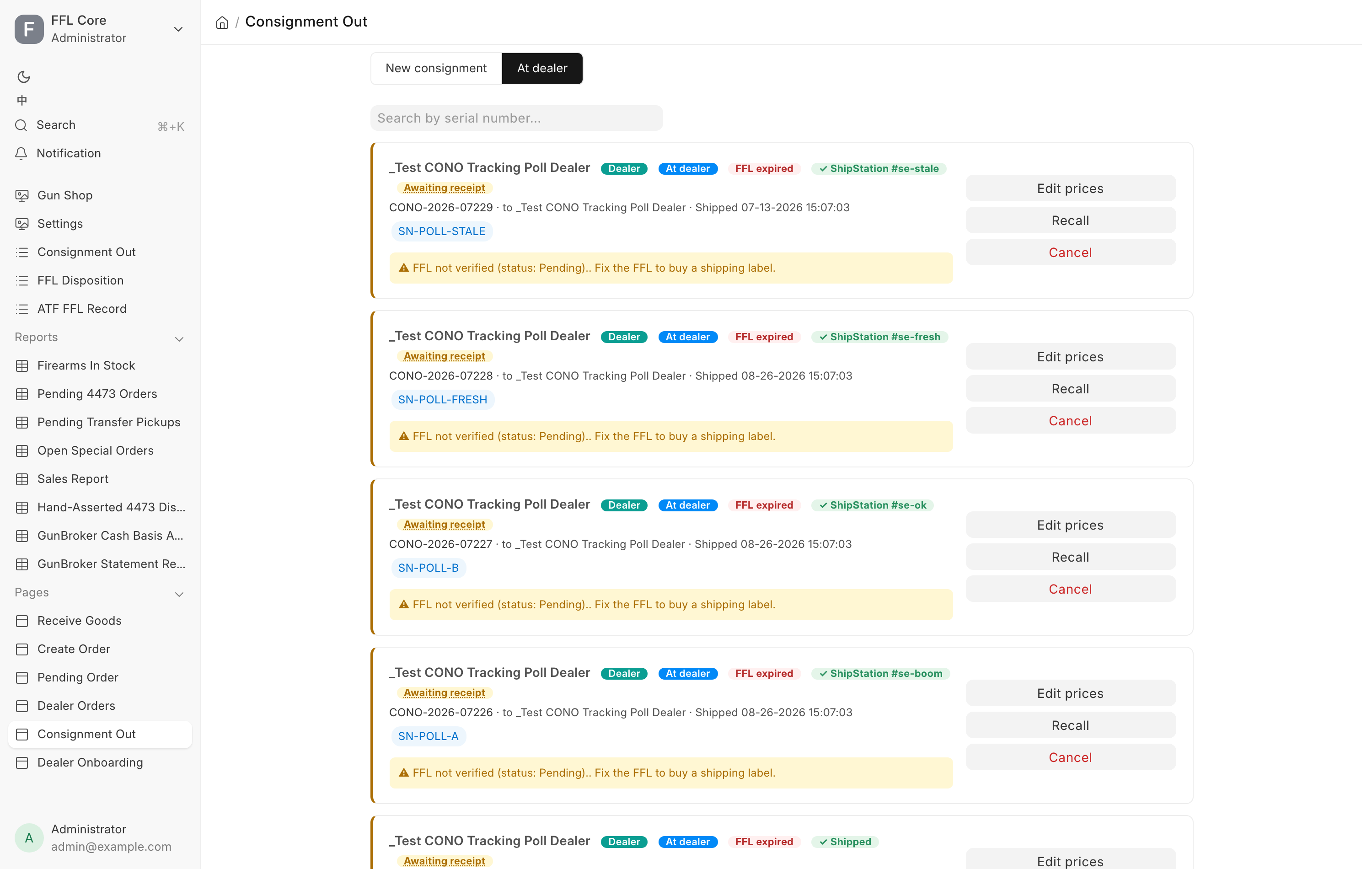
The page has two tabs. At dealer is the queue of everything not yet finished. New consignment is where you build one.
Building a shipment
- Under 1. Dealer, pick the partner FFL from the dropdown. A card appears under it with their FFL number and its expiry, an FFL valid or FFL invalid badge, and either Partner POS or No POS — you mark its sales.
- Under 2. Firearms, type or scan into Add Firearm. Search by item code or by serial number.
- Pick a serial from the list that appears. Each row shows the serial, the warehouse it is in, its dealer price and its MSRP. Greyed rows cannot be picked, and the reason is printed beside them. See the table below.
- The gun joins the list with Dealer Price and MSRP already filled in. Both are editable. Dealer Price is what the dealer will owe you when the gun sells, so check it. MSRP is a suggestion passed to the dealer, and can be left blank.
- Repeat for every gun. The running total at the bottom of the section is the total dealer price.
- Under 3. Fulfillment, choose one of two paths.
- Create only — dispose later is the default. The shipment joins the At dealer queue and the guns stay held for it until you dispose them.
- Dispose & ship now books the transfer immediately.
- Add a Consignment note (staff) if it helps whoever picks this up later. The note shows on the queue card.
- Click the primary button. It reads Save & queue on the create-only path and Review & ship on the dispose-now path. The line beside it tells you what is still missing.
Save draft saves and keeps you on the shipment so you can add more guns. The primary button clears the form for the next one.
Where the prices come from
Dealer Price is prefilled from the item's Cost field, or, for a gun priced individually rather than by model, from that serial's Dealer Sell Price. If it comes in blank or wrong, the field to fix is on the item or the serial, not the gun's acquisition cost. See the pricing section on the consignment overview. MSRP is prefilled from the gun's normal selling price.
Dealer Price must be greater than zero before you can dispose. Editing either price here changes this shipment only. The gun's own listing price is untouched.
Why a gun will not let you pick it
| Reason shown | What it means |
|---|---|
| Consignor-owned gun cannot be re-consigned. | The gun belongs to a private consignor. It can never go out to a partner dealer. |
| Already out on consignment. | It is already at a dealer. |
| Sitting in a consignment warehouse — flag out of sync, do not ship. | The record says it is free but it is in a consignment warehouse. Sort that out first. |
| Reserved by … order … | A web or marketplace buyer already has a claim on it. |
| Held by another order. | A counter order is holding it. |
Consignor-owned guns are blocked on purpose
A gun a private consignor left with you is someone else's property. If it went out to a partner dealer, the consignor's payout would be calculated off the wholesale settlement price instead of a retail sale, and they would be short-paid without anyone noticing. The block is enforced twice, in the picker and again at the moment of transfer.
Disposing
Dispose is the moment the gun legally changes hands. It is a separate confirm step whichever path you took.
- The confirm dialog names the dealer, the destination FFL and its expiry, every serial with its dealer price, and the total.
- Tick I've verified the FFL and serial number(s).
- Click Dispose.
What the system does
For each gun in the shipment:
- Moves the stock into that dealer's consignment warehouse, creating the warehouse the first time you ship to them.
- Books a Dealer Transfer disposition in the bound book and pushes it to FastBound.
- Marks the serial as out on consignment, which takes it off your web store.
You still own the guns. Nothing is invoiced until the dealer sells one.
For a dealer on our POS, the whole consignment is then pushed into their POS, where it appears on their Consignment In page. The push carries the guns, their dealer price and MSRP, and the tracking. It carries no customer data. It runs in the background after the transfer is saved, so a partner POS that is down never undoes a transfer already in the bound book.
If ShipStation is switched on, the system also tries to create the shipment there so you can buy a label. If that part fails, the dispose still stands and you can push the label from the queue afterwards.
An invalid FFL degrades instead of transferring. If the dealer's license is not valid at the moment you dispose, the system saves the shipment as a held draft and transfers nothing. The notice is titled "Saved as a draft — not transferred". The guns stay in your stock, nothing reaches the bound book, and the queue card carries a "Not transferred yet" warning. Fix the license, then press Dispose from the queue.
The At dealer queue
Every unfinished consignment appears here as a card, with the serials as pills you can read at a glance. The search box filters cards by serial number. Hover a pill to see when the dealer received that gun.
The badges on a card are the dealer's name, a Dealer tag, the status, the FFL health, the shipping state, the Partner POS state and the receipt state.
| Badge | Meaning |
|---|---|
| Draft | Built but not yet disposed. Nothing has transferred. |
| At dealer | Disposed. The guns are in the dealer's custody. |
| FFL valid / FFL expired | Whether you can transfer or buy a label right now |
| Awaiting label | ShipStation is on and this has not been pushed yet |
| ✓ ShipStation | Pushed, label not bought yet |
| ✓ Shipped | A label was bought. Click it for tracking. |
| ✓ Shipped (manual) | Marked shipped by hand, outside ShipStation |
| ShipStation voided | The shipment was cancelled there |
| Partner POS ✓ | The consignment is on the dealer's POS. Hover for when it was pushed. |
| Partner POS pending | The push is queued |
| Partner POS push failed | The dealer's POS refused or did not answer |
| Not on partner POS | Shipped before the dealer's POS was connected. Push it by hand. |
| Awaiting receipt | At least one gun is not received by the dealer yet |
| Received ✓ | The dealer has received every gun |
| Coming back (n) | The dealer sent guns back. Receive them when the box arrives. |
Click either receipt badge to see which guns are received and which are not. A line headed Partner POS: under the badges repeats the dealer's POS's own message when a push or a later change did not go through.
Every button on a card
Which buttons appear depends on the card's state.
| Button | When it appears | What it does |
|---|---|---|
| Dispose | The card still has draft lines | Books the transfer and the bound book entry. Described above. |
| Ship | Disposed, ShipStation is on, nothing pushed yet | Pushes the shipment to ShipStation so you can buy the label there. It does not dispose and does not touch the bound book. The dialog's button reads Push to ShipStation. |
| Mark Shipped (no ShipStation) | Disposed, ShipStation on, nothing pushed yet | Clears the ship step without a push. See Tracking. |
| Retry push | A Partner POS push failed | Queues the push again. The card shows the outcome a few seconds later. |
| Push to partner POS | A dealer on our POS, consignment not on their POS yet | Queues the push. |
| Edit | Draft, nothing disposed | Reopens the shipment on the build form so you can add or remove guns. |
| Edit prices | At least one gun is at the dealer | Change Dealer Price and MSRP per gun for this shipment only. Save with Save prices. |
| Receive back (n) | The dealer sent guns back | Books them back into stock. See Receive back. |
| Mark received (n) / Mark sold | A dealer without our POS | Records what the dealer told you. See A dealer without our POS. |
| Undo a sale | A dealer without our POS, a gun marked sold | Puts a sold gun back on the dealer's rack. |
| Recall | At least one gun is at the dealer | Brings guns back. Described below. |
| Cancel | Any open card | On a draft card, cancels the whole thing. On a card with guns at the dealer, opens the void dialog. |
Edit prices only touches guns that are still at the dealer and not yet invoiced. It rewrites this shipment's snapshot, and the settlement invoice reads that same snapshot, so the dealer is billed the number you leave here. It does not change the gun's own price on your item or serial records. For a dealer on our POS, the new prices are sent to their POS. Once their POS has received a gun, its price is locked: their POS booked its cost at that price, and the settlement must match it. A dealer without our POS keeps prices editable until the gun is invoiced.
A dealer on our POS
Their POS does the reporting. When they scan a gun in, it turns received here. When they sell one, it turns sold here and a settlement invoice is built for you on Dealer Orders. If their sale is cancelled or returned on their side, the gun goes back on their rack here too.
Every change you make after the dispose goes to their POS as well: the tracking number, price edits, a void and a recall. A background check every ten minutes re-sends anything still waiting, including a change their POS could not take while it was down. You only need Retry push when you do not want to wait.
Their POS can send guns back. The card then shows Coming back and the guns show an ↩ mark. Book them in with Receive back when the box arrives.
A dealer without our POS
You keep their side of the record. Ask the dealer to tell you when the box arrives and when they sell a gun.
When the box arrives:
- Click Mark received on their card. The dialog lists every gun not received yet, all ticked.
- Untick any gun they do not have yet.
- Click Mark received.
When they sell a gun:
- Click Mark sold.
- Pick the gun in Which gun. With only one gun at the dealer it is already picked.
- Type the price into They sold it for (optional) if they told you. It is for your records only. They are invoiced the dealer price whatever they sold it for.
- Click Mark sold. The message reads "Marked sold — the invoice to … is being booked." The invoice appears on Dealer Orders.
A gun marked sold that was not marked received is marked received with it.
When a sale was marked by mistake, or fell through:
- Click Undo a sale.
- Pick the gun in Which gun.
- Click Undo sale. The gun goes back on the dealer's rack. An unpaid invoice is cancelled. A paid one gets a credit note.
A card whose last gun was marked sold stays in the queue for 14 days, so a mistaken sale can still be undone.
Tracking
When you push a shipment to ShipStation and buy the label, the tracking finds its way back without anyone typing it.
- A background job checks ShipStation every ten minutes for shipments still waiting on a label.
- As soon as a label exists, the tracking number, the carrier and the tracking link are written onto the consignment, and its badge turns ✓ Shipped.
- That shipment stops being checked.
- A shipment still waiting after 30 days drops out of the checks so it cannot spin forever.
The card then shows the carrier, the number and a Track ↗ link. For a dealer on our POS, the tracking is also sent to their POS.
Use Mark Shipped (no ShipStation) when you bought the label somewhere else, or when a shipment aged out of the automatic checks. Type a Tracking number (optional) and a free-text Carrier (optional), then click Mark shipped. You can also add a number later to a shipment you already marked shipped.
Recall
Recall brings guns physically back from the dealer.
- Click Recall on the queue card. You can also open the shipment read only
at
/app/osa-ship-consignment/<shipment name>, tick guns there, and use Recall selected. - Tick the guns to bring back. Only guns still at the dealer can be recalled. Guns the dealer sent back are already ticked. A gun their POS still holds is greyed out with "still on the dealer's POS; they send it back first".
- Leave Target warehouse (optional) blank to use your main warehouse, or pick a different one.
- Tick I understand this recalls the selected firearm(s) and click Recall.
Do it when the guns are in your hands. The stock moves back, and the system books an Acquisition in the bound book and pushes it to FastBound. The gun really did come back into your inventory, so that entry is correct and permanent.
For a dealer on our POS, a gun their POS has received comes back only after they send it back from their side. Until then the server refuses with "Not sent back yet". A gun they have not received yet can be recalled at any time, and their POS is told it is not coming.
Receive back
When a dealer on our POS sends guns back, the card shows Coming back (n) and a Receive back (n) button.
- Click Receive back when the box arrives. The dialog, titled "Receive back from …", lists the guns with their return tracking, all ticked.
- Untick any gun that is not in the box.
- Click Receive back.
The rest go back into your stock and bound book, exactly as a recall does.
Void a line
Void is for a ship that should never have happened. The gun never left your store, and you are undoing the paperwork.
From the queue, click Cancel on a card whose guns are at the dealer. Tick the guns to void, type a Reason, tick the confirmation and click Void selected. You can void several guns at once this way. A gun the dealer has received is greyed out with "the dealer received it: recall it instead". It did leave your store.
One gun at a time, go to /app/osa-ship-consignment/<shipment name>. That opens
the shipment read only, one row per gun, with a Void line button on each row.
A void cancels the gun's disposition and its stock transfer, deletes the FastBound disposition, and returns the gun to stock. Voiding requires a written reason, which is kept as the audit trail.
Void only when the gun never left the building
Void deletes a bound book entry. If the firearm actually was transferred to the dealer, that entry is a true federal record and must stand. Use Recall to bring the gun back instead, which books a matching acquisition. A gun whose settlement invoice already exists cannot be voided at all. The row shows a disabled Void line button and the note "Already invoiced — cancel the invoice instead."
Cancel a whole consignment
Only a draft can be cancelled whole, because a draft never touched stock or the bound book. Click Cancel on a draft card, type a Cancellation reason, tick the confirmation and click Cancel consignment. Every gun is released back to open stock and relisted on the web, and the cancelled record is kept as the audit trail.
A shipment that has already been disposed cannot be cancelled this way. Void or recall its lines individually.
The shipment record
Clicking a shipment's name anywhere on the page opens its record at
/app/osa-consignment-out/<shipment name>. It holds the whole history: the
dealer, the destination FFL, the warehouse, the shipping and tracking fields,
the Partner POS push state, the staff note, and every gun with its status,
prices, receipt stamps, stock entries, dispositions and settlement invoice.
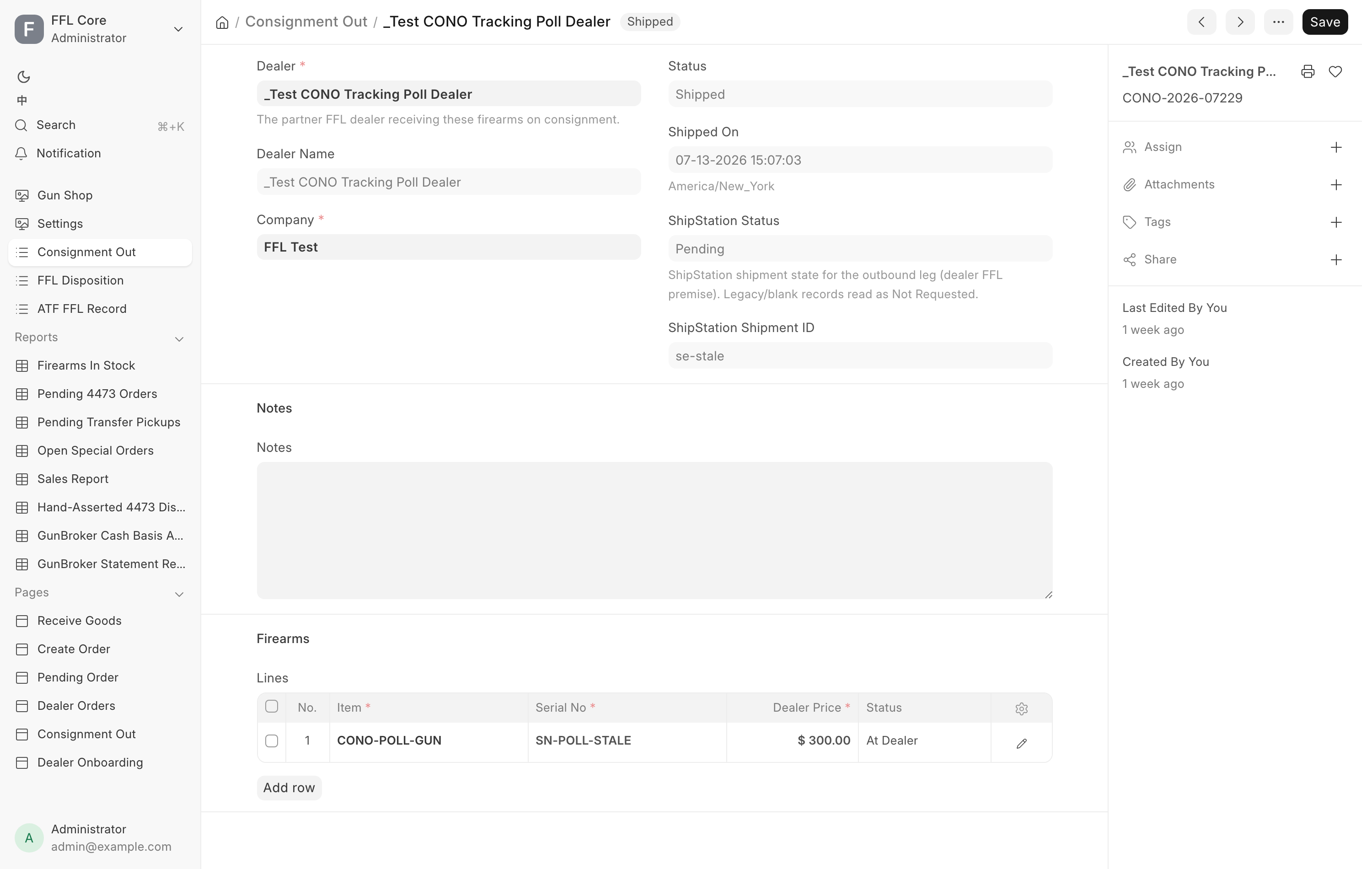
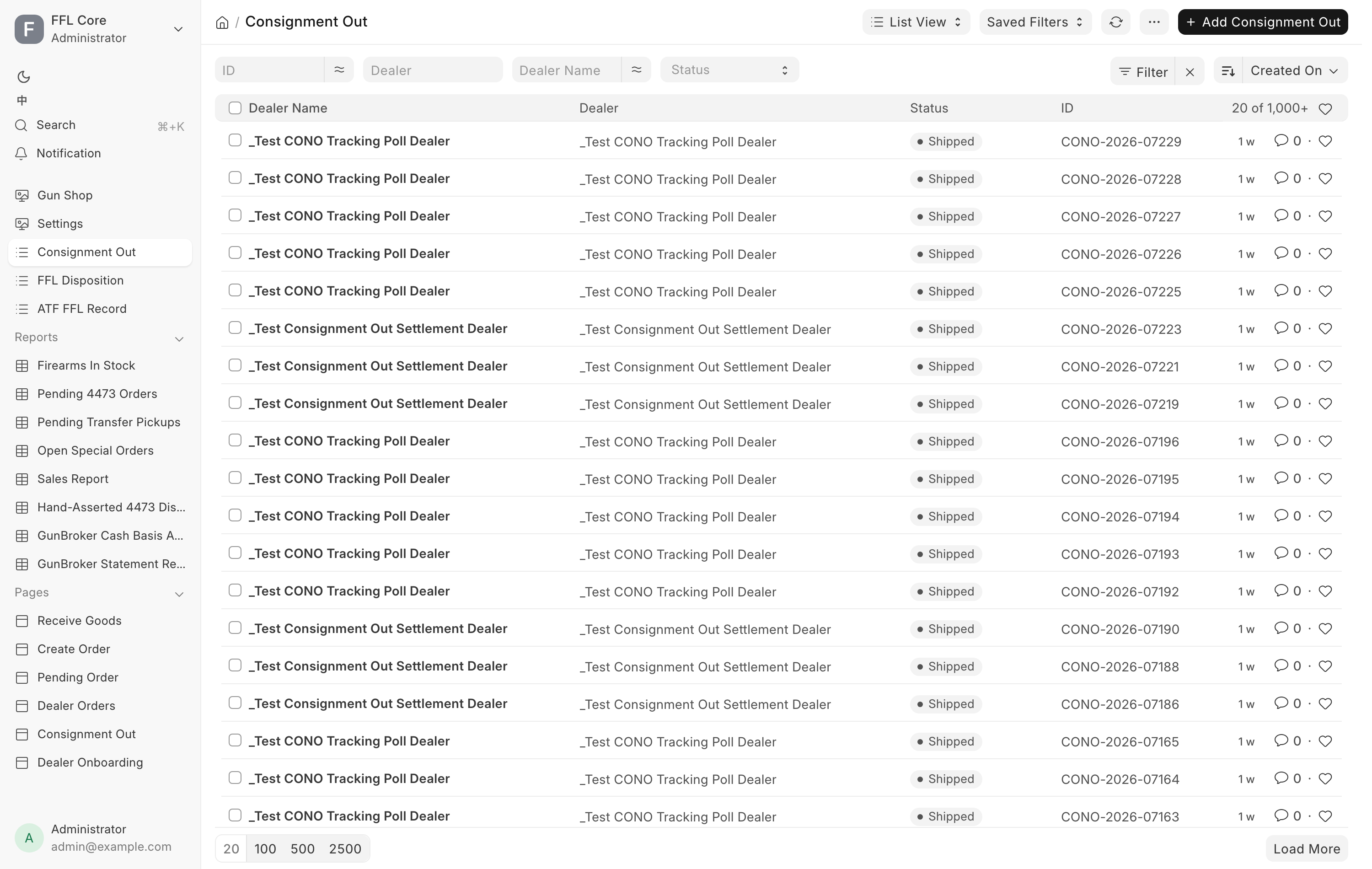
You can also browse them all as a list at /app/osa-consignment-out.
Troubleshooting
| Message you see | What it means | Fix |
|---|---|---|
| Dealer price must be greater than 0. | A gun has no settlement price | Type one, or fix the item's Cost field and re-add the gun. |
| Verify the FFL, then Dispose. | The dealer's license is not currently valid | Verify or renew it. See Verifying an FFL. |
| Saved as a draft — not transferred | You disposed against an invalid FFL | Fix the license, open At dealer and press Dispose. |
| FFL expired — fix it to buy a label. | You cannot push to ShipStation right now | Renew the license, or use Mark Shipped (no ShipStation). |
| Partner POS push failed | The dealer's POS refused or was down | Read the Partner POS: line, then Retry push. The ten-minute check also retries. |
| Serial … has been received by the dealer — its cost is booked on their side and can no longer be edited. | You edited the price of a gun their POS received | Leave the price. It must match what their POS booked. |
| Not sent back yet | You tried to recall a gun their POS still holds | Ask them to click Send back on their Consignment In page, then Receive back. |
| … already received …, so it can't be voided. | You tried to void a gun that reached the dealer | Recall it, or have them send it back. |
| … reports its receipts and sales from its own POS; they are not marked here. | You tried to mark a sale for a dealer on our POS | Nothing to do. Their POS reports it. |
| Already invoiced — cancel the invoice instead. | The gun sold and was billed | Cancel the settlement invoice. See Settlement and payout. |
| … is not a Draft consignment | You tried to cancel something already disposed | Void the at-dealer lines individually. |