Counting the shop
Stock staff use the Inventory Count page to walk the shop with a scanner and compare what is on the shelves with what the system says. A stock manager then finishes the count: quantities of ammo and accessories are corrected in one step, and any firearm that is missing or out of place is reported for a person to look into.
Before you start
- Open the page from the Gun Shop sidebar: Inventory → Inventory count. The page title is Inventory Count.
- Stock User, Stock Manager and System Manager can open the page, start a count and scan into it. Counter accounts (Sales User, Sales Manager) cannot open it.
- Only a Stock Manager or System Manager can finish a count (Finalize Count) or cancel one.
- A firearm is counted by scanning its FastBound label. The label's barcode is the gun's serial number, so scanning it finds the gun. You can also type the serial number into the scan box.
- A non-serialized item (ammo, optics, accessories) is counted by scanning its UPC. Each scan adds 1. An item with no barcode can be typed in instead.
- Several people can scan into the same count at once, from different devices. Every scan is saved the moment it is made, and each screen picks up the others' scans every few seconds. A count can be left open and picked up another day.
- You can keep selling while you count. When you finish, sales and receipts made after an item was scanned are allowed for. Close the register before you finish, though: an item with a register sale that is not closed yet cannot be adjusted (see Troubleshooting).
Start a count
- Click New Count. The page lists earlier counts below it, newest first, with Continue on an open count and View on a finished or cancelled one.
- In Warehouses, pick the warehouses to count. Leave it empty to count the whole store.
- In Item groups, pick the groups to count, for example only ammunition. Leave it empty to count every item group. A group includes the groups under it.
- Leave Include guns held for customers ticked to count guns held for pickup too. Untick it to leave them out.
- Click Start Counting.
Anything outside the warehouses and groups you picked never shows up as a difference. Transit, consignment and disabled warehouses cannot be counted.
Scan the shop
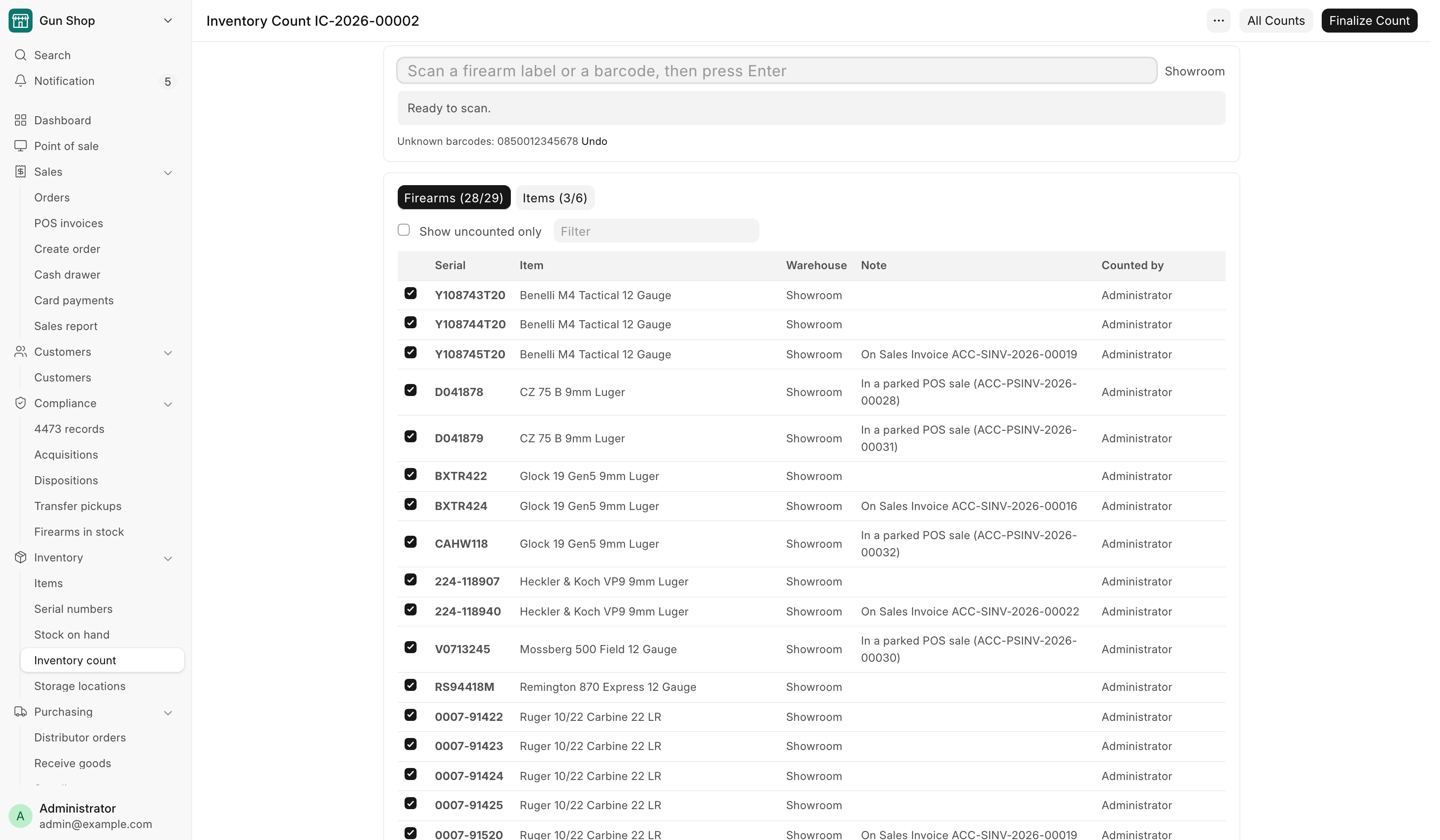
- Click in the box that reads "Scan a firearm label or a barcode, then press Enter".
- If the count covers more than one warehouse, pick the warehouse you are standing in from the list next to the scan box. Barcode scans are counted into that warehouse.
- Scan each firearm label and each product barcode. The bar under the scan box says what happened, for example "Counted {serial}." or "{item}: 3 counted."
- For a gun whose label will not scan, open the Firearms tab and tick its row by hand. The Counted by column then shows "(by hand)".
- For a case of 50 or a damaged label, open the Items tab and type the number you found in Type a quantity. A typed number replaces the count for that item. Scanning still adds 1.
- For an item with no barcode that the list does not show, pick it in the box that reads "Item with no barcode or stock", type the Qty, and click Add item.
- To take back a mistake, click Undo last on the item's row, or Undo next to an unknown barcode. Only the person who made a scan, or a Stock Manager, can remove it.
The two tabs show your progress:
| Tab | What it lists |
|---|---|
| Firearms (found/expected) | Every gun the system expects on the shelf: Serial, Item, Warehouse, Note, Counted by. A gun scanned but not on the list goes at the bottom, marked "Not on the shelf list". |
| Items (counted/total) | Each item per warehouse: Item, UPC, System, Counted, Type a quantity. A badge reads OK, Short or Over. |
Tick Show uncounted only to see what still has to be walked to. Type in Filter to find a serial, model or item.
The Note column says why a gun on the list may not be on the shelf, for example "Customer's gun (held for pickup)" or "On an open counter order". If your role can see orders, a held gun names its order instead, such as "On Sales Invoice …" or "In a parked POS sale (…)".
Finish the count
A Stock Manager or System Manager does this.
- Click Finalize Count. Scanning stops while the dialog is open. Close the dialog without finishing and scanning starts again.
- Read Firearms — reported only, nothing is changed. It lists the guns Missing from the shelf, the guns Scanned but not expected and any Unknown barcodes. Click Print firearm report for a paper copy.
- Check Items to adjust. Each row shows System, Counted, Sold/received since, Adjust to and Change. Untick any row you do not want adjusted.
- Check Never scanned. These items are on the books but nobody scanned them. They are left alone unless you tick them, which sets them to 0. Set all to 0 ticks them all.
- Read Cannot be adjusted here, if it appears. Fix those items, then adjust them by hand.
- Click Adjust N items and finish. When nothing is ticked, the button reads Finish count.
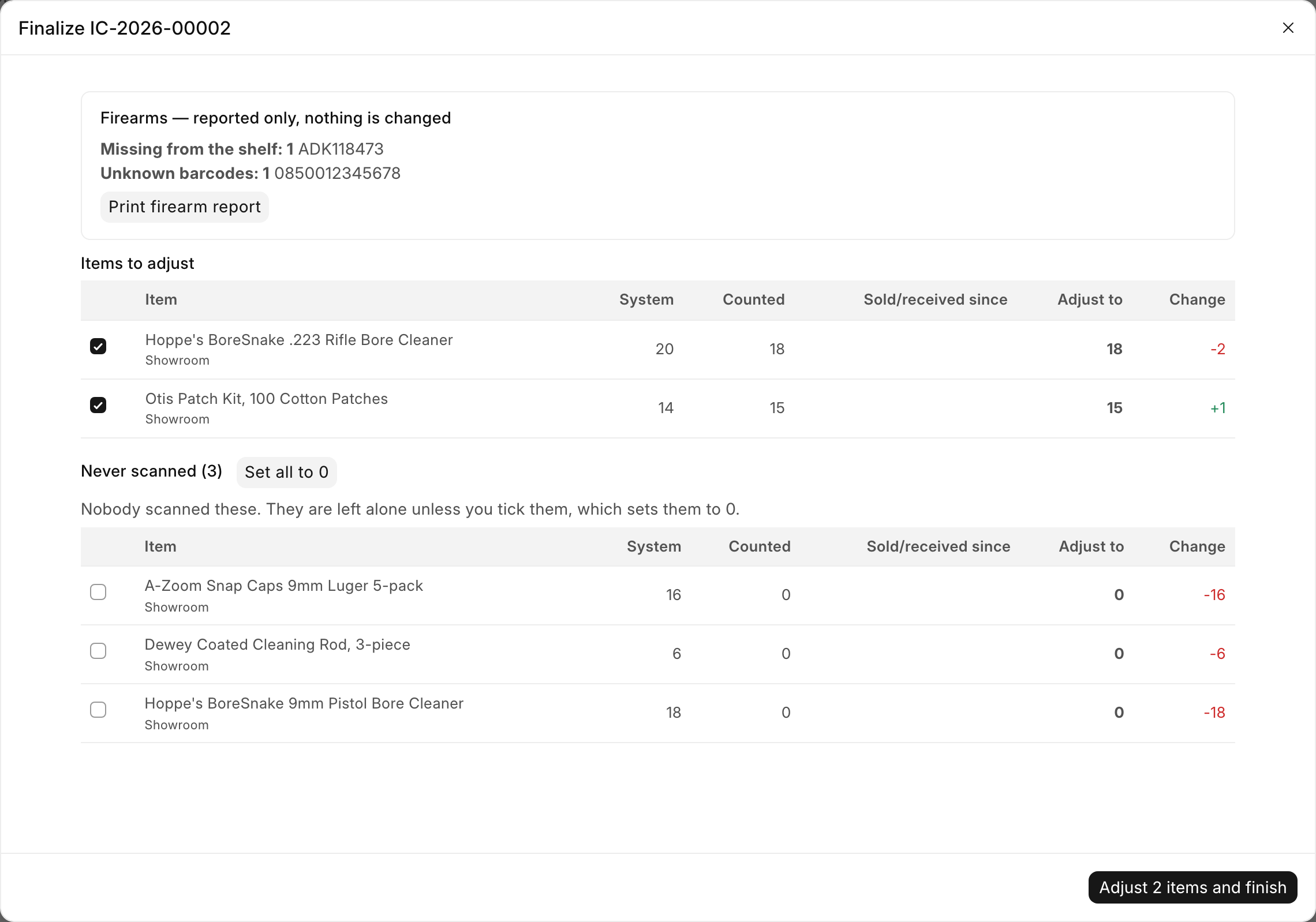
A count that only scanned firearms finishes with the firearm report alone. No quantities change.
When it is done, a message reads "Stock Reconciliation {name} posted." and "Firearms were not changed — check the firearm report for anything missing." Open the count again from All Counts at any time to see the result and the Firearm report.
A missing firearm needs a person
The count never changes a firearm's record. A gun on the Missing from the shelf list may need an ATF theft or loss report. Find out what happened to it before you change anything in the bound book.
Cancel a count
A Stock Manager or System Manager can cancel an open count, for a wrong start or an abandoned walk-through. Open the count, open the page menu, and click Cancel this count. Nothing is adjusted, and the scans are kept for the record.
What the system does
- Every scan is its own record. Several devices can scan at once without overwriting each other.
- Non-serialized items are corrected in one step. Finishing posts one Stock Reconciliation for the ticked rows, dated the moment you finish. It sets each item to what was counted plus anything sold or received after it was scanned.
- Firearms are reported, never adjusted. No firearm goes into the reconciliation, no disposition is created, and FastBound is not called.
- The firearm report is saved with the count. It can be reopened and printed later.
For a one-off fix to a single item, use Adjust Quantity on the item instead. See Fixing mistakes.
Troubleshooting
| Message you see | What it means | Fix |
|---|---|---|
| "{code} is not a serial number or barcode the system knows. It is saved in the report; if it is a product, add its barcode to the item." | The barcode is not on any item or gun. | Add the barcode to the item, or click Undo next to it. |
| "{serial} was counted, but it should not be here: {reason}." | The gun was scanned but the system does not expect it on this shelf. | Check the reason. It shows on the firearm report. |
| "{serial} is already counted." | Someone already scanned this gun. | Nothing to do. |
| "{item} cannot be counted here: it is tracked by serial number — scan the serial on the item itself" | You scanned a product barcode of a serialized item. | Scan the gun's own label. |
| "{item} is in {group}, which is not part of this count." | The item is outside the item groups you picked. | Count it in another count. |
| "{name} added that, so only they or a Stock Manager can remove it." | You tried to undo someone else's scan. | Ask them or a Stock Manager. |
| "{n} register sales from {date} are not closed yet (items: …). Close the register — or wait for the nightly close at 11 PM — then finalize." | Those sales have not left the stock yet, so the figures would be off. | Close the register, or untick those items. |
| "Nothing has been counted yet. Scan something first — finalizing an empty count would write every item off to zero." | The count has no scans. | Scan first, or cancel the count. |
| "no cost on file — set the item's valuation rate, then adjust by hand" | You counted more than the books show and the item has no cost. | Set the item's cost, then adjust it by hand. |
| "The stock period is frozen through {date}; a stock count adjustment dated {date} cannot be posted." | The books are closed for that period. | Ask the bookkeeper. |
| "A scan did not save. The list has been reloaded — check it, then press Finalize again." | A scan failed on the way to the server. | Check the list, then click Finalize Count again. |
| "{count} is finalized, so nothing more can be scanned into it. Start a new count to keep going." (or "is cancelled") | The count was finished or cancelled on another device. | Start a new count. |