FFL Settings
The store's own compliance configuration: who we are, how 4473s are handled, how
customer ID numbers are kept, and how other FFLs get verified. System Manager
only. Open it from the FFL & Compliance card on the
Settings workspace, or at /app/ffl-settings.
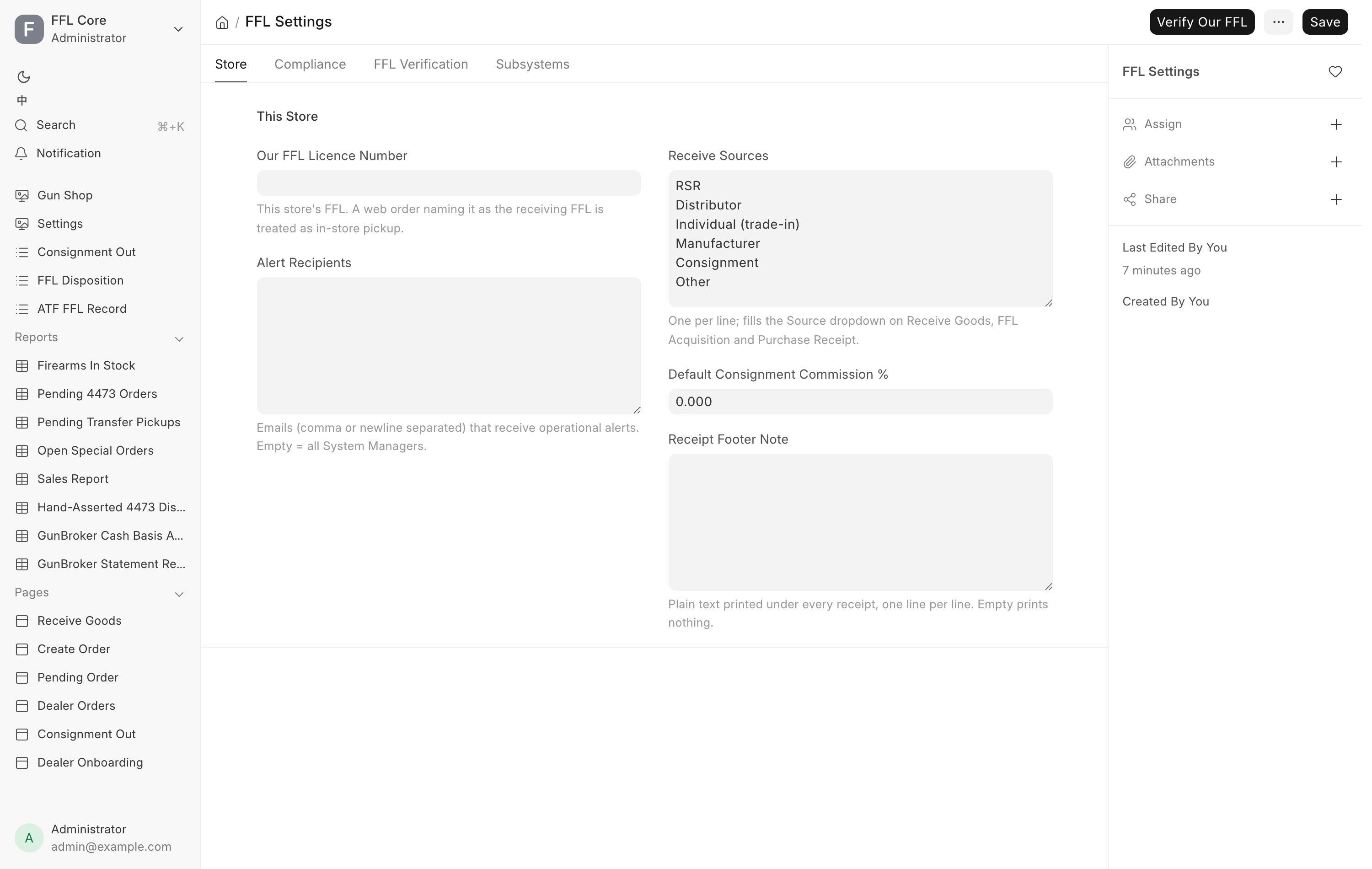
These fields change how the counter behaves
Paper 4473 Mode and the Dealer Portal switch change what staff see on the register and on the Item and Serial No forms. They take effect on the next page load. Save once, then reload any open till.
Store
Our FFL Licence Number. This store's own FFL. A web order that names it as the receiving FFL is an in-store pickup rather than a shipment: the buyer collects at the counter and completes a 4473 here, so the system refuses to book a transfer to ourselves. Leave it blank and nothing changes.
Alert Recipients. Emails that receive operational alerts, separated by commas or new lines. Leave it empty and every System Manager gets them instead. This is where sync failures, stuck-record digests and the daily overdue-orders email land. See Background jobs.
Receive Sources. One source per line. It fills the Source dropdown on Receive Goods, on the FFL Acquisition form and on Purchase Receipt. The default list is RSR, Distributor, Individual (trade-in), Manufacturer, Consignment, Other. Edits take effect the next time a form is refreshed. No restart is needed.
Default Consignment Commission %. The commission rate used for a gun taken in on consignment when its serial does not carry its own, 20% out of the box. Each Serial No holds the rate actually agreed for that gun, so change this only to move the starting point for new stock.
Pending Order overdue after (days). 7 by default. A queue row older than this is marked overdue on the Pending Order queue. Once a day, the counter orders that are blocked or older than this go out in one email, "Pending orders needing attention", to the Alert Recipients. No email is sent on a day with nothing stuck.
Receipt Footer Note. Store policy printed under every receipt, one line per line. Empty prints nothing, because a returns policy is each store's own call. Plain text only. It goes into the receipt without escaping, so angle brackets and ampersands would be read as markup.
Shipping Price Includes Sales Tax. On by default. When an order is taxed, the shipping you enter is what the customer pays, with the sales tax already inside it, and the receipt says "sales tax included". Off: sales tax is added on top of the shipping. It affects new orders only. An existing order keeps the way it was created. See Build and ship an order.
Peace-Officer Exempt Tax Account. California stores only. The account the 11% firearm and ammunition excise tax is booked to. Once it is set, Create Order and the register offer the peace-officer exemption, which takes that tax off a sale and keeps sales tax (see Build and ship an order). Leave it blank and nothing is offered. A store whose company address is not in California cannot set it.
Compliance
Paper 4473 Mode. Tick this when 4473s and background checks are handled outside this system, on paper and by phone or the FBI portal. This is the normal setup once FastBound is switched off. At the counter the FastBound 4473 button is replaced by Record Paper 4473. Confirming that button books this order's bound book disposition for every gun on the ticket, stamped with who ticked it and when, and the sale can then complete. The recordkeeping duty does not change: the paper 4473 must still be filled in and filed exactly as before. This setting only tells the register not to wait for FastBound. It takes effect on the next page load, so reload any till that is already open or it keeps acting on the old setting. Everything recorded this way appears on the Hand-Asserted 4473 Dispositions report, and the sale's 4473 shows on 4473 records with the source Paper / override.
Transfer Fee Item. The service item charged for a customer transfer-in 4473.
It is non-firearm and non-stock. The system creates that item, TRANSFER-FEE,
the first time a transfer is started, but deliberately leaves this field blank:
left empty, the register falls back to TRANSFER-FEE. Fill it in only to charge
a different item.
Default Transfer Fee. The per-firearm fee added automatically to a Transfer ticket at the register, $25 out of the box. It stays editable on the individual sale. See Customer transfers.
Store Customer ID Numbers. In the Customer Records section, off by default. Tick it to keep ID numbers and dates of birth on customer records. See Customers.
Turning Store Customer ID Numbers off erases data
Unticking it and saving erases every stored ID number and date of birth from customer records. Before it saves, the form asks: "Turning this off erases N stored ID number(s) and date(s) of birth. Attached ID copies, change history and deleted records are kept. Continue?" No puts the tick back. The erase cannot be undone. A comment on FFL Settings records who did it and how many were erased.
Require Agreements at Sale. In the Sale Agreements section, on by default. While it is on, a sale at the register or a counter Sales Invoice cannot be submitted until the customer has signed the agreements its items need, and a counter order's Dispose waits for them (see Pending Order). Turn it off and agreements are only offered: nothing is marked required, nothing blocks, and Create Order emails nothing. Sending an agreement by hand, the signing page, paper copies and gunsmith intake authorizations work either way.
Used Item Agreement. The agreement every Item marked Used needs, unless the Item or its Item Group names its own. Leave it empty to turn this off. Shown only while Require Agreements at Sale is on.
When one sale holds several used guns, the customer signs one copy that lists every gun, if the agreement's Signed field is Each firearm sold. To ask for a separate signed copy per gun, open the agreement under Customers → Agreement templates and tick One copy per gun. It is off by default.
FFL Verification
This tab controls how another dealer's license gets checked against the ATF eZ Check service.
Provider. Where a live verification is looked up. Three choices:
| Provider | Behavior |
|---|---|
| ATF Form Scraper | The default. Queries the ATF eZ Check form directly. |
| Data Service | Uses the connection on Data Service Settings. |
| Manual Only | Disables live verification entirely. |
Rate Limit (req/hr). The most ATF Form Scraper requests to make in an hour, 30 by default.
Cache TTL (minutes). How long a verification result is reused before it is looked up again, 1440 minutes by default, which is one day.
The Verify Our FFL button sits on the toolbar and runs the configured provider against this store's own license number. It is the form's connection test. A success shows a green message with the licensee name and the expiry date. A failure shows an orange dialog, "FFL verification did not succeed", with the status or the error. The button only appears when the integrations app is installed.
See FFL verification for how other dealers get verified in day-to-day work.
Subsystems
Dealer Portal. The switch for a second, wholesale WooCommerce storefront for licensed dealers, on by default. Old Steel Arsenal no longer runs that storefront. Untick it and the Dealer Portal buttons leave the Item and Serial No forms, nothing is pushed to or pulled from that store, and any webhook it still delivers is acknowledged and ignored. The retail store is unaffected. This is unrelated to selling a gun to a licensed dealer at the counter, which is also unaffected.
Consignment is no longer switched here. It is the OSA Consignment extension, turned on and off on the Extensions page, and its Contact Email is on OSA Consignment Settings. See Consignment.