Point of Sale
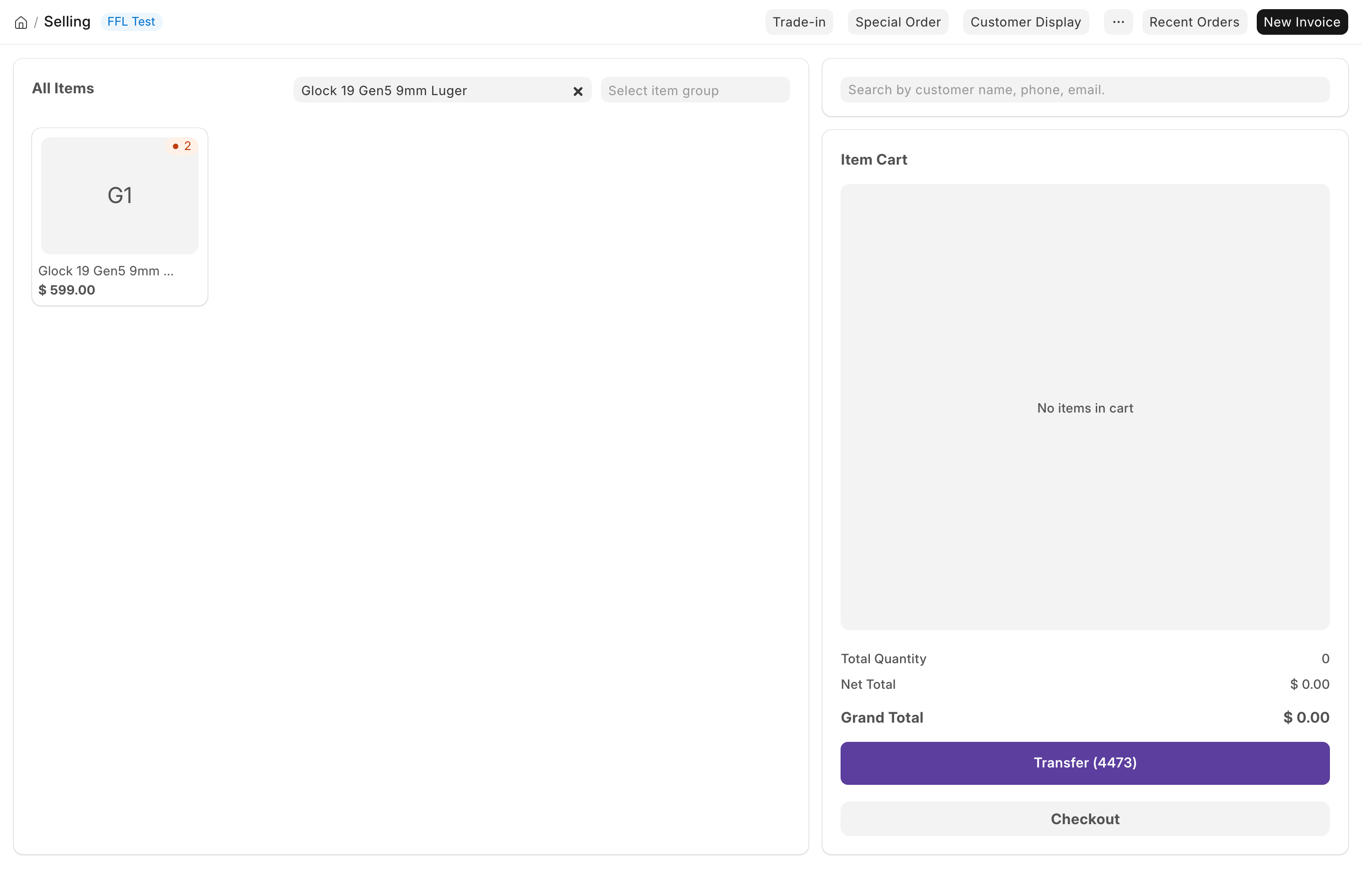
The register. Counter staff use this for every walk-in sale. Open it from
Point of sale in the sidebar, the Open POS button on the
Dashboard, or at /app/point-of-sale.
Before you start
- You need Sales User or Sales Manager. The register is ERPNext's own page and also opens for Accounts User and Accounts Manager. See Who can do what.
- A shift has to be open on the register. If none is, the system asks you to open one, and that is the first section below.
- Running a Form 4473 needs a narrower role than ringing a sale. An Accounts User can open the register but cannot run a 4473.
Opening a shift
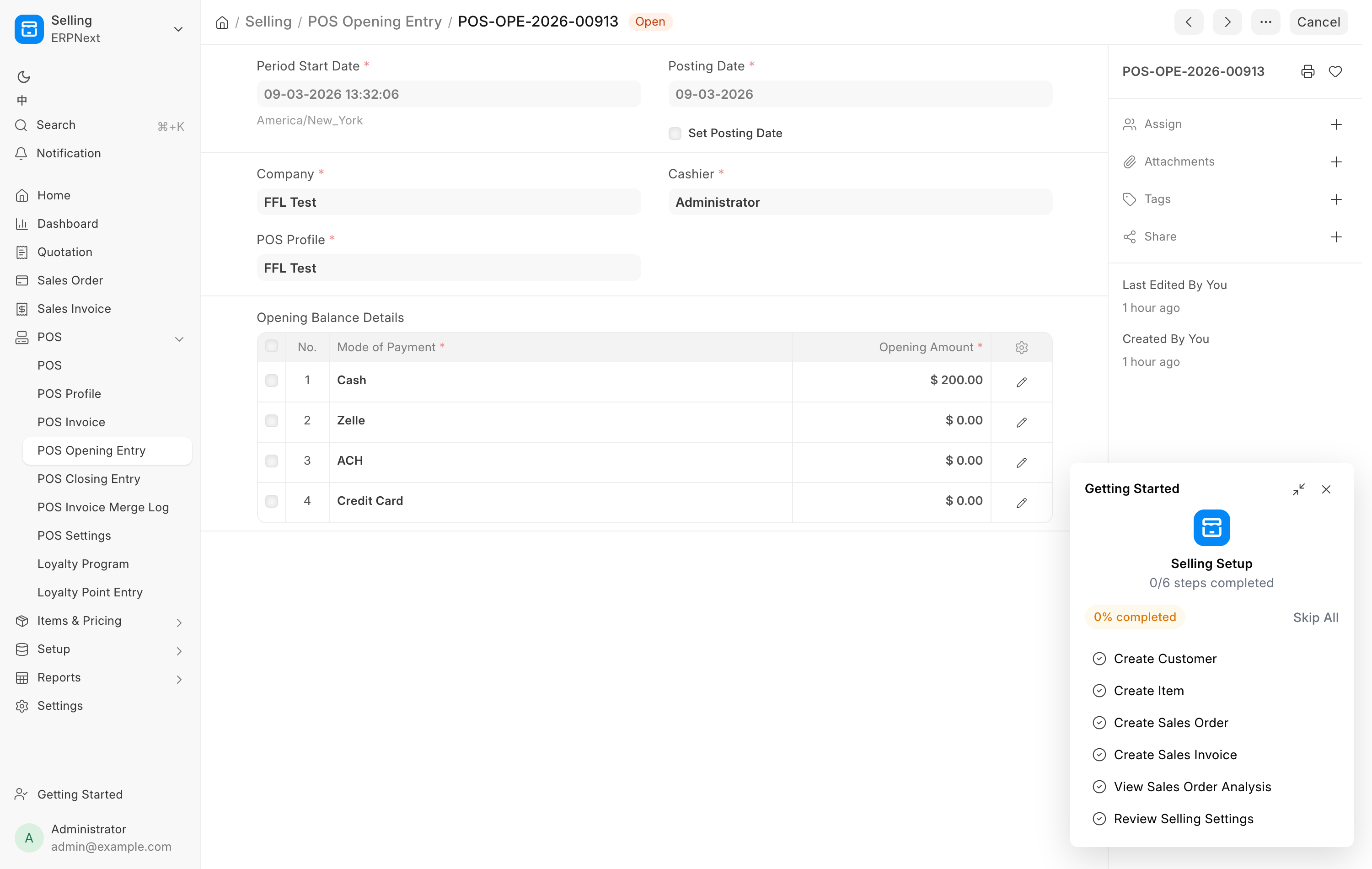
When you open the register and no shift is running, the Create POS Opening Entry dialog appears.
- Check Company.
- Pick the POS Profile for this register.
- In Opening Balance Details, enter an Opening Amount for each mode of payment, or leave them at zero. The drawer's opening figure comes from the last count on the Cash Drawer page, not from here.
- Click Submit.
That creates a POS Opening Entry and the register opens. Everyone else working the counter joins the same shift rather than opening a second one. See Opening and closing the day.
Ringing up non-firearm items
- Scan the barcode, or type part of the name into the item search and click the product card.
- The line lands in the cart on the right. Click the line to change quantity or price in the Item Details panel.
- For an item kept in a storage location, Taken from appears at the top of Item Details. When the item sits in one place only, the register has already picked it. Otherwise it starts on — pick where it came from — with an orange border: pick the location you took it from.
- Pick the customer at the top of the cart. A walk-in can stay on the default customer unless you need the sale on their record. To add a new one, see Customers.
- Click Checkout.
Taken from never blocks a sale. Leave it unpicked and the units show up on the Not placed list of Storage locations for someone to confirm later. Not in a location is for stock that was never put away.
Ammunition, optics, holsters and cases have no 4473 and no bound-book entry. They post to stock when someone clicks Close the day on the Cash Drawer page, or at the nightly close, rather than at the moment of sale. That is normal, and Opening and closing the day explains it.
Units held for a web order
An accessory a paid web order is waiting on is not the counter's to sell. If the sale would take units that web customers have already paid for, completing it is refused with Held for a web order, naming the item and the web order numbers. Ship those units to the web customer, or ask a manager: a Sales Manager or System Manager can ring the sale, and the invoice notes it.
The extra buttons
These buttons sit in the page toolbar at the top of the register, to the left of Recent Orders:
| Button | What it does |
|---|---|
| Trade-in | Books a gun the customer is trading in and puts the allowance on the ticket. See Trade-ins. |
| LE Exempt | California stores only: takes the 11% excise tax off a sale to a peace officer or their agency. See below. |
| Customer Display | Opens the customer-facing screen. |
An extension your store has switched on can add its own buttons after these two. To order something for a customer and take a deposit, use Create Order.
Customer Display opens a second browser window that mirrors the cart for the customer to read: the items, the totals and the payment stage. Put it on the second monitor and leave it open. It follows the cart on its own, so there is nothing to press again during a sale. If nothing opens, the browser blocked the popup. Allow popups for this site and click Customer Display again.
Peace-officer excise exemption (California)
An active or retired peace officer, or the law enforcement agency that employs one, pays no California excise tax on firearms, precursor parts and ammunition. Sales tax is still charged. The button appears only in a California store whose FFL Settings name the excise tax account.
- Pick the customer on the ticket first. The certificate is kept on their record.
- Click LE Exempt. In the dialog pick the Exempt buyer and click Upload CDTFA-230-FET to attach their certificate.
- Click Apply exemption. The excise line leaves the cart and the button reads LE Exempt ✓.
To undo it, click LE Exempt ✓ and then Remove exemption. The excise comes back. The ticket cannot be saved with the exemption on and no certificate, or with a certificate that belongs to a different customer.
One more button, purple and labeled Transfer (4473), sits on the cart above Checkout. That one is for a customer's own gun arriving from another dealer. See Customer transfers.
Picking the gun: the serial picker
Most guns in this store are priced per unit, not per model. Two used rifles of the same model can carry different prices, because the price lives on the individual Serial No record rather than on the Item.
That changes how you add one to a cart:
- The product card for a per-gun priced firearm shows a price range, for
example
$549.00 – $799.00, instead of one price. - Click it. The line goes into the cart and the Item Details panel opens by itself with the serial numbers listed above the serial field. Each entry shows the serial and that gun's own price.
- Pick the gun you have physically taken off the rack. The cart line reprices to that gun's price.
The dropdown starts on — pick in-stock serial — with an orange border and the reminder that per-gun pricing needs a serial to price the line. It picks for you in only two cases: the item is uniform priced, so every unit costs the same, or there is exactly one unit in stock.
Pick the gun you are actually handing over
The serial you choose is the serial that goes on the 4473 and out of the bound book. Scanning the barcode on the gun itself is the reliable way to get it right.
If you try to check out with a per-gun firearm line that has no serial, or whose price is still zero, the register stops you with Pick the gun and names the item. Open the line, pick the serial, and check out again.
Held and draft orders
An order that cannot finish yet becomes a Draft and waits. That happens for firearm sales parked for a 4473 or a background check, for transfers, and for a deposit invoice nobody collected.
To come back to one, click Recent Orders in the toolbar and set the status filter to Draft. Open the order and carry on where you left off.
Each draft in the list carries small labels, so you can see where it stands before you open it. Clicking a draft shows the same labels in the summary on the right, where the paid figure is replaced by the confirmed one.
| Label | What it means |
|---|---|
| Not paid | No money the POS can confirm is on this order yet. |
| Paid $500.00 of $1,000.00 | Part of the order is paid, for example a card deposit. The rest is still owed. |
| Paid | The order is paid in full, card charges or the payment recorded when the order was held. On a pickup ticket it means the order behind the ticket is paid. |
| Deposit $200.00 · $450.00 due | A pickup ticket whose order took a deposit. The figure due is what the register collects at hand-over. |
| Unpaid · $650.00 due | A pickup ticket whose order has nothing paid yet. |
| Card in progress | A card charge is still open on the terminal. Wait for it to finish or cancel it before you do anything else. If an earlier card on a split payment already went through, the label also shows what it took, for example Card in progress · Paid $712.25 of $3,084.04. |
| Cash $50.00 entered · not confirmed | A cash, Zelle or other amount was typed into the payment lines, but the order was never completed or held. The register fills in the total when the payment screen opens, so this amount may never have been collected. Count the drawer before you rely on it. |
| 4473 not started | The order has a firearm and no 4473 has been started. |
| Awaiting 4473 | A 4473 is under way but has not cleared: it is still open, or the background check came back delayed, denied or cancelled. |
| 4473 Complete | The 4473 is done and the background check said proceed. |
| Record Paper 4473 / 4473 Recorded | The store records paper 4473s: not recorded yet, or recorded. |
| 4473 Not Configured | Neither FastBound nor paper 4473 mode is switched on. Ask a manager. |
An order without a firearm has no 4473 label. The labels show the order as it was when the list loaded; if a 4473 finishes while the list is open, refresh it.
Money already taken is kept
A firearm order can be paid before the 4473 clears, so a held draft may already carry a card capture or a cash and Zelle split. When you reopen it, the system keeps that recorded tender instead of resetting the payment lines to the register's defaults. You do not re-enter the payment, and you must not charge the card a second time.
Pickup tickets
A pickup ticket is a $0 POS draft that hands over a gun somebody already bought on a counter order: a Pickup in store order on Create Order whose gun was ordered from a distributor to the store, or a web order the buyer placed against your own license. The money lives on that order, not on the ticket, so the ticket's own total is zero.
A ticket appears in Recent Orders on its own when the gun is received and a shift is open on the register. If no shift was open, Pickup on the Pending Order queue opens it. Its labels read the order it belongs to: Paid, Deposit … · … due, or Unpaid · … due.
To hand the gun over:
- Open the ticket from Recent Orders. The gun and its serial are already on it.
- Run the Form 4473 and the background check as on any firearm sale.
- Click Checkout, then Complete Order. If the order still owes money, the Balance due on … box opens first: pick a Payment Method (Cash, Credit Card, Zelle or ACH), check the Amount, which defaults to the whole balance, and click Collect. Credit Card runs the terminal; the other methods are recorded as received. Zelle and ACH need the confirmation number in Transaction Number / Approval Code. If the card was already taken on the Payroc Virtual Terminal, tick Already charged on Virtual Terminal and type its approval code instead of running the terminal again. The payment lands on the order, and the ticket stays at $0.
- Once the order is settled and the 4473 has cleared, the order completes and the gun leaves the bound book on this ticket.
The gun cannot leave while the order owes: completing the ticket is refused with "… still owes … — collect the balance on the order before handing over the gun." Collecting less than the balance in the box leaves the rest to collect before the hand-over.
Charging an exact total
When you have quoted the customer a round figure with tax included, type it in Charge exactly, the box under the cart total above Checkout. The line prices are worked back from it before tax, in proportion to what each line costs now, so the cart lands on that total. Trade-in credit lines keep their amount.
If the cart cannot land on the exact cents, the register says Landed on …, not … and you adjust one line by hand. The box needs Allow Rate Change on the register's POS Profile, and it does nothing on a pickup ticket, because the money for a pickup is on its order.
Trade-in lines are locked
A trade-in credit line comes only from the Trade-in button, and its amount is fixed. Tapping it in the item list or changing its quantity or price is refused with "Trade-in credits come from the Trade-in button, and their amount is fixed. Remove the line to undo it." To change a trade-in, remove the line and take the trade-in again.
A sale with a trade-in credit cannot take an invoice discount, typed or from a coupon or pricing rule. Put the discount on the item line instead. See Trade-ins.
When the store pays the customer
If the trade-ins on a ticket come to more than what the customer buys, the store owes the customer the difference, and the payment screen changes:
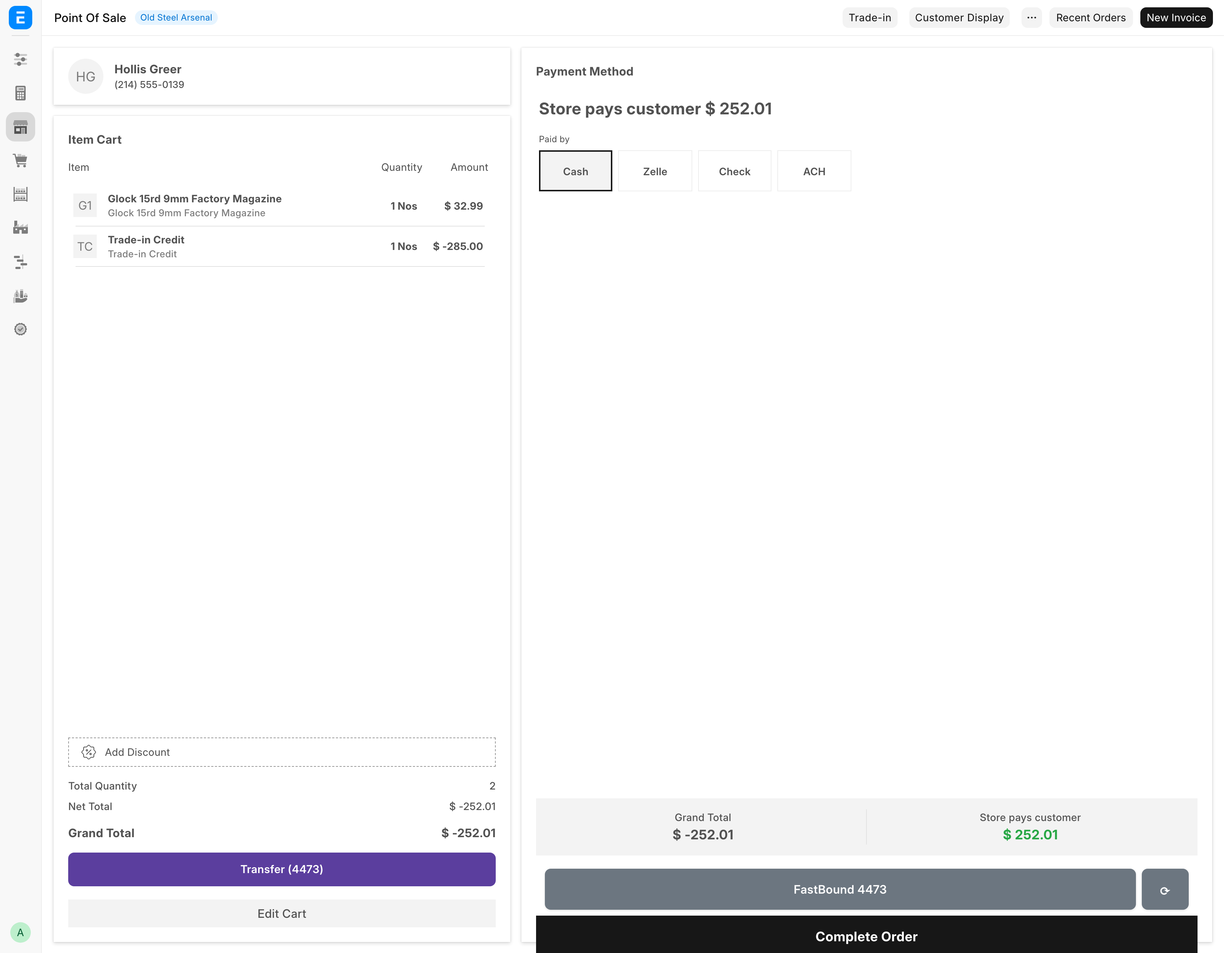
- Click Checkout. Instead of the payment modes the screen shows Store pays customer and the amount, and the totals read Grand Total (below zero) and Store pays customer.
- Under Paid by, pick Cash, Zelle, Check or ACH. Cash is picked to start with.
- For anything but cash, type the reference: the check number or the confirmation number.
- Click Complete Order. The receipt shows the items, the trade-in allowance, the tax and what was paid to the customer.
No payment is taken on such a ticket, and no sales tax goes below zero: the tax on the goods comes down to $0.00 rather than turning into a refund. A cash payout leaves the drawer at once and shows on the Cash Drawer page. To take a payout back, cancel the ticket.
If the ticket also has a firearm, the button reads Save — waiting for 4473 until the 4473 clears, and nothing is paid out until then. See Selling a firearm.
Completing a cash sale
- Click Checkout. The payment screen opens.
- Click Cash and enter the amount tendered. The screen shows the change to give.
- Click Complete Order.
The receipt prints, the cart clears and the register is ready for the next customer. For cards, Zelle, split payments and refunds, see Taking payment. For anything with a gun on the ticket, read Selling a firearm first.
Troubleshooting
| Message you see | What it means | Fix |
|---|---|---|
| Pick the gun | A per-gun priced firearm line has no serial, or its price is still zero | Open the cart line and pick the serial in Item Details |
| Add items to the cart first. | You started a 4473 on an empty cart | Add the firearm line, then start the 4473 |
| Customer required | The action needs a named customer | Pick the customer at the top of the cart |
| Popup blocked, allow popups then click Customer Display again | The browser refused the customer screen | Allow popups for this address and click the button again |
| POS not ready. | The register had not finished loading | Wait for the page to settle and click again |
| Held for a web order | Some units are already sold to web customers | Ship them to the web order, or ask a manager to ring the sale |
| Discount the item, not the invoice | A sale with a trade-in credit cannot take an invoice discount | Remove the discount and put it on the item line |
| This POS Profile does not allow rate changes. | Charge exactly needs Allow Rate Change | A manager turns it on in the POS Profile |
| This is a pickup ticket for … — the money is on that order. | Charge exactly on a pickup ticket | Collect the balance on the order instead |
| Landed on …, not … | Charge exactly could not hit the cents | Adjust one line's price by hand |
| The store pays the customer | A payout ticket has a payment amount, no method or no reference | Set every payment to 0, pick how the customer is paid, add the reference |