Settlement and payout
Three flows of money. Dealers pay you for guns of yours they sold. You pay private consignors for their guns you sold. You pay partner stores for their guns you sold off Consignment In. This page covers all three, in that order.
Collecting from a dealer
When a partner dealer sells one of your guns, the system builds a settlement invoice for that gun and puts it on the Dealer Orders queue for you. The sale reaches you one of two ways:
- A dealer on our POS reports it from their own POS. Nobody here clicks anything.
- For a dealer without our POS, you click Mark sold on their card on the Consignment Out page. See Shipping a consignment.
Before you start
- In the sidebar, click Consignment → Dealer Orders, or go to
/app/osa-dealer-orders. Sales User, Sales Manager, Stock Manager and System Manager can all see this queue. - The queue holds one card per gun, not per shipment. There is one invoice per gun, always.
- A card leaves the queue when its invoice is booked and fully paid. Nothing needs to be dismissed.
- Click Refresh at the top right to reload. The page also reloads every time you visit it.
Reading a card
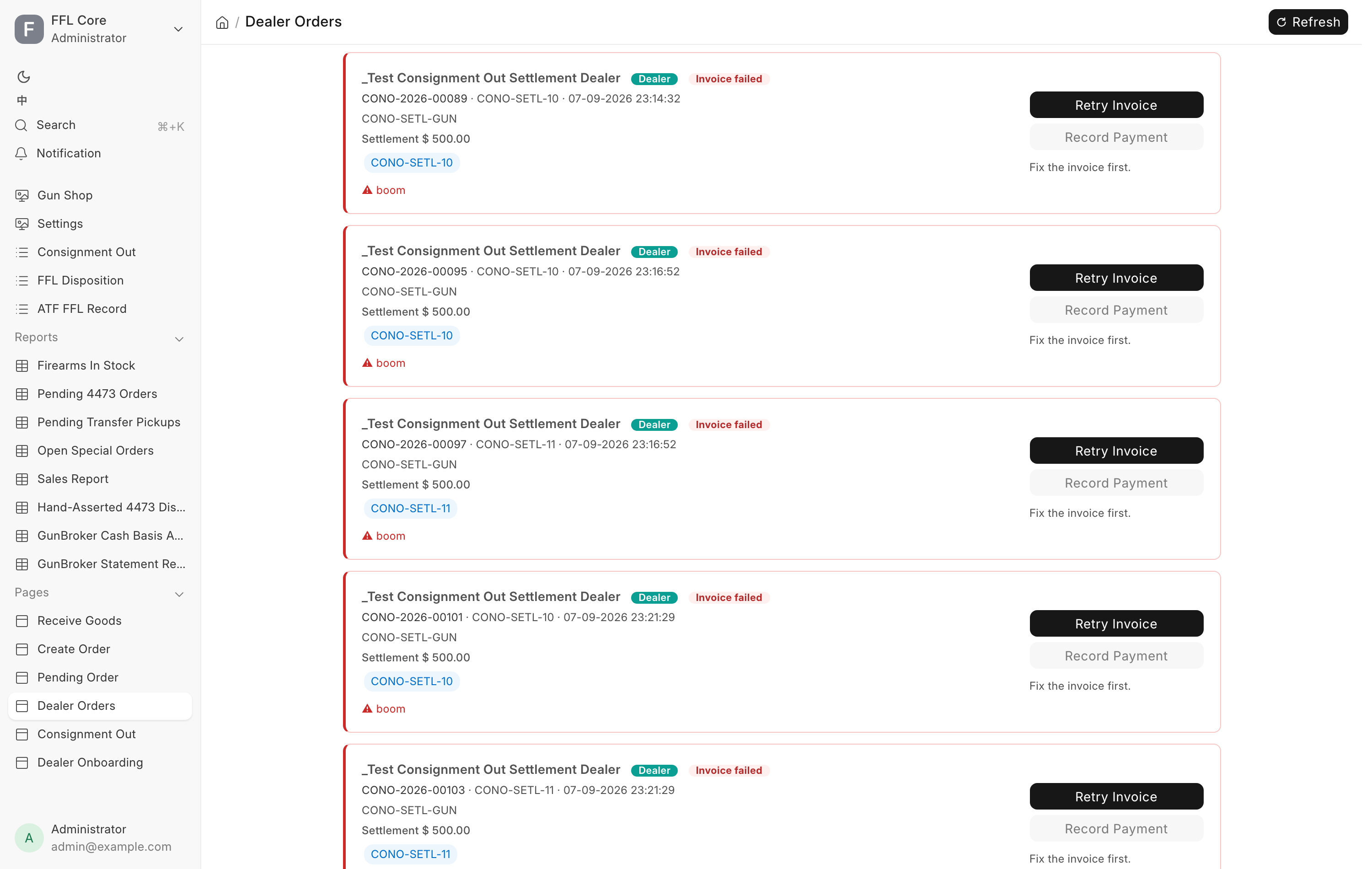
Each card names the dealer, the gun, and its serial. Under that:
- Settlement is what the dealer owes you for this gun. It is the dealer price from the shipment.
- Sold at, when present, is what the dealer sold it for, labeled archive only. It comes from their POS, or from what you typed when you marked the sale. It never affects what they owe.
- Links take you to the settlement Sales Invoice and to the consignment record.
- outstanding shows what is still uncollected once an invoice exists.
| Status badge | What it means | What to do |
|---|---|---|
| Invoicing… | The invoice is being created in the background | Wait a few seconds and click Refresh. |
| Unpaid | The invoice is booked, nothing collected yet | Collect, then Record Payment. |
| Partly paid | Some of it has been collected | Record the rest. |
| Invoice failed | The invoice could not be created | Read the reason, fix it, then Retry Invoice. |
A failed card sorts to the top, carries a red left border, and prints the reason in plain words under the dealer's name. View details after it opens the full error for staff who may read the Error Log.
Recording a payment
- Click Record Payment on the card. It is disabled until the invoice is booked, and tells you why underneath.
- Pick a Payment Method. The choices are Cash, Credit Card, Zelle and ACH.
- Fill in Transaction Number / Approval Code when the method asks for it. Zelle and ACH always need their confirmation number, so the deposit can be reconciled later. When the store takes cards through Payroc, Credit Card needs the approval code from the terminal or Virtual Terminal receipt. Never type the card number.
- Amount defaults to the full outstanding balance. Change it for a part payment.
- Click Record Payment.
The card disappears once the invoice is fully paid. A part payment leaves it as Partly paid with the remainder shown.
Retrying a failed invoice
The dealer's sale is never lost. The gun is recorded as sold whatever happens on your accounting side. What can fail is the invoice built afterward.
- Read the reason on the red card. It reads either "Invoice not created:" with the cause and "Fix that first, then click Retry Invoice.", or "Invoice not created: something went wrong in the system."
- Fix the cause. The most common one is an expired or unverified dealer FFL, because the same license check that gates shipping also gates the settlement invoice. Renew or verify it. See Verifying an FFL.
- Click Retry Invoice.
If it works the card turns into a normal unpaid card with an invoice link. If it does not, a "Retry failed" message repeats the reason and the card stays red. When the reason is a system error and a second retry fails too, ask a System Manager to check the Error Log.
Retry Invoice is safe to click more than once. It re-checks the current state first. If a submitted invoice for this gun already exists it confirms that and stops, so it can never create a second invoice for the same gun. If an earlier attempt left a draft behind, it reuses that draft.
One reason needs a different fix. "Invoice not created: the draft invoice … totals …, but this gun's settlement price is …" means a draft was built and its total does not match the dealer price. The system left the draft for review rather than post a wrong amount. Open the draft invoice it names, correct it to the settlement price, then click Retry Invoice. If you cannot see why the totals differ, stop and report it with the serial number and the invoice name.
Several guns stuck on Invoicing at once
One gun sitting on Invoicing… for a few seconds is normal. Several guns across different dealers stuck there for more than a few minutes, with Refresh changing nothing, means the background job queue itself is backed up. Retry Invoice cannot help, because the job has not run at all. Do not restart services or try to clear the queue yourself. Report it, with which guns are affected and how long they have been stuck.
When a dealer's sale does not stand
A sale can fall through after it was invoiced. A dealer on our POS cancels or returns the sale on their side, and their POS tells you. For a dealer without our POS, you click Undo a sale on their card. Either way the system handles the billing by itself:
- The gun goes back to At Dealer on the dealer's rack.
- If the settlement invoice is from this month and nothing has been paid on it, it is cancelled.
- If any of it was paid, or it is from a month already closed, it stays, and a Credit Note dated today is booked against it.
Neither path touches the bound book. When the gun sells again, a fresh settlement invoice is built.
Undoing a settlement invoice
Cancelling the settlement Sales Invoice is the supported way to undo a billing mistake. The gun goes back to At Dealer, the invoice link clears, and the gun is marked as out on consignment again. The gun never moved. Only the paperwork was wrong.
Cancelling the invoice does not un-write the bound book
The disposition booked when you shipped the gun stays exactly where it is. That firearm really did leave your premises, and a billing error does not undo a federal record.
To bill that gun again after cancelling, do not amend the cancelled invoice. For a dealer without our POS, click Mark sold on their card again, and a fresh settlement invoice is built. A dealer on our POS cannot be marked from this side. Their POS has to report the sale.
Paying a consignor
This is the second flow: guns a private party left with you, sold at your counter. There is no special screen. It is ordinary accounts payable.
What Consignment Payable is
Each company has its own Consignment Payable account, separate from ordinary trade payables. It holds everything you currently owe consignors for guns that have sold but have not been paid out.
Every consignment gun that sells posts a journal entry automatically:
- A debit to cost of goods sold, for the consignor's share of the sale, which is the line's pre-tax amount less your commission percentage.
- A credit to Consignment Payable for the same amount, tagged to that consignor.
The consignor is tagged as a Supplier. Every consignor already has one, created automatically when their gun was received. That tag is what makes balances trackable per person rather than as one lump.
The commission percentage comes from the gun's own record, which was stamped at intake from what you typed into Consignment Commission % on Receive Goods, falling back to Default Consignment Commission % in FFL Settings.
Seeing what is owed
Two standard reports. Find either by name in the search bar at the top.
General Ledger. Filter by Company, set Account to your Consignment Payable account, and pick a date range. Add Party Type of Supplier and a specific Party for one consignor, or leave Party blank and group by party to see everyone. The closing balance for a party is what you owe them.
Accounts Payable, or Accounts Payable Summary. Filter by Company, set the Payable Account filter to your Consignment Payable account, and set Party Type to Supplier. This lists every outstanding consignment payable per consignor with an outstanding column, in an aging layout.
Filter by the account, not only by the party. A consignor's supplier record is an ordinary supplier. If you ever also bought something from the same person, filtering by party alone mixes trade payables with consignment payables. The account filter keeps them apart.
Making the payment
A plain Payment Entry. There is no custom screen.
- Create a new Payment Entry.
- Set Payment Type to
Pay. - Set Party Type to
Supplierand Party to the consignor. - Set Paid From to the cash or bank account the money actually leaves.
- Set Paid To to your Consignment Payable account.
- Use Get Outstanding Invoices, or add a reference row by hand. The consignment journal entries for that consignor appear as references. Allocate what you are paying against the ones you are settling.
- Save and submit.
The consignor's balance drops immediately in either report above.
Step 5 is the one people get wrong. The system will not choose the right account for you. It proposes the company's ordinary trade payables account, which is not what the sale credited. Change it explicitly, or step 6 will find nothing to allocate against.
Consignment sales cannot be returned
This is store policy, enforced in the software. Trying to save or submit a return that contains a consignment gun is rejected at once with "Consignment sales cannot be returned (invoice …, gun …). Cancel the original sale instead." The cashier sees it on the first save, not at submit.
The reason is that the sale already booked a specific payable to a specific consignor, and by the time anyone thinks about a return that money may already have been paid out. Rather than guess whether it claws back, the return is disallowed.
To unwind a consignment sale, cancel the original invoice. Cancelling reverses the consignor payable automatically. There is no separate accounting step. If the gun also has to physically go back to the consignor or back on the shelf, that is a stock movement you handle separately. See Fixing mistakes.
Cancelling a sale you have already paid out on
Verified behavior, and it is not what you might expect. Cancelling the invoice for an already-paid-out consignment sale does not stop you, and does not claw the money back.
- The consignment journal entry cancels normally.
- The Payment Entry survives untouched, but its link to that journal entry is stripped. The amount moves from allocated to unallocated. The money is still on the books as paid to that consignor, tied to nothing.
Before cancelling a consignment sale, check the Accounts Payable report filtered to that consignor. If their outstanding balance for that entry is already zero, it has been paid. Unwind the Payment Entry yourself first by opening it and cancelling it. It is not required, but it keeps the books clean and avoids leaving a stray unallocated payment for someone to find later.
When a sold gun comes back in
A gun the store sold and later takes in again on a receipt, as a trade-in or a buy-back, is a new acquisition. The receipt clears the gun's old ownership marks and sets them for the new stay. Selling it again never bills the earlier consignor or pay-on-sale supplier.
If an earlier pay-on-sale sale of that gun is refunded after it came back in, the refund is money only. The payable to the supplier is kept, and the serial record gets a comment starting "Pay-on-sale payable kept: the gun was received again after the sale" for the bookkeeper.
Paying a partner consignor store
This is the third flow: guns a partner store sent you on Consignment In, sold at your counter.
Those guns are pay-on-sale stock. You received each one at the partner's price, and that cost waits in Stock Received But Not Billed until the gun sells. When it sells, a journal entry moves that amount into your ordinary payables, tagged to the partner store's supplier record. It books no cost of goods sold, because the sale's own stock movement already did. What you owe per gun is exactly the price the partner bills you for it.
The payment itself is manual, as for any supplier:
- Create a new Payment Entry.
- Set Payment Type to
Pay. - Set Party Type to
Supplierand Party to the partner store. - Set Paid From to the cash or bank account the money leaves.
- Leave Paid To on the company's ordinary payables account. That is where the sale booked it.
- Use Get Outstanding Invoices and allocate against the sales you are paying for.
- Save and submit.
A gun you Send back to the partner store was never owed for, so nothing is paid or reversed. A refund that lists the gun un-sells it on both stores' books. For a price adjustment or goodwill refund, do not list the gun. See Receiving from a partner store.
Troubleshooting
| Message you see | What it means | Fix |
|---|---|---|
| Invoice not created: … Fix that first, then click Retry Invoice. | The invoice failed for the reason given, often the dealer's FFL | Fix that, then Retry Invoice. |
| Invoice not created: something went wrong in the system. | A system error, not a data problem | Retry Invoice once. If it fails again, a System Manager checks the Error Log. |
| Invoice not created: the draft invoice … totals …, but this gun's settlement price is … | The draft does not match the dealer price | Correct the draft to the settlement price, then retry. |
| Invoice is still being created. Refresh in a moment. | The background job has not finished | Click Refresh. |
| Fix the invoice first. | You clicked Record Payment on a failed card | Fix the cause and retry the invoice. |
| Consignment sales cannot be returned … | A cashier tried to return a consignor's gun | Cancel the original invoice instead. |
| Nothing to bill — every consigned gun is invoiced and paid. | The Dealer Orders queue is empty | Nothing to do. |