Storage locations and the store map
The Storage Locations page shows where every gun and product sits in the shop: which rack slot, display case or safe. Counter staff use it to find a gun and to put stock away. Stock managers use it to set up the racks and draw the store map.
A location is only a note
Nothing on this page moves stock or touches the books. A location records where something sits in the shop. The stock, its warehouse and its value stay exactly as they were, and the bound book is not involved.
Before you start
- Open the page from the Gun Shop sidebar: Inventory → Storage locations. The page title is Storage Locations.
- Who can do what:
| Task | Roles |
|---|---|
| View the map, search, move things, use the Not placed tab | Sales User, Sales Manager, Stock User, Stock Manager, System Manager |
| Create, change, disable or delete zones and slots, print labels, draw floor plans | Stock Manager, System Manager |
- A Sales Manager is not a stock manager here. The Zones tab and the Edit layout button appear only for a Stock Manager or System Manager.
- Two kinds of location exist:
- A slot holds one firearm and nothing else. Slots are numbered within their zone: A1, A2, A3 and so on.
- An open location (a display case, rack or safe) holds any number of firearms and products.
- Each location can have a printed label with a barcode, printed from the Zones tab. The Move tab reads it.
The Map tab
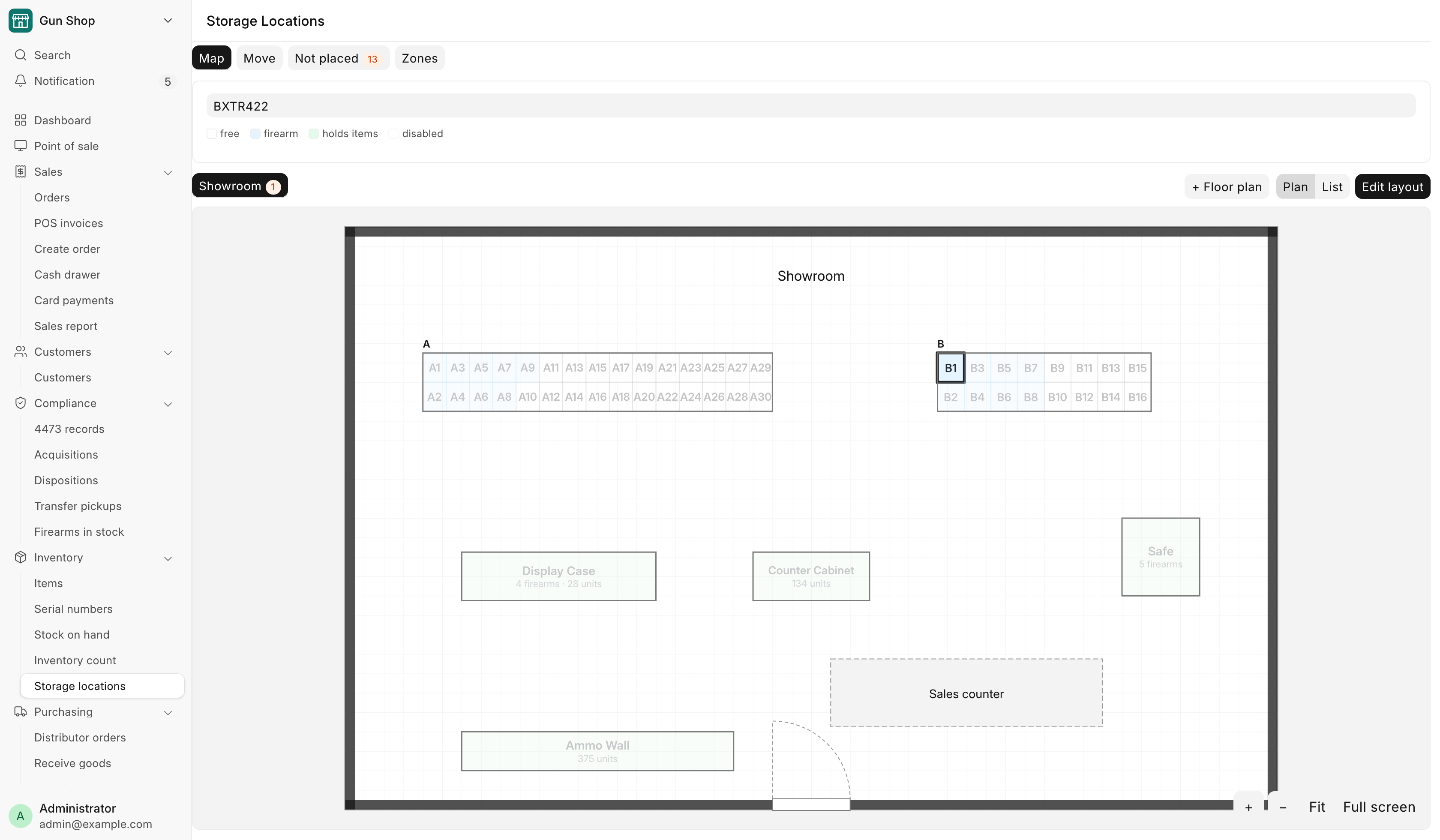
The map shows every zone. A slot is white when free and blue when it holds a gun. An open location is green when it holds something. A disabled one is faded.
- To find a gun, type its serial number or model in the box that reads "Find a gun by serial or model, or a location by name". You can also type a location name. Matching locations light up and the rest fade. If the match is on another room's plan, the map switches to that room.
- When the store has floor plans, pick a room from the plan buttons above the map. Plan shows the drawing. List shows each zone as a grid of cells.
- Zoom with + and −, or pinch on a phone or iPad. Fit shows the whole room. Full screen fills the screen. Click Close or press Esc to leave it.
- Tap a slot or a case to see what is in it: Serial, Item and Details for guns, Item and Qty for other stock.
- In that window, click Put things here to open the Move tab with this location already chosen. A stock manager also sees Disable or Enable.
Zones that are not on any floor plan are listed under Not on a plan yet below the map.
The Move tab
Use this tab to put guns and stock away, or to move them to another place.
- Click Move.
- Scan a location label. The box reads "Scan a location label first, then scan what goes in it". The page shows Putting things into and the location.
- Scan each gun's label (its serial number) or each product's barcode. Each one goes into that location.
- For several units of one product, type the number in Qty before you scan it. Qty goes back to 1 after each scan.
- Scan another location label to switch to it, or click change.
If a product sits in more than one place, a Where is it coming from? window asks you to pick one in Take from, then click Move. Units that are in no location yet are used first, without asking.
This session lists what you moved. Click Undo on a row to put that gun or those units back where they were. Undo works once, and only while nothing has moved them since.
The Not placed tab
The tab shows a number when something needs a place or a word. It has three lists.
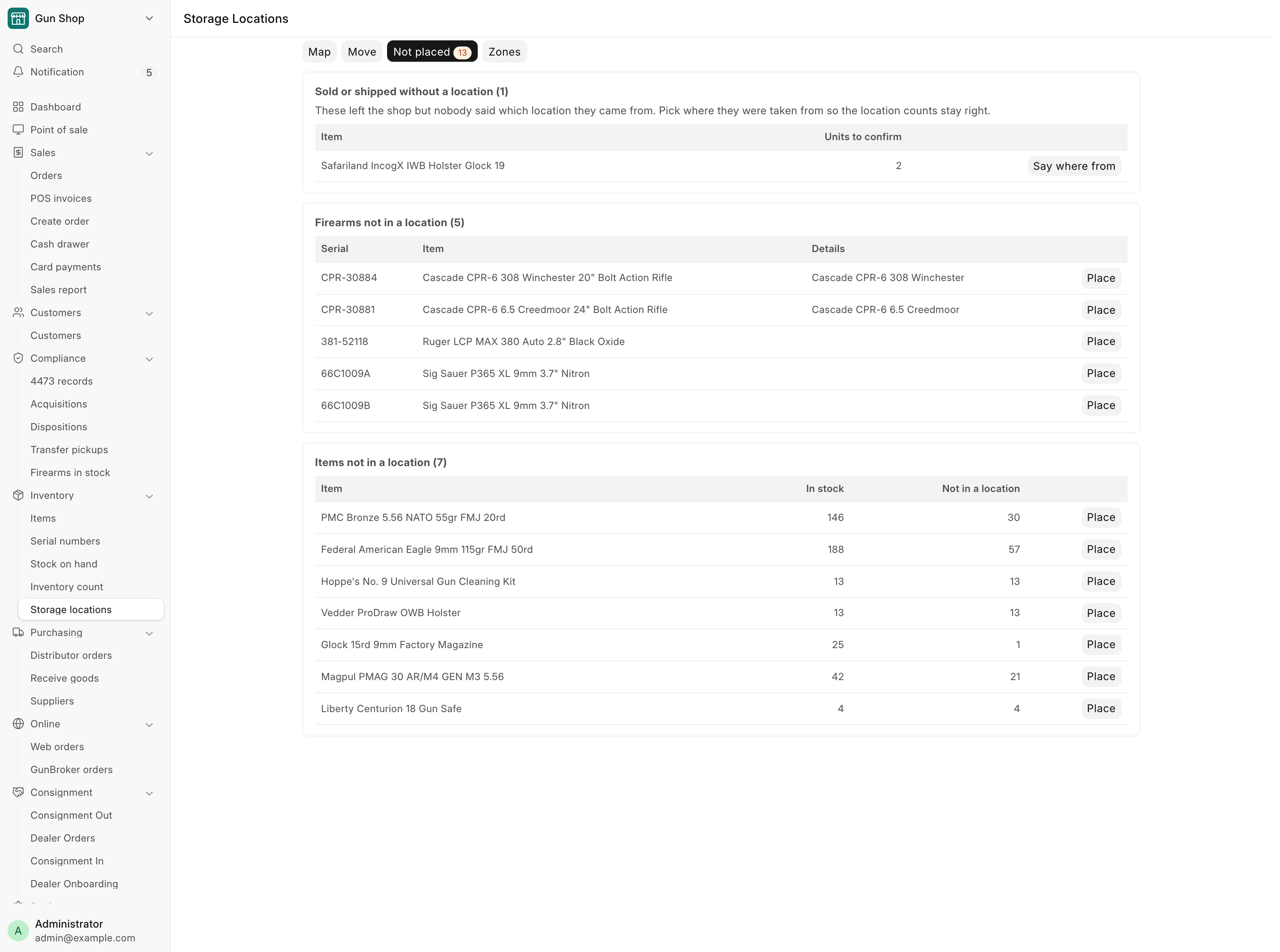
| List | What is on it | What to do |
|---|---|---|
| Sold or shipped without a location | Products that left the shop, but nobody said which location they came from. Units to confirm shows how many. | Click Say where from, pick the location in Location they were taken from, check Units, and click Confirm. |
| Firearms not in a location | Guns in stock with no location. | Click Place, pick a free Location, and click Place. |
| Items not in a location | Products in stock that are in no location. In stock and Not in a location show the numbers. | Click Place, pick a Location, check Quantity, and click Place. |
A sale or a shipment is never held up by a missing location. The units show on Sold or shipped without a location instead, so the location counts can be put right later.
Zones and slots
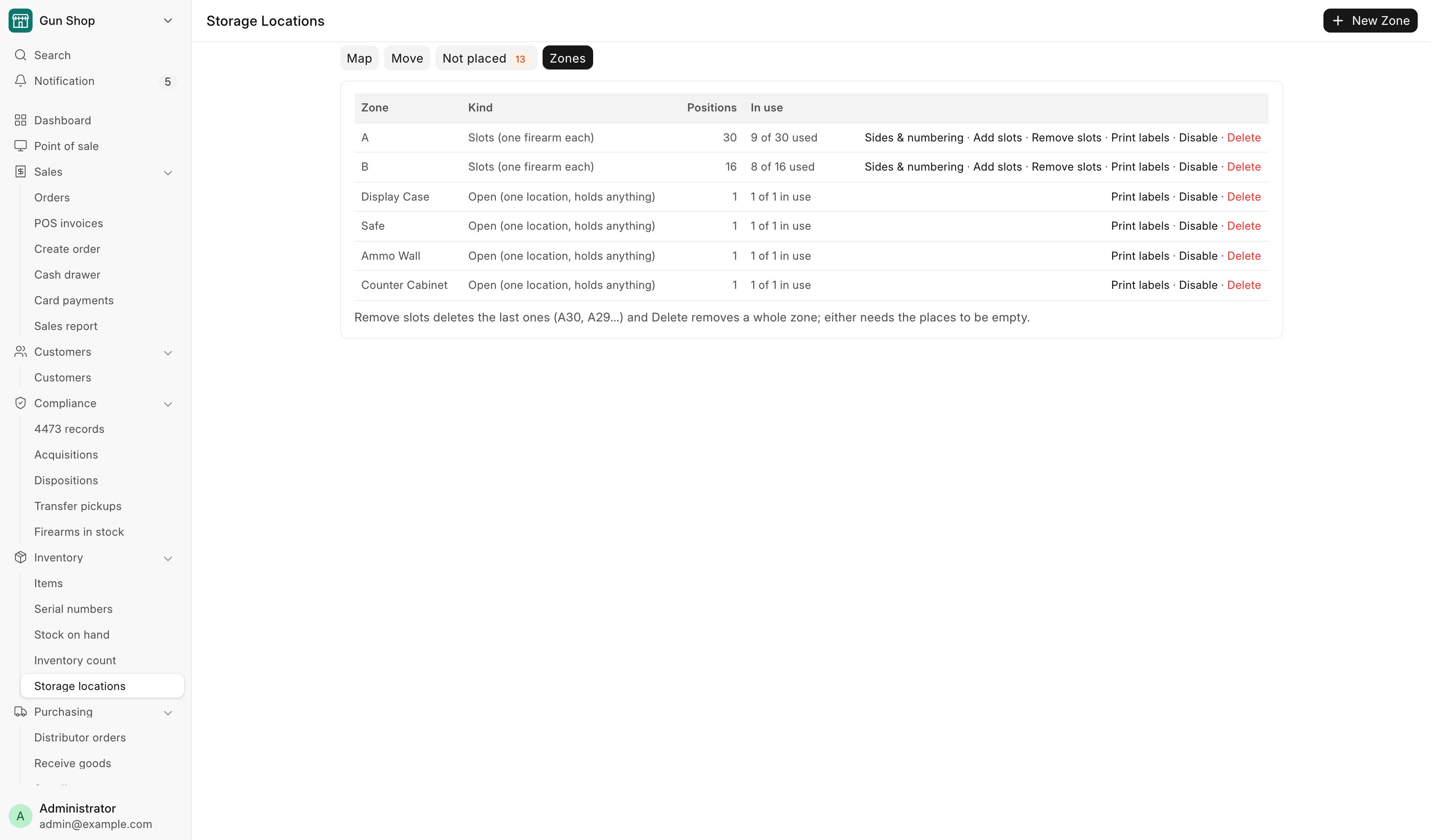
A Stock Manager or System Manager sets up zones on the Zones tab. A zone is a bank of numbered slots, or one open location such as a display case.
Create a zone
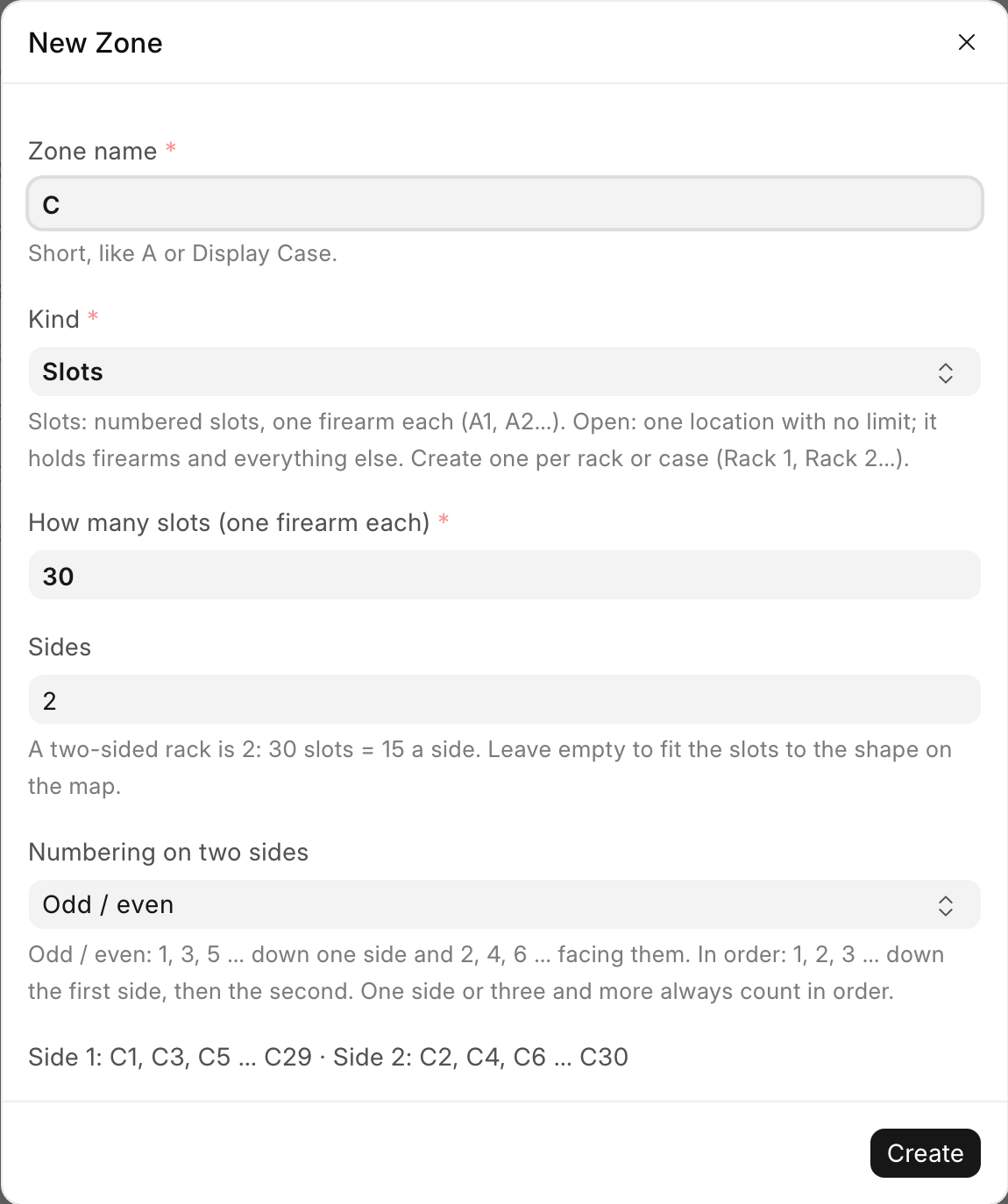
- Open the Zones tab and click New Zone.
- Type a short Zone name, like A or Display Case.
- Pick the Kind:
- Slots: numbered slots, one firearm each (A1, A2…).
- Open: one location with no limit. It holds firearms and everything else. Create one zone per rack or case (Rack 1, Rack 2…).
- For a Slots zone, type How many slots (one firearm each).
- For a Slots zone, type Sides. A two-sided rack is 2: 30 slots make 15 a side. Leave it empty to fit the slots to the shape on the map.
- For two sides, pick Numbering on two sides:
- Odd / even: 1, 3, 5 … down one side and 2, 4, 6 … facing them.
- In order: 1, 2, 3 … down the first side, then the second.
- Check the preview line under the fields. It shows the labels the zone will get, side by side.
- Click Create.
Change a zone
Each row of the Zones tab shows Zone, Kind, Positions and In use, and these links:
| Link | What it does |
|---|---|
| Sides & numbering | Changes how a Slots zone is drawn. Every slot keeps its name and what is in it. |
| Add slots | Adds slots at the end. Type How many more slots. |
| Remove slots | Deletes the last slots (A30, A29…). Type How many to remove from the end. The slots must be empty. |
| Print labels | Opens one label per position, with its name and barcode, ready to print. |
| Disable / Enable | Takes a zone out of use, or back. The zone must be empty to disable it. |
| Delete | Removes the whole zone. It must be empty. |
You can also disable or enable one slot from its window on the Map tab.
A slot or zone that is named on past documents, such as a sale, cannot be deleted. Disable it instead.
Drawing the floor plan
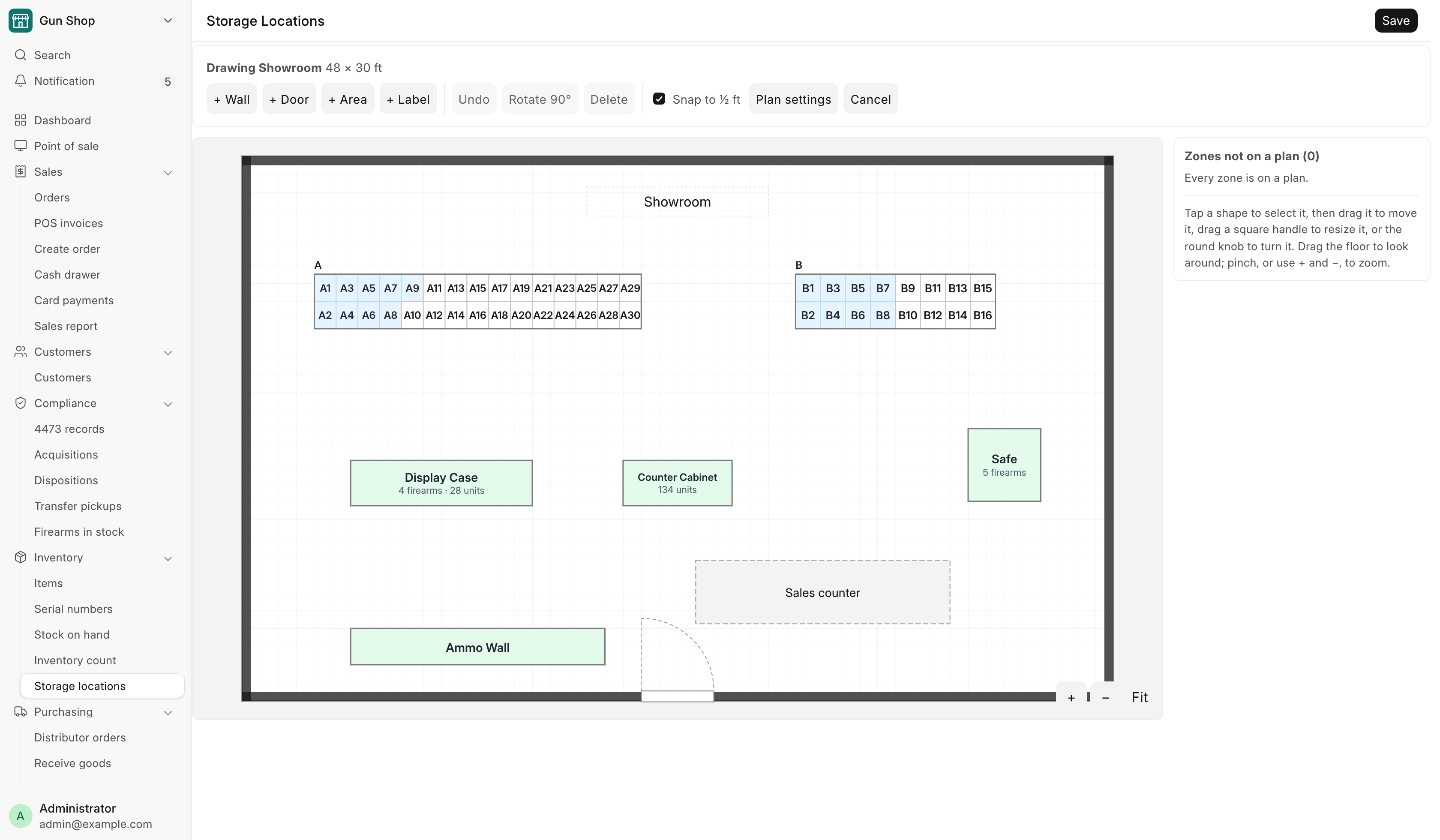
A Stock Manager or System Manager draws one floor plan per room. Everyone then sees the shop as a map. Drawing works on a computer, a phone or an iPad.
- On the Map tab, click Create floor plan (the first time) or + Floor plan.
- Type the room's Name, like Showroom or Back Room, and its Width (ft) and Depth (ft). A rough size is fine. Click Create. The drawing opens.
- Under Zones not on a plan, tap a zone to put it in the middle of the view, then drag it into place. Place all places every zone at once.
- Add the room's features with + Wall, + Door, + Area and + Label.
- Tap a shape to select it. Drag it to move it, drag a square handle to resize it, or drag the round knob to turn it. Rotate 90° turns it a quarter turn. The side panel takes exact sizes.
- For a Slots zone, Lines of slots sets how many lines of slots run along the long side. Leave it empty to fit them automatically.
- Undo takes back the last change. Delete removes the selected shape. On a zone, it reads Take off plan: the zone stays, but is on no plan.
- Snap to ½ ft keeps shapes on a half-foot grid. Untick it for free placement.
- Click Save. Cancel throws away your changes.
To start drawing an existing plan, pick it on the Map tab and click Edit layout. Plan settings changes the plan's name and size, and has Delete this plan. Deleting a plan leaves its zones as they are, on no plan.
Where else a location is asked
Other screens ask for a location as goods come in or go out. Each one feeds this page.
| Screen | Field | What it does |
|---|---|---|
| Receive Goods, each line | Storage location | Puts the received goods there. Guns are offered free slots and open locations; other stock only open ones. Several guns on one line fill the next free slots. |
| Trade-ins, the Trade-in window | Storage location | Puts the traded-in gun in a free slot or an open location. |
| Point of Sale, a non-firearm line | Taken from | Takes the units out of that location when the sale posts. |
| Create Order, a stock line | A dropdown that starts at "Taken from: not said" | The same, for a counter order. |
| The Pending Order queue, Dispose on a web or GunBroker order | Where did these come from? | The same, for an online order. |
Each of these may be left blank. A blank on the way in puts the gun or units on Firearms not in a location or Items not in a location. A blank on the way out puts them on Sold or shipped without a location. When a product sits in one place only and none of it is unplaced, the register, Create Order and Dispose pick that place for you.
The Storage Location field on a Serial No is read-only. Change it here. The Firearms In Stock report shows each gun's location.
What the system does
- Keeps a log. Every placement, move and undo is recorded with who did it.
- Clears a gun's location when it leaves the store's shelves. Sold, transferred out, disposed, out on consignment or moved into a customer hold: the location clears as the stock moves. An hourly check catches any gun that left another way. A move between the store's own warehouses keeps the location.
- Takes sold units out of their location. When a sale's stock leaves, the units leave the location the line named. A return puts them back.
- Never blocks a sale or a stock movement. If a location holds fewer units than a sale names, the sale goes through and the rest waits on the Not placed tab.
- Never touches the books. No stock entry, no ledger entry and no bound book record comes from this page.
Troubleshooting
| Message you see | What it means | Fix |
|---|---|---|
| "{slot} already holds {serial}. A slot holds one firearm: pick a free slot, or move {serial} out first." | The slot is taken. | Pick a free slot, or move the other gun first. |
| "{slot} is a single-firearm slot, and {item} is not a firearm. Use a display case, rack or safe instead." | Only guns go in slots. | Pick an open location. |
| "{location} is a location. Scan the location first, then the things that go in it." | A location label was scanned as an item. | Scan the location label, then the goods. |
| "{code} is not a serial number or barcode the system knows. If it is a product, add its barcode to the item." | Nothing matches the scan. | Add the barcode to the item, or type the serial. |
| "Scan a location label first (like A5), then scan what goes in it." | No location is chosen yet. | Scan a location label. |
| "{location} is disabled. Pick another location." | The location or its zone is out of use. | Pick another, or ask a stock manager to enable it. |
| "{serial} is not in the store's stock, so it cannot be put in {location}." | The gun is sold, shipped, on consignment or held for a customer. | Nothing to place. |
| "{location} holds only {n} of {item}. Check the quantity, or pick the location that really has it." | Fewer units sit there than you are moving. | Lower Qty, or pick another location. |
| "Only {n} of {item} is not in a location yet, so {qty} cannot be placed. Check the quantity." | You are placing more units than are unplaced. | Lower the quantity. |
| "{serial} has been moved since, so this can't be undone." | Someone moved it after you. | Move it again from the Move tab. |
| "{zone} still holds something. Move it out first, then delete." (or "then disable.") | The zone or slot is not empty. | Move its contents out first. |
| "{location} is recorded on past documents ({doctype}), so it cannot be deleted. Disable it instead." | A sale or receipt names this place. | Disable it. |
| "A zone called {name} already exists. Pick another name." | Zone names must be unique. | Pick another name. |
| "Someone else saved this plan at {time}. Reload to see their changes, then make yours again." | Two people drew the same plan. | Reload the page and redo your change. |
| "A gun's storage location is changed from the Storage Locations page, not on the Serial No itself." | The Serial No field is read-only. | Use the Move tab. |