The Drop-ship Center
The Drop-ship Center decides which distributor products the website sells, which distributor each one is bought from, its website price, and how much stock the website shows. Purchasing staff and managers work here. It belongs to the OSA Dropship extension.
The Drop-ship Center sets the website only. The price tag in the store is never changed here, and nothing here places a distributor order. Orders are on Drop-shipping and Distributor orders.
Before you start
- Open it from Settings → Drop-ship Center, or press Drop-ship Center on a house's card in the Distributors hub. From the hub it opens on the products sold from that house. The address is /app/dropship-center.
- At least one house needs Enabled and Drop-ship on in the hub. Otherwise the page reads "No distributor has drop-ship switched on. Turn it on in the Distributors hub."
- The page opens for System Manager, Purchase Manager, Stock Manager, Item Manager and Purchase User. Changing anything needs Item Manager, Stock Manager, Purchase Manager or System Manager. Other roles see "Read only — your role cannot change listings" and the controls are greyed out.
- Only a System Manager can change automatic sourcing.
- With the extension switched off, the page reads "OSA Dropship is turned off. A manager can turn it on under Settings → Extensions."
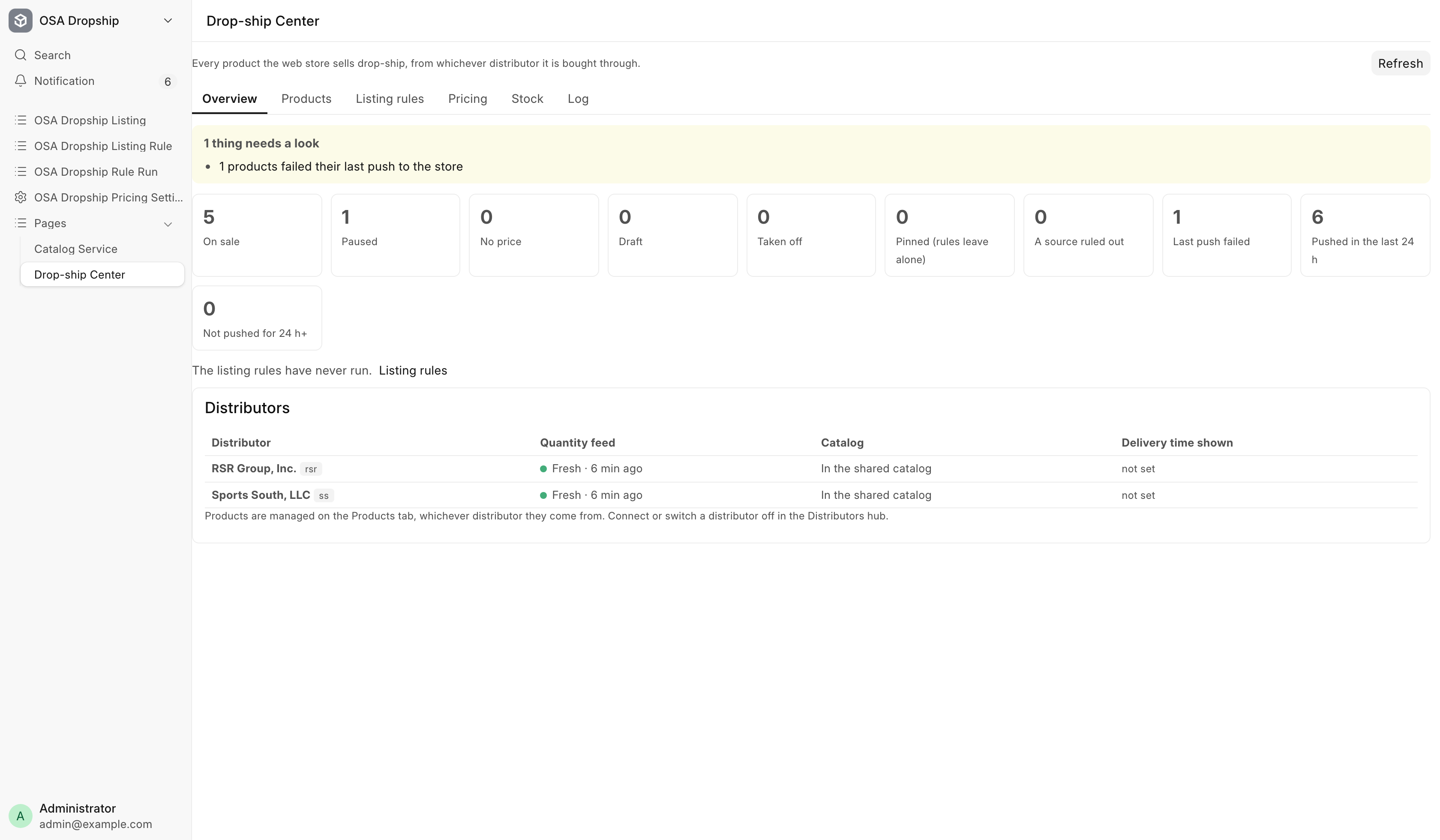
The page has six tabs: Overview, Products, Listing rules, Pricing, Stock and Log. Refresh reads everything again.
Overview
The top line says either "All drop-ship products are healthy." or how many things need a look, each linked to the products behind it: products whose last push to the website failed, listed products with no price, a house whose quantity feed is stale or has never reported, and a rule run a brake stopped.
Below it, tiles count the products by state. Click a tile to open those products.
| Tile | What it counts |
|---|---|
| On sale | Listed and live on the website |
| Paused | Held by a person. Never resumed on its own |
| No price | Listed, but no price could be worked out. It recovers once one can |
| Draft | Not yet published |
| Taken off | Off the website |
| Pinned (rules leave alone) | Products a person decided on by hand |
| A source ruled out | Products with at least one house they must never sell from |
| Last push failed | The last update to the website did not go through |
| Pushed in the last 24 h / Not pushed for 24 h+ | How fresh the website copies are. Not links |
Then a line says when the listing rules last ran and what they changed, and a Distributors table gives each house's quantity feed (Fresh, Late, Stale), its catalog, and the delivery time shown to shoppers.
Products
Every drop-ship product, one row per product. Two views:
- Listed: every product that has a listing, with the house it sells from. Quick filters across the top: On the store, Taken off, Pinned, Ships to store, Needs attention, Last push failed and A source ruled out.
- Catalog (every distributor): the whole catalog across every drop-ship house, each product with every house's offer, whether or not you list it.
Each view has its own filter bar, with Apply and Clear. In the Listed view the columns are Product, Sold from, Cost, Website price, Stock shown, On the store and Decided by (Rules or Pinned). A row that could sell cheaper elsewhere says "Cheaper at House: $". A held price is tagged held.
One product
Click a product's name to open it. You see:
- Where it can come from: every house's offer with its cost, stock, MAP and the price it Would sell at from there. Tags mark the house it is Sold from here, the Cheapest, and any house Ruled out.
- How the website price is worked out: each step of the price, and the Website price it ends at.
- The item, when it was last pushed, any push error, and its History.
What you can do depends on its state.
| Control | What it does |
|---|---|
| List from here | Lists it from that house |
| List from the cheapest source (House) | Lists a product not on the website from its cheapest allowed house |
| Keep off (pin) | Pins a product you have not listed, so the rules never list it |
| Take off the store | Takes it off. It stays published at zero stock, and is pinned so the rules leave it alone |
| Pause | Holds it at zero stock until you press Put back on sale |
| Put back on sale | Lists it again |
| Push to the store now | Sends its price and stock to the website now |
| Never sell from here | Rules this house out for this product. On the house it sells from now, the button reads Take off and never sell from here and asks to confirm |
| Allow again | Lets a ruled-out house, or the store's own stock, be a source again |
Each one-product change shows a message with Undo. The website updates within a few minutes.
Under the offers, an editor holds the product's own settings. Press Save, or Discard changes.
| Setting | What it does |
|---|---|
| Ships | Direct to the buyer or To the store first. An NFA item always ships to the store |
| Markup for this product (%) | Prices this product outside the markup rules. Blank uses the rules |
| Hold the price at $ | Holds the website price where it is. Cost changes and rule edits do not move a held price |
| Pinned — the rules leave this product alone | The rules never list or take off a pinned product |
A price or routing change does not pin. A rule run can change the routing back unless the product is pinned.
Many products at once
Tick products, or tick This page. When more match than the page shows, Select all N matching takes up to 200 at a time. Pick an action in Do with the selection… and press Apply to N.
| View | Actions |
|---|---|
| Listed | Put back on sale, Take off the store, Pause, Pin (rules leave alone), Unpin (rules decide), Ship to store first, Ship direct, Set product markup…, Hold at current price, Release held price, Push to the store now, Never sell from…, Allow a source again… |
| Catalog | Put on the store (from the cheapest source), Keep off the store (pin), Let the rules decide (unpin), Take off the store |
Anything that takes products off sale or changes their price asks you to confirm, and says what will happen. Put back on sale after Take off the store lists each product from its cheapest source at that time, which may be another house. Listing many products runs in the background, and each row shows its result once it lands.
Listing rules
Rules decide which catalog products are listed without anyone picking them. A product is listed when any switched-on rule selects one of its offers, and taken off when none does. It lists from its cheapest selected source. Pinned products are never touched.
The rules run only when someone previews and applies them. Until there is a rule, "No listing rules yet — nothing is listed or taken off automatically."
Writing a rule
Pick a rule in the box, or press New rule.
| Setting | What it does |
|---|---|
| Rule name | Any name. Two rules cannot share one |
| Applies to | Every distributor, or one house only |
| Switched on | A rule that is off selects nothing |
| Only these product classes / Never these product classes | None ticked means every class. Any firearm covers every firearm class, NFA included, and not gun parts |
| Only these brands / Never these brands | None selected means every brand. A brand matches however each house spells it |
| Dealer cost | From and to. Blank means no floor or no ceiling |
| Distributor stock | List only when the distributor has at least this many |
| Keep off | UPCs, and for a one-house rule its stock numbers, never selected |
| Only these | UPCs or stock numbers. Filled in, nothing else is selected |
| Departments | One-house rules only. Ticked departments only, Never these departments, and Dealer cost by department to replace the dealer-cost range for a department |
Some products are never listed automatically, whatever a rule says: products the house requires brand approval for, products it discontinued or deleted, a source ruled out on the product, and a second product carrying a UPC another product already has. NFA items are never listed by the rules either. List them by hand. They always ship to the store.
A bar under the rule counts how many catalog products it matches, and how many are already listed. Press Save rule, Discard changes or Delete rule. Deleting a rule leaves its products on the website until the next run decides them.
Preview and Apply
- Press Preview changes, or Preview with this change while the rule is unsaved. The preview counts what would Go up, Come down, Switch to ship-to-store, and be Held for review, with the first few of each.
- Save the rule. Apply runs the saved rules only.
- Press Apply. The run works in the background. You can leave the page. It ends with "Finished." or names the products that did not go through.
Apply stays greyed out, with the reason beside it, while a run is going, before a preview, while a rule is unsaved or changed since the preview, when no rule is on, when nothing would change, or while a house's quantity feed is stale or has never reported.
The brakes
Each rule has a Safety section with two limits. One run covers every house, so the strictest limit among the switched-on rules applies.
| Limit | What it stops |
|---|---|
| Stop a run that would take down more than (% of listings) | A run that would take off more than this share of your listed products |
| Stop a run that would add more than (new listings, 0 = off) | A run that would add more than this many new listings |
The take-down brake counts your store, not the catalog
The brake measures against your listed products, not the wholesale catalog. A rule edit is one box away from emptying your store. When a brake fires, the preview says "Stopped: …" and asks you to Type N to confirm, the exact number of products coming down or going up. Read the list before you type it.
A run stopped by a brake changes nothing past the limit, and its record shows status Braked.
Pricing
These set the price on the website only. Edit pricing opens the editor. Preview price changes lists the products whose price would move, largest changes first. Save changes re-prices the listed products, and a price that moved reaches the website within a few minutes.
Markup rules
One list of markup rules covers every house. Each rule can name a Distributor, a Brand, a department (Dept, which needs its distributor because department numbers differ between houses), a product Class and a Dealer cost range, and sets Markup %, Plus $, Min. profit $ and Rounding. A blank box matches everything. A cost tier runs from its first amount up to, not including, its second. The view shows how many catalog products each rule matches, and warns when a brand name matches nothing.
The website price is worked out in this order:
- A held price, when the product has one.
- The product's own markup, when it has one.
- The most specific matching rule: brand, then department, then product class, then a distributor's own rule, then a cost tier. A rule prices at dealer cost plus the markup percentage, plus the dollar amount.
- When no rule matches: MAP, then MSRP, then cost plus the Default markup %.
- Never below dealer cost plus Minimum profit $. A rule's own minimum replaces the default.
- The brand's MAP mode, below.
Default markup % and Rounding apply only to a product with no MAP and no MSRP. A house can keep its own: tick Own values for it. Own values also covers that house's stock settings.
MAP by brand
| Mode | What the website does |
|---|---|
| Never below MAP | The website price is lifted to MAP when it would sit below it |
| Hide price below MAP — shown in the cart | Keeps the price and shows it in the cart |
| Hide price below MAP — email for price | Keeps the price and asks the shopper to email |
| Hide price below MAP — call for price | Keeps the price and asks the shopper to call |
| Ignore MAP | Shows the price as worked out |
A brand not listed never goes below MAP on the website. The three hide modes work only once The website hides a price below MAP is ticked in OSA Dropship Pricing Settings, a System Manager setting. Until then they hold the price at MAP. The counter price is never raised to MAP.
A product's MAP is the lowest MAP any distributor sets for it, from the Data Service. When the Data Service has none yet, the house's own MAP is used.
Why is a price what it is? takes a UPC or item code and shows each step for that product.
Stock
How much of a house's stock the website shows.
| Setting | What it does |
|---|---|
| Hold back | Units of the house's stock never shown |
| Show at most | Most units the website shows. 0 means no cap |
| Show zero while the quantity feed is stale | Shows 0 while the house's feed is older than the watchdog allows |
The website shows the house's quantity minus the hold-back, never more than the cap. A product at zero stays published as out of stock. The Each distributor table lets a house keep Own values, and shows the Delivery time (days) shoppers see, which is always the house's own lead time. Saving re-sends the listed products, and the website shows the new quantities within a few minutes.
Automatic sourcing
Off by default. With Switch sources automatically on, every 15 minutes each listed product moves to its cheapest source that has stock. Only these products limits it to a list of item codes, one per line. Blank means every listed product. Turning it on asks once.
With The store's own stock is a source ticked, the store's shelf counts as a source at its book cost: when it is cheapest, the store ships the product and the website price comes from that cost. An order already placed keeps the source it was sold from. A gun priced serial by serial never takes part. Only a System Manager can change these settings.
Log
| Section | What it lists |
|---|---|
| Rule runs and bulk lists | Each run: when it started, Rules or Bulk list, its status, how many listed and taken off, and failures |
| Products whose last push failed | The product, the house, its status, the error and when |
| Recent drop-ship errors (7 days) | Errors from drop-ship work in the last week |
A run's status is Queued, Running, Complete, Braked or Error. A run whose worker died is marked Error within the hour.
What the system does
- Every fifteen minutes it updates the website for the products whose price or stock changed. A product with no change is skipped. Everything is re-sent at least once a day.
- When an update changes how prices are worked out, the next pass re-prices every listed product once.
- An NFA item is never drop-shipped. A listing whose product becomes NFA stays on sale and moves to To Store.
- Switching the extension off stops the website updates. Price and stock stay as last pushed, new web orders are not routed, and nothing is deleted.
Troubleshooting
| Message you see | What it means | Fix |
|---|---|---|
| The quantity feed of House is stale — wait for the next sync. | Rules cannot run on old quantities | Wait, or check the Catalog Service page |
| The quantity feed of House has never reported in. | The house's feed has not started | Check the house's catalog connection |
| The rules changed since this preview. Preview again. | Someone saved a rule after your preview | Press Preview changes again |
| Save the rule first — Apply runs the saved rules. | Your change is not saved | Press Save rule, then preview |
| Type the number of products coming down to confirm. | A brake fired | Read the list, then type the count shown |
| Nothing was applied — a brake is still holding this run. | The count changed, or the brake still holds | Preview again |
| Distributor offers are not available right now: … | The catalog service did not answer | Listings still show. Try again in a few minutes |
| Your role cannot change listings. | Your role is read-only here | Ask a manager |
| Only a System Manager can change automatic sourcing. | Automatic sourcing is a System Manager setting | Ask a System Manager |