The store assistant
The store assistant answers questions about the store in plain language: what is in stock, what an order is waiting on, how yesterday went, or how to do something in the POS. Counter staff use it from any desk page. A manager sets it up and decides what it may read and do. It comes with the OSA AI extension.
Before you start
- The OSA AI extension is installed and switched on under Settings → Extensions, and a System Manager has connected the store. See Setting it up.
- Your account is allowed to use it. By default that is Sales User, Sales Manager, Stock Manager and System Manager. A manager can change the list.
- Otherwise the floating button does not appear, and the chat page reads "OSA AI is turned off for this store." with where a manager turns it on.
Asking a question
- Press the ✦ button in the bottom-right corner of any desk page. The Store assistant panel opens.
- Type into Ask the store agent… and press Enter. Shift+Enter starts a new line. On an empty conversation, three starter questions offer a way in.
- Read the answer. While the agent works, the panel shows three dots and the status reads Working…. Tool activity shows as small chips.
The panel stays open or closed as you left it, from page to page. A red dot on the ✦ button marks an answer that arrived while the panel was closed. ⤢ opens the same conversation as a full page, OSA AI Chat, at /app/osa-ai-chat. ✕ closes the panel.
- Screenshots. Attach one with the button, or paste or drop it into the message. Up to four per message. Large images are scaled down first.
- History lists your earlier conversations. Pick one to read it and carry on. An ended conversation says so, and your next message starts a new one.
- New chat starts another conversation.
- "How do I…" questions are answered from this guide, with a link to the page.
The status line shows the cost of the conversation so far. Each conversation has a budget. When it is reached, the conversation pauses: start a new chat, or ask a manager to raise the budget.
Customer names
By default the agent never sees a customer's name. It sees a code like
CUST-…, and this screen shows you the real name in its place. Dates of birth,
ID numbers, Form 4473 answers and NICS details never leave the store at any
setting.
When it wants to do something
The assistant reads the POS. It can change something only when a manager has switched actions on, and then only with your approval each time.
A card reads The agent wants to run with the tool's name and what it would send. Read it, then press Allow or Deny. After Allow the card reads Allowed — running…, then Done, or Refused by the POS when the POS would not do it. Deny stops it, and the agent is told a person said no.
The actions a manager can allow include recording a payment, pushing a shipment to ShipStation, marking an order shipped, listing or taking a gun or a model off the web store, changing a price or a listing's title and description, adding or correcting stock of a non-serialized item, and flagging a gun for the gunsmith.
Read the card before you press Allow
An allowed action is a real business action, done in your name. A payment is recorded, a listing goes live. If the card does not say exactly what you asked for, press Deny and ask again.
There is no tool that writes to the bound book or to a Form 4473, at any setting. The assistant can never book, edit or delete a bound-book record.
What it can read
Everything it reads, it reads as one account the manager chose, the Run as user. It cannot see more than that account could.
| Area | Examples |
|---|---|
| Inventory | Items, stock on hand, every gun in stock, one gun's full history by serial number |
| Orders | The counter order queue and what each order waits on, paid web orders waiting to be filled |
| Web store and GunBroker | Whether something is listed |
| Distributors | Catalog search, cost and live stock at a house, distributor orders, web orders waiting to be routed |
| Consignment | Guns out at dealers, settlements waiting |
| Reports | The store's reports by name. One call covers at most 92 days and 500 rows |
| Bound book | Only when a manager allows it, and never with buyers' names |
Setting it up
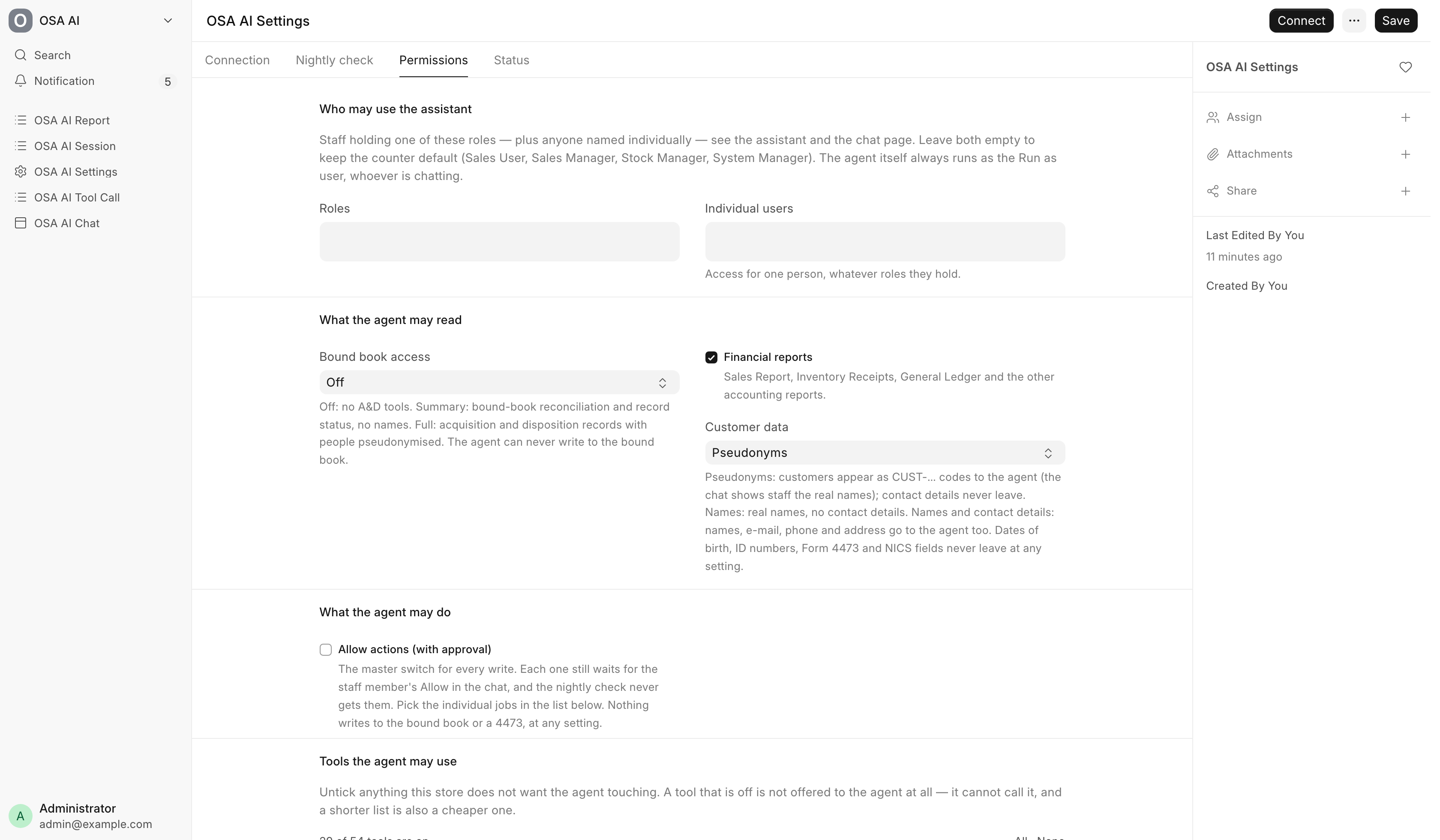
For a System Manager. Open OSA AI Settings from the OSA AI card on Settings → Extensions, or at /app/osa-ai-settings. It has four tabs: Connection, Nightly check, Permissions and Status.
Connection
- Create a dedicated user for the agent, holding only the roles it needs. Sales User, Stock User and Accounts User is a good start. Never use Administrator.
- Pick that user in Run as user. Every tool call runs with its permissions.
- Press Connect and confirm. The store registers with the OSA AI service through the Data Service connection. There is nothing to copy.
Once connected, the tab shows Token issued, Connected to service and the Service agent. Reconnect issues a new token, and the old one stops working. If the Data Service has not granted this store the assistant, Connect says so.
Nightly check
The agent can check the store every night and file a written report.
| Field | What it does |
|---|---|
| Run every night | Switches the nightly check on |
| At (store time) | When it runs. 03:00 by default |
| Budget per run (US cents) | A hard cap. A run that reaches it pauses instead of spending more. 200 by default |
Actions → Run nightly check now starts one at once. Its report lands in OSA AI Report. The nightly check never gets the action tools. Actions → Open chat opens the chat page.
Permissions
| Setting | What it does |
|---|---|
| Roles, Individual users | Who sees the assistant and the chat page. Leave both empty for the counter default |
| Bound book access | Off (the default): no bound-book tools. Summary: reconciliation and record status, no names. Full: acquisition and disposition records, people replaced by codes |
| Financial reports | Sales Report, Inventory Receipts, General Ledger and the other accounting reports. On by default |
| Customer data | Pseudonyms (the default), Names, or Names and contact details |
| Allow actions (with approval) | The master switch for every write. Each one still waits for the staff member's Allow |
Below these, Tools the agent may use lists every job the agent can do, one line each, with a tick. The count reads "N of M tools are on", with All and None links. A tool that is off is not offered to the agent at all, and a shorter list is also a cheaper one. A tool marked approval writes. A tool greyed out with a note such as "needs Allow actions" waits on one of the switches above. The GunBroker list and end tools start off.
Status
The last call, the tool it used, Calls so far, the Last error and the Last service error.
What the system keeps
| Record | What it holds | Who can read it |
|---|---|---|
| OSA AI Session | One per conversation or nightly run: kind, status, cost, the report it filed | System Manager, Sales Manager, Accounts Manager |
| OSA AI Report | What the agent filed: title, kind, summary and the report | System Manager, Sales Manager, Accounts Manager |
| OSA AI Tool Call | Every call the agent made: tool, masked arguments, the run-as user, how long it took, any error | System Manager |
Switching the extension off makes the agent's endpoint refuse every call. Reports and the records above are kept.
Troubleshooting
| Message you see | What it means | Fix |
|---|---|---|
| The OSA AI assistant is not switched on for your account. A manager can add you under OSA AI Settings → Permissions. | Your role is not on the list | Ask a manager |
| Chat needs a store connected to the OSA AI service. A System Manager sets this up under OSA AI Settings. | The store is not connected yet | A System Manager presses Connect |
| This conversation reached its budget and is paused. … | The conversation spent its budget | Press New chat, or ask a manager |
| At most 4 screenshots per message. | Too many images | Send the rest in the next message |
| Refused by the POS (on an approval card) | The POS would not do it, often because the run-as user's roles do not allow it | Do it on screen, or ask a manager |