The cash drawer
The Cash Drawer page is where the counter counts the drawer at the end of the day, records cash taken to or from the bank, and pays small expenses out of the till. Counter staff use it every day. Managers use it to undo a mistake and to settle what private sellers are owed.
Before you start
- Open it from Cash drawer in the sidebar's Sales group, or from the
Cash drawer card on the Dashboard. The
address is
/app/cash-drawer. - You need Sales User, Sales Manager, Stock Manager or System Manager. Undoing anything is Sales Manager or System Manager only.
- The figures come from the books. The page never asks you to type what the drawer should hold: it works that out from every cash sale, refund and payment, and you only type what you counted.
The Today tab
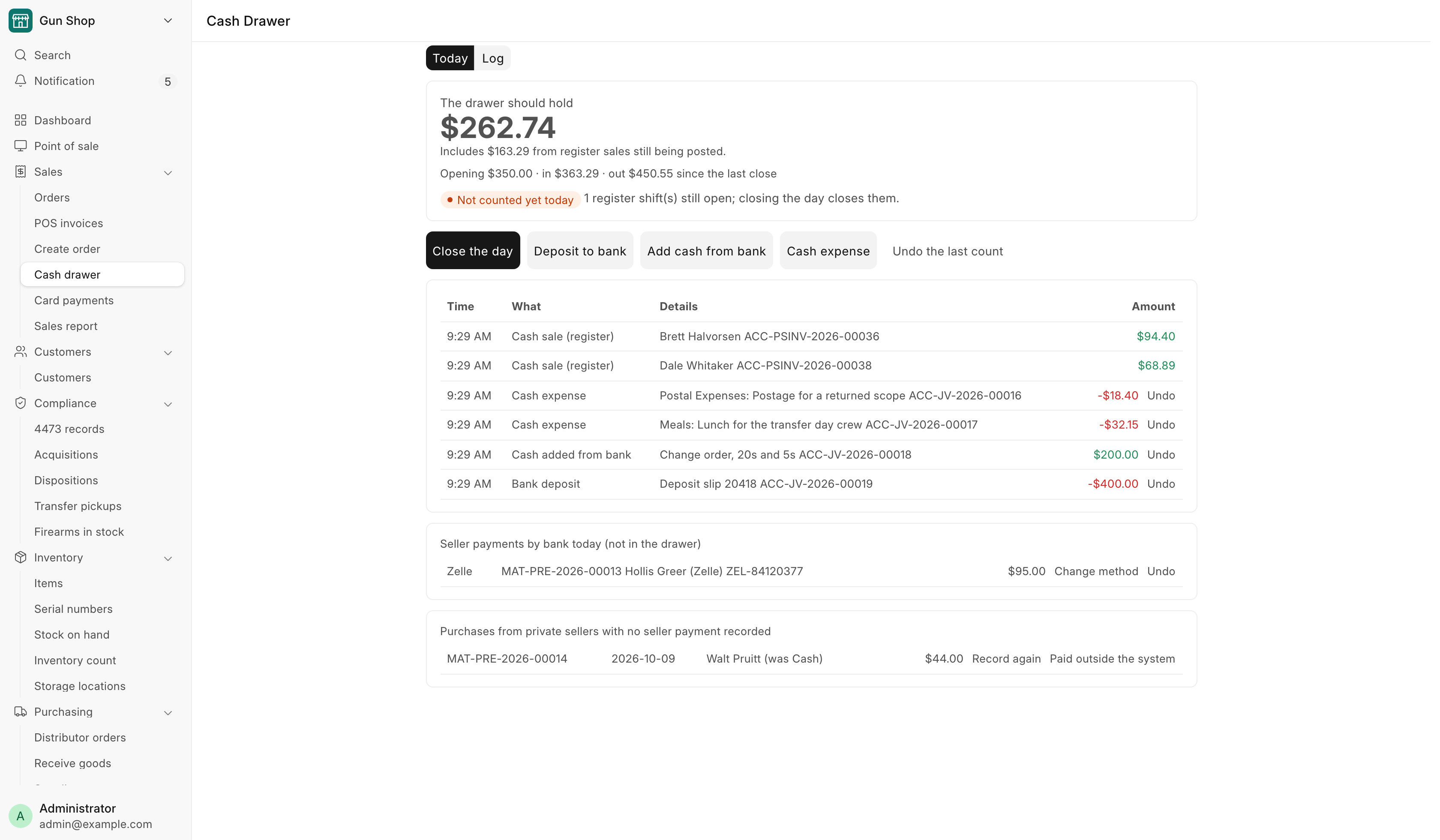
The big figure at the top is The drawer should hold: the cash account's balance, plus cash from register sales that are still being posted. Under it a line reads "Opening … · in … · out … since the last close", and a pill says whether today has been counted:
| Pill | Meaning |
|---|---|
| Not counted yet today | Nobody has closed today's drawer |
| Counted at 6:02 PM: $812.00 · Matches the books | Closed, and the count agreed with the books |
| Counted at …: … · $3.50 short | Closed with a difference |
| Counted at …: … · first count, books set to it | The store's very first count |
If register shifts are still open the page says how many, and that closing the day closes them.
Below the buttons, the list shows every cash movement since the last count, one line each, with the time, what it was, the document behind it and the amount.
| What | Moves the drawer because |
|---|---|
| Cash sale (register) | A cash sale at the register |
| Cash sale (counter order) | A cash payment taken on Create Order |
| Cash paid on an open order | Cash taken at the register on an order that is not finished yet: a part payment, or payment before the 4473 clears. It counts from the moment you click Take Payment |
| Customer payment | Cash taken against an order later, for example at pickup |
| Cash refund | Cash handed back on a return |
| Seller paid for a gun, Seller paid for received goods | Cash paid to a private seller |
| Customer paid for trade-ins | A register ticket where the trade-ins came to more than the sale |
| Bank deposit, Cash added from bank | Cash taken to the bank or brought back |
| Cash expense | A small purchase paid from the till |
| Count difference, First count | What a count booked |
Owner took cash (old entry) only appears on entries made before that button was removed.
Close the day
Count the drawer once, at the end of the day, and confirm once.
- Count the cash in the drawer.
- Click Close the day.
- Type the total in Cash counted in the drawer.
- Read the lines under it. They say what the books expect and how far off your count is, for example "You counted $808.50: $3.50 short."
- If the drawer is off by the store's limit or more ($20 unless a System Manager changed it), a Why is it off? box appears. Write a short reason.
- Click Close the day.
The page shows Day closed with the difference, and the pill turns green.
What the system does
- Closes every register shift still open and posts its sales, the same way the nightly close would.
- Books any difference between your count and the books to the cash over and short account, with your reason.
- Carries your count forward as the opening for the next day.
- The store's very first count works differently. It sets the books to what you counted, and your accountant gets a note. Nothing is booked as a loss.
Only one count is kept per day. If the count was wrong, a manager clicks Undo the last count: the day reads as not counted again, and the register shifts it closed stay closed. Count again afterwards. Only the latest count can be undone.
If nobody counts, the register shifts still close at 23:00 and the day is left Not counted. Nothing is booked for it. The next real count covers every day since the last one. See Opening and closing the day.
Deposit to bank
- Click Deposit to bank.
- Type the Amount.
- Add the Deposit slip or reference (optional).
- Check the bank account named under the fields, then click Record deposit.
Add cash from bank
When you bring change or a float back from the bank:
- Click Add cash from bank.
- Type the Amount put in the drawer.
- Add the Withdrawal slip or reference (optional).
- Click Record.
Cash expense
For a small purchase paid out of the till, such as postage or office supplies.
- Click Cash expense.
- Type the Amount paid (tax included). The field shows the limit for one expense.
- Pick What it was for. The list holds only the expense accounts a manager allowed.
- Write What was bought.
- Optionally attach a Photo of the receipt (optional). It has to be a photo you upload now, not one used for another expense.
- Click Record expense.
An expense over the limit is refused. Pay it by card or from the bank instead.
Undoing a mistake
Managers see Undo next to a deposit, cash from the bank, a cash expense or a seller payment for received goods.
- Click Undo on the line.
- Confirm Undo this entry? The cash goes back into the drawer total.
An entry cannot be undone once a count was taken after it. Undo that count first, or tell your accountant. A cash entry is never deleted, only undone, so the log keeps both.
Undo here, not in the accounts
Every amount this page books is a journal entry, but cancelling that journal entry from the accounting screens is refused and points back here. A trade-in payout is taken back by cancelling its register ticket, not on this page.
Seller payments
Two lists at the foot of the Today tab are about paying private sellers. See Receiving goods and Trade-ins for where those payments start.
Seller payments by bank today (not in the drawer) lists today's seller payments made by Zelle, check or ACH. They never touched the drawer, so they are listed apart. A manager can click Change method to correct how the seller was paid, or Undo.
Purchases from private sellers with no seller payment recorded is shown to managers only. It lists goods bought from a private person on Receive Goods with no payment standing, either never recorded or undone. For each one:
- Record payment (or Record again after an undo) opens How was the seller paid?. Pick Paid by: Cash, Zelle, Check or ACH. For anything but cash, type the Check number, Zelle confirmation or ACH reference. Click Record.
- Paid outside the system is for a seller paid some other way, for example a check written from the accounting system. Write how the seller was paid and click Mark as paid outside. Nothing is booked, and the purchase leaves the list.
A purchase received before the store started tracking cash here is left to the accountant.
The Log tab
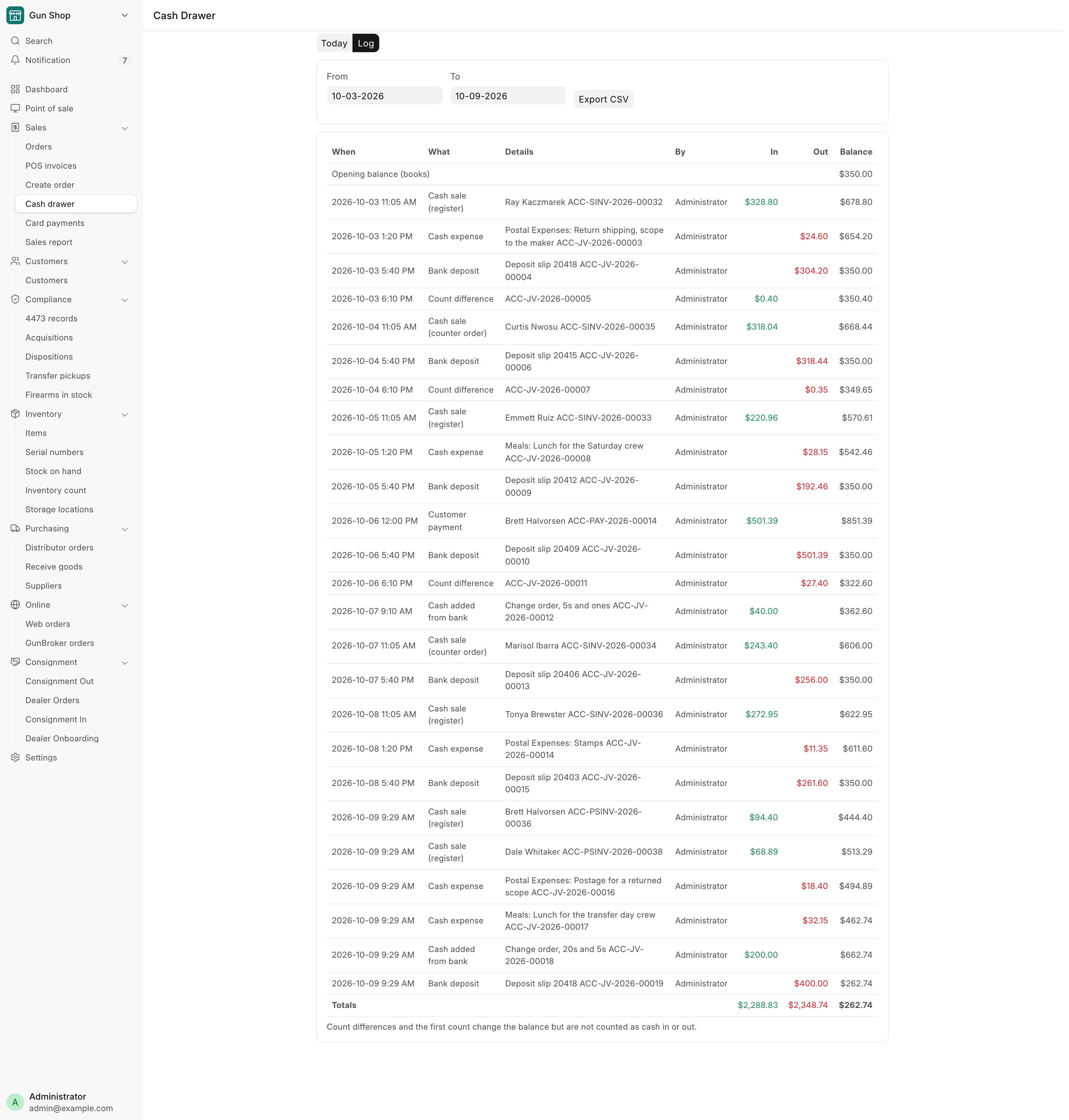
The Log tab lists every cash movement between From and To, oldest first: When, What, Details, By, In, Out and the running Balance. It starts from the books' Opening balance (books) and ends with the Totals. It opens on the last seven days. A line entered on a later day than the date it belongs to says when it was entered.
Count differences and the first count change the balance but are not counted as cash in or out.
Click Export CSV to download the dates on screen. Show at most a year at a time.
The weekly report
Cash Drawer Weekly gives one row per day for the bookkeeper: register sales, counter orders, customer payments, refunds, payments to sellers, bank deposits, cash from the bank, expenses and count differences, then the expected cash, the count, the difference and its reason. A day whose difference needed a reason shows red. Open it from All records on the Dashboard. It needs Sales Manager, Accounts User, Accounts Manager or System Manager.
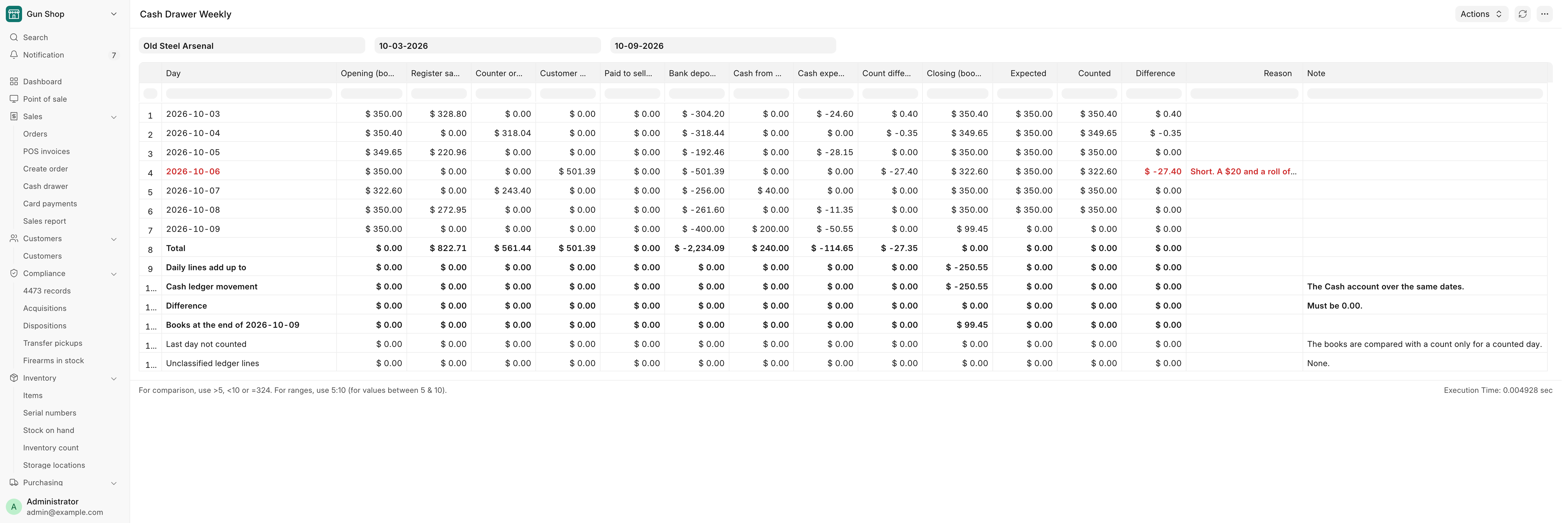
The lines at the foot are the check. Daily lines add up to must equal Cash ledger movement, and the Difference under them must read 0.00. On the Unclassified ledger lines row, the Note column should read None. See Month-end close.
Cash Drawer Settings
A System Manager sets the rules in Cash Drawer Settings, under POS & Sales on the Settings workspace.
| Field | What it does |
|---|---|
| Count difference that needs a reason | A close this far over or short needs a written reason and is flagged on the weekly report. $20 until changed. |
| Biggest cash expense | A single expense above this cannot be paid from the drawer. $200 until changed. |
| Accounts a cash expense can go to | The choices under What it was for. Empty means the standard list: Print and Stationery, Office Maintenance Expenses, Freight and Forwarding Charges, Postal Expenses, Meals, Entertainment Expenses and Miscellaneous Expenses. |
| Cash tracking started | When the store began tracking cash on this page. Purchases received before it are left to the accountant. |
Troubleshooting
| Message you see | What it means | Fix |
|---|---|---|
| Today's cash was already counted at … | Someone closed today already | A manager undoes that count if it was wrong |
| … is closing the day right now. | Another person is counting | Reload the page in a few minutes |
| The cash the drawer should hold changed while you were counting | A sale or payment landed mid-count | Read the new figure, recount if needed, confirm again |
| The drawer is … short of the books. Write a short reason, then close the day. | The difference reached the limit | Write the reason and close again |
| A register shift did not close | Your count is saved, one shift is not | A manager closes that shift by hand |
| Cash expenses are limited to … each. | The expense is over the limit | Pay it by card or from the bank |
| That receipt was already used for another cash expense. | The photo is on another expense | Attach this purchase's own receipt |
| A count was taken after that entry, so it cannot be undone any more. | A count relied on the entry | Undo the count first, or tell your accountant |
| Cash entries cannot be deleted. Undo the entry instead. | Someone tried to delete an entry | Use Undo on the Today tab |
| The cash drawer is busy | A count or another entry is saving | Try again in a moment |
| This purchase is from before cash tracking started. | The purchase predates the page | Your accountant handles it in the books |