Getting started
Read this on your first day. It covers signing in, the Dashboard and the sidebar you will find your way around with, how to find anything, and how to switch the screen to dark.
Signing in
Open the store's system address in a browser and sign in with the email address and password your manager set up for you. Every person gets their own login. The system records who rang each sale, who received each gun and who attested each 4473, so sharing a login destroys that trail.
After you sign in you land on the Dashboard. That is deliberate: the system sends the plain home address, and the old Gun Shop workspace address, to the Dashboard, so you never have to pick an app first. A link someone sends you to a specific record still opens that record.
The addresses in your browser start with /desk/. Older links and this guide
use /app/, and those still work: the system turns them into /desk/ on its
own.
The Dashboard and the sidebar
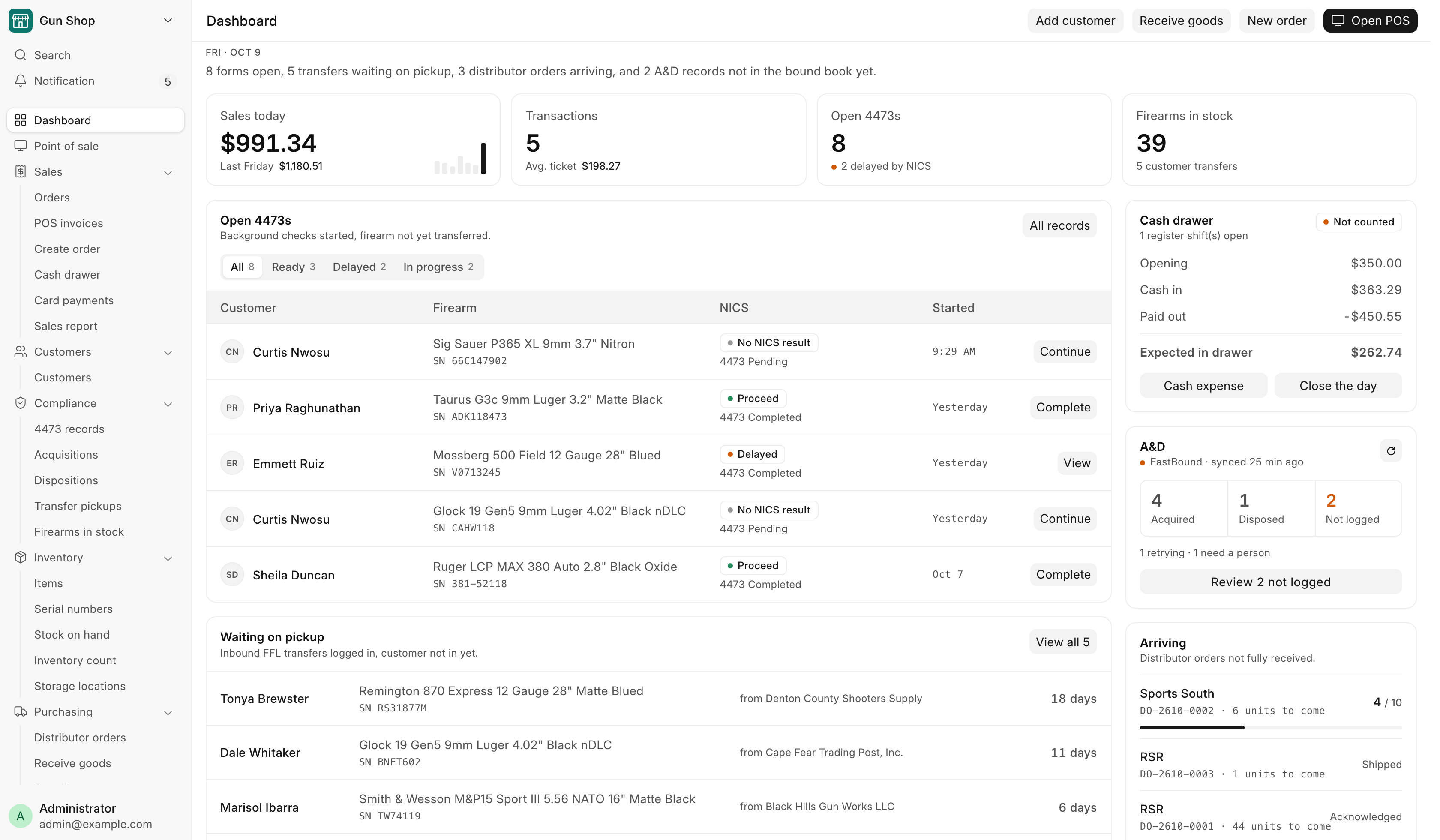
The Dashboard shows today's sales, the firearm orders waiting on a 4473, the transfer guns waiting for their owners, the cash drawer, the bound book and distributor orders on the way. Its buttons open the register, a new order, Receive Goods and a new customer. The Dashboard explains every block.
The sidebar on the left is the way around. It groups the pages you use into Sales, Customers, Compliance, Inventory, Purchasing and Online, with Dashboard and Point of sale at the top and Settings at the bottom. Anything that is not in the sidebar is under All records at the foot of the Dashboard, with a filter box. See the sidebar for every row.
Two names differ between the sidebar and this guide:
| Sidebar | In this guide |
|---|---|
| Orders | The Pending Order queue |
| Distributor orders | Distributor orders |
Notifications
Notification, the bell near the top of the sidebar, tells you when a background check comes back, when a web or GunBroker order comes in, when a distributor ships to the store, and when the bound book refuses a record. It shows in the app only and nothing is emailed. See Notifications for who gets which.
The Settings workspace
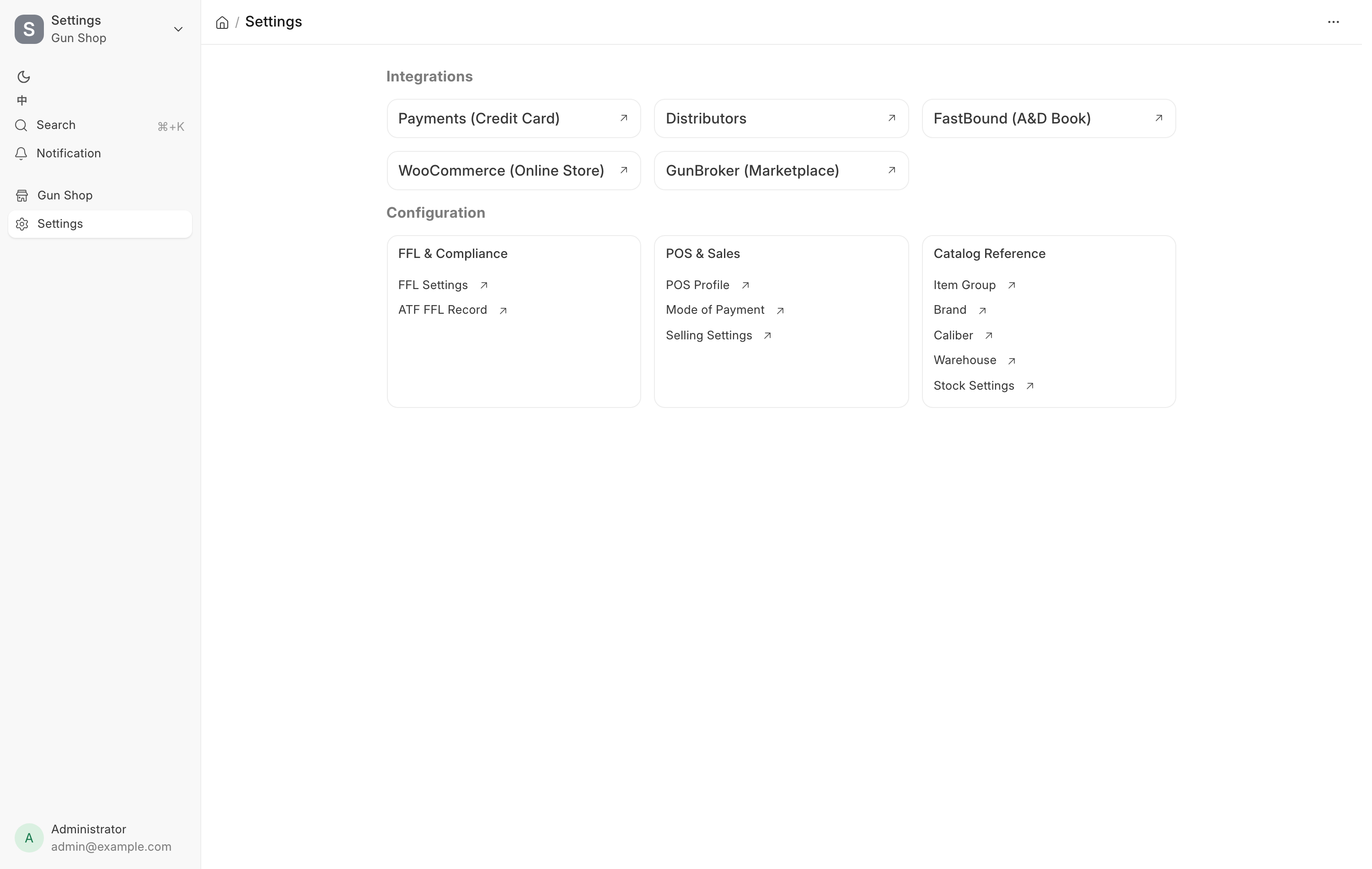
Settings is the manager's workspace. Open it from Settings at the bottom of the sidebar. Under Integrations it holds one shortcut per outside system and two more: Payments (Credit Card), Distributors, FastBound (A&D Book), WooCommerce (Online Store), GunBroker (Marketplace), Data Service (FFL & Catalog) and Extensions. While the OSA Dropship extension is on, a Drop-ship Center shortcut joins them. Under Configuration three cards group the master data:
| Card | Holds |
|---|---|
| FFL & Compliance | FFL Settings, MCP Settings, ATF FFL Record |
| POS & Sales | ShipStation Settings, Cash Drawer Settings, POS Profile, Mode of Payment, Selling Settings |
| Catalog Reference | Item Group, Brand, Caliber, Warehouse, Stock Settings |
Most of Settings is System Manager only. See Who can do what and Settings.
Finding anything
Press Ctrl+K (Cmd+K on a Mac) anywhere in the system to open the search bar. The same thing sits at the top of the sidebar as Search. Type part of a customer name, a serial number, an invoice number or the name of a page and pick from the list.
Press Shift+/ to see the Keyboard Shortcuts dialog for the page you are on.
Dark mode and language
Your theme and language are remembered per login and follow you to every device you sign in from.
To switch the theme:
- Click your own name at the foot of the sidebar and choose Settings.
- Open Appearance.
- Under Theme, pick Light, Dark or Automatic. Automatic follows the device's own setting.
Or press Ctrl+Shift+G to open the Switch Theme dialog.
To switch the language, open the same Settings, go to Preferences and click Change Language.
Printed receipts and forms are not affected. They always print on a light page.
The store logo at the top of the app screen is the Application Logo in Navbar Settings. A logo drawn in black on white shows as a white box in dark mode, so a store manager can upload a second version in the same place, under Dark Mode Logo. Dark mode then shows that one instead. Leave it empty and the Application Logo shows in both themes.
The store assistant
If your store runs the store assistant extension, a button in the bottom-right corner of every page opens it. Ask it how to do something in this system; it answers from this guide. See The store assistant.
Where to find help
This guide is the manual. Three places are worth knowing:
- Troubleshooting for a message you do not recognize.
- Glossary for a term you do not recognize.
- What's New in POS, for what changed in the latest update. Click Gun Shop at the top of the sidebar to open its menu, then choose What's New in POS. The same notes open by themselves once, the first time you sign in after an update.
If a control on screen is refusing to do something, read the message it gives you. The system is written to name the setting or the person that unblocks it.