Extensions¶
For store managers. Extensions (also called add-ons) add features to this POS for your store alone — a layaway plan, a loyalty program, a new report — without changing the POS itself. You manage them on one screen, Settings → Extensions.
Before you start¶
- You need the System Manager role. Counter staff cannot open the Extensions page.
- An extension arrives as a
.zipfile from a developer, as the address of a public Git repository, or is already on your server (placed there by Old Steel Arsenal or by your developer). Old Steel Arsenal's own extensions also receive new versions through an Update button on their card. - Installing restarts the store once. The POS pauses for a few seconds while every part of it reloads. Do it between customers.
- Upgrading an extension takes longer: the POS is unavailable for about 1–3 minutes. Do it outside business hours.
Old Steel Arsenal's extensions¶
Some features of this guide come from extensions Old Steel Arsenal publishes, not from the POS itself. Not every store runs every one; the Installed tab shows what yours has.
| Extension | What it adds | Where it is covered |
|---|---|---|
| OSA Consignment | Sending your guns to a partner dealer, receiving a partner store's guns, and billing for them: the Consignment Out, Dealer Orders, Consignment In and Dealer Onboarding pages | Consignment |
| OSA Dropship | Listing distributor products on the website and having the distributor ship them: the Drop-ship Center and the Catalog Service page | Drop-shipping |
| OSA AI | The store assistant on every desk page and its chat page | The store assistant |
| CA Compliant | The CA Legal and Compliant Service answers on items and serial numbers, carried to the website listing | Items and serial numbers |
Each is switched on and off on its card like any other extension. When one has settings, they open from the Settings button on its card.
The Extensions page¶
The page has three tabs. Installed lists every extension on your server with its state; Upload installs or upgrades one from a .zip file or a public Git repository; Marketplace is not available yet.
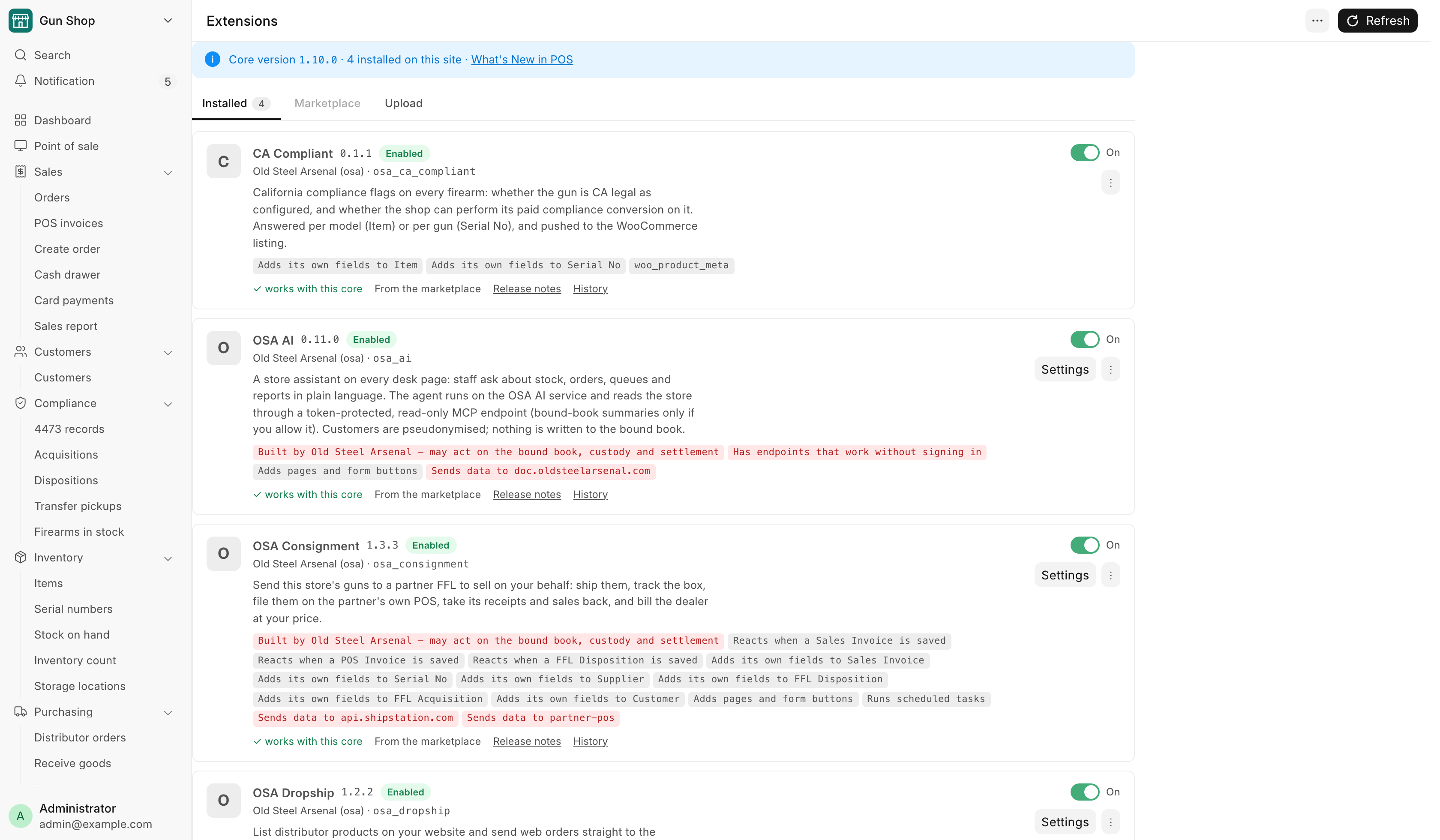
Each card shows the extension's name, version and publisher, a short description, and what it is allowed to do — one chip per permission, in plain words. Chips in red mark permissions that deserve a second look: sending data to another server, reading bound-book records, or having endpoints that work without signing in.
| Pill on the card | What it means |
|---|---|
| Enabled | The extension is installed on this store and switched on. |
| Disabled | Installed, but switched off. Its buttons are gone and its automatic steps do not run. Its data is kept. |
| Not installed | The code is on the server but this store has not installed it. Press Install. |
| Needs core … | The extension does not fit this version of the POS. It is paused: none of it runs and nothing is removed. If it was on, its switch reads Paused and it turns back on by itself once it fits again. |
| Cannot be read | The extension's code on the server is broken. Ask your developer. |
| Waiting for restart… | An upload is staged and the store is about to restart to load it. Usually under a minute. |
| Upgrade waiting for restart… | A newer version is on the server and the store is about to restart to finish the upgrade. |
| Upgrading… | The store has restarted and the database is being updated for the new version. You can leave the page. |
| Installing… / Uninstalling… | A background job is running. You can leave the page. |
| Last job failed | The last install, upgrade or uninstall did not finish. The reason is on the card and in Error Log. After a failed upgrade the card also shows the backup taken before it started. |
| {version} available | Old Steel Arsenal has published a newer version. The card also shows Update to {version}. See Updating from Old Steel Arsenal. |
| {version} needs a newer POS | A newer version exists, but it needs a newer POS than this one. Hover the pill for the reason. There is no Update button until the POS is upgraded. |
| Sideloaded | The extension did not come from the POS image or from Old Steel Arsenal's update service. That is normal for anything your developer gave you. |
| Paid | The publisher requires a license for it. |
Turning an extension on or off¶
- On the Installed tab, use the switch on the card (on a phone, the Turn on / Turn off button).
- When you turn one off, the POS may show a note about what stops working. Read it, then press Turn off.
The switch of a paused extension (Needs core …) is locked. It follows the POS version, not the switch.
What the system does: when an extension is off, its buttons disappear from the sale screen and forms, its scheduled tasks stop, its pages show "turned off for this store", and its endpoints refuse requests. Every record it created is kept. Turn it back on any time; nothing needs reinstalling.
Installing from a file¶
- Open the Upload tab and press Choose a .zip file. Files up to 50 MB are accepted.
- Wait for the check. The POS unpacks the file, verifies its structure and scans its code against the developer specification. Nothing is installed at this point.
- Read the review card. It names the extension, its version and publisher, lists every permission it declares, and shows anything the check found. A package with errors cannot be installed; hand the list to the developer.
- Read the yellow warning. An uploaded package has not been reviewed by Old Steel Arsenal: once installed it can read and change everything in this POS. Only install packages from a developer you trust.
- Type the extension's id exactly as shown, then press Install ….
What the system does: the code is copied to the server and checked once more. The card moves to Waiting for restart… and the status bar says the store is about to restart. Within about a minute the store's agent restarts every part of the POS, installs the extension on this store and switches it on. If the same extension is already on the server, the review card offers an upgrade instead: see Upgrading an extension.
The store's agent
Every store server runs a small helper that finishes uploads (it is the only thing that can restart the POS). If it is not running, an upload stays at Waiting for restart… and after 30 minutes the card says the install did not finish. Nothing is broken; ask your developer to check the agent (RUNBOOK §14), then press Install on the card once the store has restarted.
Installing from a Git repository¶
Use this when your developer gives you the address of a public repository instead of a file.
- Open the Upload tab. Under Or fetch it from a public Git repository, paste the address into Repository address. It starts with
https://. - Type the release tag your developer named into Tag or branch. A tag fetches the same code every time; a branch can change between two fetches.
- Press Fetch and wait. Fetching and checking can take up to a minute. Nothing is installed at this point.
- Read the review card as you would for a file. After the extension id it shows the address with the tag, and the first seven characters of the commit that was fetched.
- Type the extension's id exactly as shown, then press Install ….
Only public repositories are accepted. If the POS cannot use the address, the reason appears in red under Fetch. For a private repository, ask the developer for a .zip file and upload that.
Updating from Old Steel Arsenal¶
Old Steel Arsenal's extensions are updated from their card, with no file to upload. The POS checks for new versions once a day, and again whenever you press Refresh at the top of the page.
- On the Installed tab, press Refresh. A card with a newer version shows {version} available and an Update to {version} button.
- Press Update to {version}. The POS downloads the package and checks it the same way it checks an upload.
- Read the dialog, Upgrade {extension} to {version}?. It shows the release notes between the two versions and any New permissions the new version asks for.
- Press Back up and upgrade.
What the system does: the same as an upgrade from a file, below. A database backup is taken, the new version replaces the old one, the store restarts and the database is updated. The POS is unavailable for about 1–3 minutes, so update outside business hours. The extension's data and its on/off switch are kept.
A package that fails the checks, or a version this POS cannot run, is refused under Cannot update with the reason, and nothing changes.
Upgrading an extension¶
An upgrade replaces an extension that is already on your server with a newer version of the same extension. Its records and its on/off switch are kept.
- On the Upload tab, upload the newer version as a file or fetch it from its Git repository.
- Read the review card. It shows the version change, for example
0.1.0 → 0.2.0, and an Upgrade pill. New permissions lists what the new version asks for that the old one did not: red for a permission that deserves a second look, yellow for the rest. No longer asked for lists what it gave up. - Open Release notes on the card to read every change between the two versions.
- Type the extension's id, press Upgrade to …, read the dialog, then press Back up and upgrade.
What the system does: a database backup is taken first. The new version replaces the old one on the server, the card shows Upgrade waiting for restart…, and the store restarts. The card then shows Upgrading… while the database is updated. The POS is unavailable for about 1–3 minutes in all. When the card is back to normal, it shows the new version.
If the previous upgrade of this extension did not finish, no version of it can be uploaded: the review card shows Cannot upgrade and says what to do first. Your developer rolls the store back to the version before that upgrade (or, if its database update did finish, completes it), then you upload the newer version. A failed upgrade is never upgraded over.
A package with the same version as the one on the server, or an older one, is not offered: the card shows Cannot upgrade with the reason. Extensions that came with the POS image cannot be upgraded from this page.
If an upgrade fails
The card shows Last job failed and, under Backup, the path of the backup taken before the upgrade. The extension may be half updated, so the page does not accept a new version of it until your developer has put the store back to the version before the upgrade (RUNBOOK §14). Press Copy and send the path to your developer.
Uninstalling¶
- On the card, open the ⋮ menu and choose Uninstall from this site….
- Read what will be removed and what is kept. A database backup is taken first; it appears under Download Backups.
- Type the extension's id to confirm and press Back up and uninstall.
An extension that still holds records on this store cannot be uninstalled — the POS says so and offers to turn it off instead, which keeps the records. The code stays on the server until your developer removes it there.
Troubleshooting¶
| Message you see | What it means | Fix |
|---|---|---|
| "Cannot use this file" | The upload is not a zip, is encrypted or corrupt, unpacks to more than 200 MB, or contains unsafe paths. | Ask the developer for a plain, unencrypted zip built from the package root. |
| "Fix these before it can be installed" with a list | The package fails one or more rules of the developer specification. | Send the list to the developer; each line names the rule, the file and the line. |
| Cannot upgrade on the review card | The package has the same version as the extension on your server or an older one, that extension came with the POS image, or its last upgrade did not finish. | Ask the developer for a newer version. Going back to an older version, and cleaning up an upgrade that did not finish, is a restore your developer does (RUNBOOK §14). |
| A red note under Fetch | The address is not a public https:// repository, the tag or branch does not exist, or the package is too large. |
Check the address and the tag with your developer. For a private repository, upload a .zip file instead. |
| Last job failed with a Backup path | An upgrade stopped while the database was being updated. | Press Copy and send the path to your developer. Do not upload the extension again until the store is restored. |
| "The store did not restart within 30 minutes, so the install never finished" | The store's agent did not run. | Ask your developer to check the agent timer; once the store has restarted, press Install on the card. |
| "The store did not restart within 30 minutes, so the upgrade never finished" with a Backup path | The store's agent did not run, so the upgrade did not finish. The card says whether the database was updated. | The card ends with the fix. "Ask your developer to finish it": the database already has the new version, so your developer completes the upgrade and restores nothing. "Ask your developer to roll it back": your developer puts the version before the upgrade back. Either way, press Copy and send the path to your developer (RUNBOOK §14), and do not upload the extension again until they are done. |
| "… is on the server but the store has not restarted to load it yet" | You pressed Install on a staged upload before the restart. | Wait for the agent, then try again. |
| "The last job did not finish." | An install or uninstall failed part-way. Nothing on the POS was changed. | Read the reason on the card; details are in Error Log. Try again or ask your developer. |
| Cannot update | The downloaded version did not pass the checks, or cannot replace the one installed. The dialog gives the reason. | Nothing changed. Send the reason to Old Steel Arsenal. |
| "Could not check for extension updates right now — try Refresh again later." | The update service did not answer. Installed extensions are not affected. | Press Refresh again later. |
| {version} needs a newer POS | The new version needs a newer POS core. | Upgrade the POS first. The Update button then appears. |
For developers¶
- Developer specification — the rules an extension must follow (checked by the built-in lint before anything is installed).
- Core hooks and the registry — what the POS offers an extension to plug into.
- Quick start — the smallest working extension, and how to check and package it.