Customers
Every sale, 4473 and order hangs off a customer record. Counter staff create customers at the register and look them up; managers keep the records clean, mark a customer's status and merge duplicates.
Before you start
- Open the customer list from Customers in the sidebar, or a single customer from search. Add customer on the Dashboard opens a new one.
- At the register, the customer box at the top of the cart can create a new customer without leaving the sale.
- Merging two records needs Sales Manager or System Manager.
Adding a customer
The New Customer dialog is the same at the register and on the customer list.
- Leave the type on Individual for a person.
- If you have the customer's driver license or state ID, click into Scan ID and scan the barcode on the back of the card. Wait for the whole barcode to go through. The dialog fills the name parts and the address, and shows ID scanned: with the name it read.
- Otherwise type First Name and Last Name, and Middle Name and Suffix if there are any. Customer Name builds itself from those parts.
- Fill in or correct the address and contact details.
- Save.
Type the name the way it reads on the customer's ID. That name goes on the 4473 and into the bound book.
If your store keeps ID numbers (see Storing ID numbers), the dialog also asks for Date of Birth, Driver License # and License Expiry, and a scan fills them. The license becomes a row under ID Documents on the customer's Profile tab.
The Profile tab
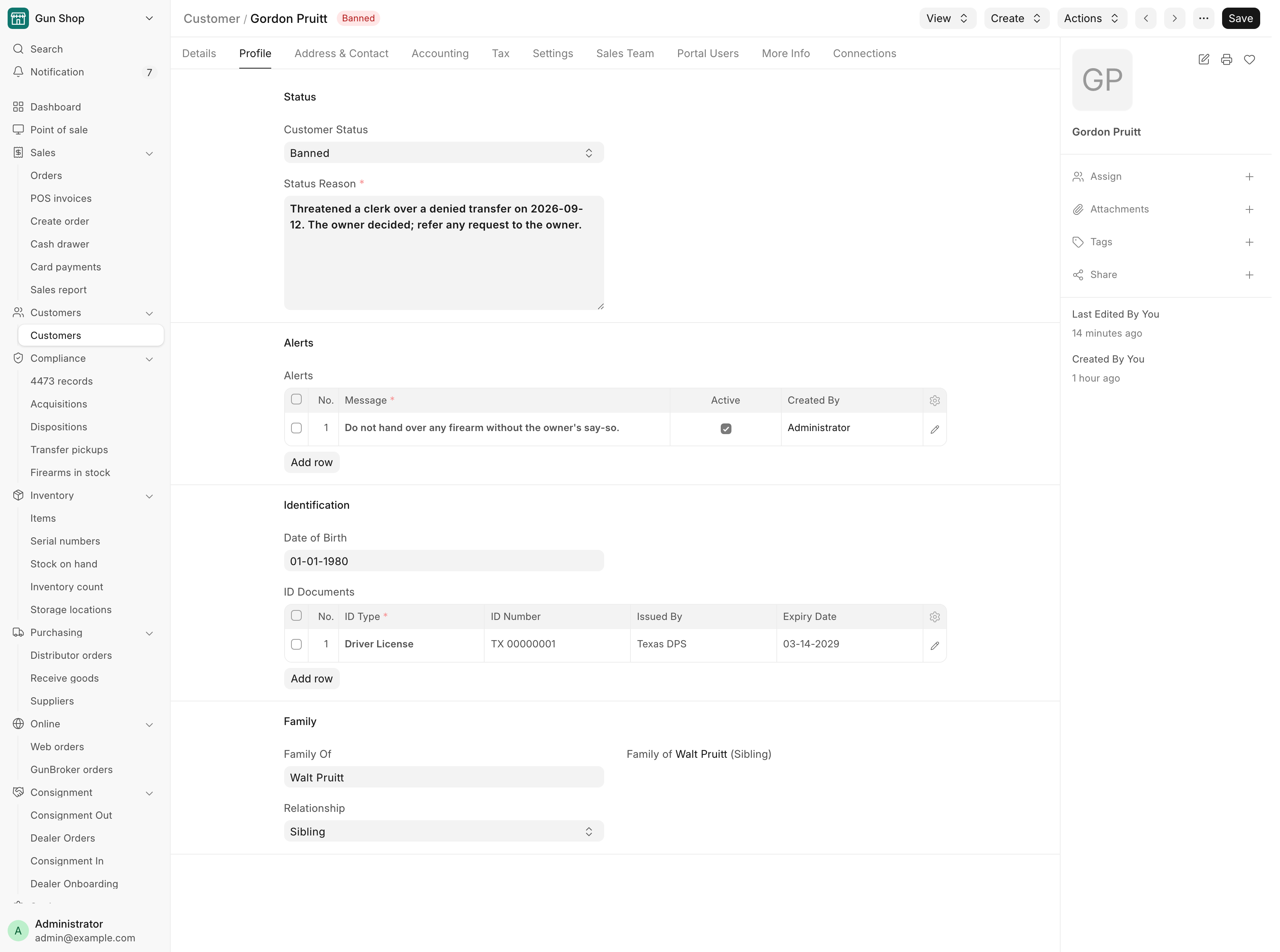
Open a customer and click Profile, the tab after the first one.
| Section | What it holds |
|---|---|
| Status | Customer Status: Active, Inactive, Prospect or Banned. Status Reason appears for any status but Active. |
| Alerts | Notes for whoever serves this customer next. Each row has a Message and an Active box, and records who added it and when. |
| Identification | Date of Birth and ID Documents: the ID Type, ID Number, Issued By, dates and a Copy of ID. |
| Family | Family Of and Relationship for a family member, or the list of members for the head of a family. |
| Merged Emails and GunBroker IDs | Only shown after a merge. See below. |
Customer status
A new customer is Active. Set Customer Status to:
- Inactive for someone who no longer shops here.
- Prospect for someone who has not bought yet.
- Banned for someone the store will not serve. A reason is required: saving without one is refused with Enter a reason before marking … as Banned.
A status other than Active shows on the customer list and at the top of the record: Banned in red, Prospect in orange, Inactive in gray. The list can be filtered by Customer Status.
Note
The status is a record for staff. It does not stop a sale at the register. Check the Profile tab before you serve someone you do not know.
ID documents
Copy of ID is kept as a private file. Use the attach button on the row to upload it. Only the attached copy and the ID type, issuer and dates are kept when the store does not store ID numbers.
Family
One family is one level deep: a head of the family and the people under them, for example a spouse and children who buy on the same account.
To add a family member, open the head of the family, go to Family and click Add family member. The New Customer dialog opens with the last name and address filled in and a Relationship box: Spouse, Child, Parent, Sibling, Guest or Other. Save it and the member appears in the list.
A member's own record shows Family of with a link to the head. A member cannot have members of their own, and a head with members cannot join another family or be deleted.
Memberships and saved cards
Under Agreements on a customer, Memberships sells and manages the customer's memberships, and Saved cards lists the cards kept on file. See Memberships and Saving a card to charge later.
Storing ID numbers
Whether the system keeps ID numbers and dates of birth is a store decision. A manager sets it with Store Customer ID Numbers in FFL Settings, on the Compliance tab under Customer Records.
- On: ID numbers and dates of birth are kept on the customer record.
- Off: every save blanks them, and the fields are hidden. Turning the switch from on to off erases the numbers and dates of birth already stored. Attached ID copies, change history and deleted records are kept.
Merging two records of the same person
When one person has two customer records, a manager merges the duplicate into the one to keep.
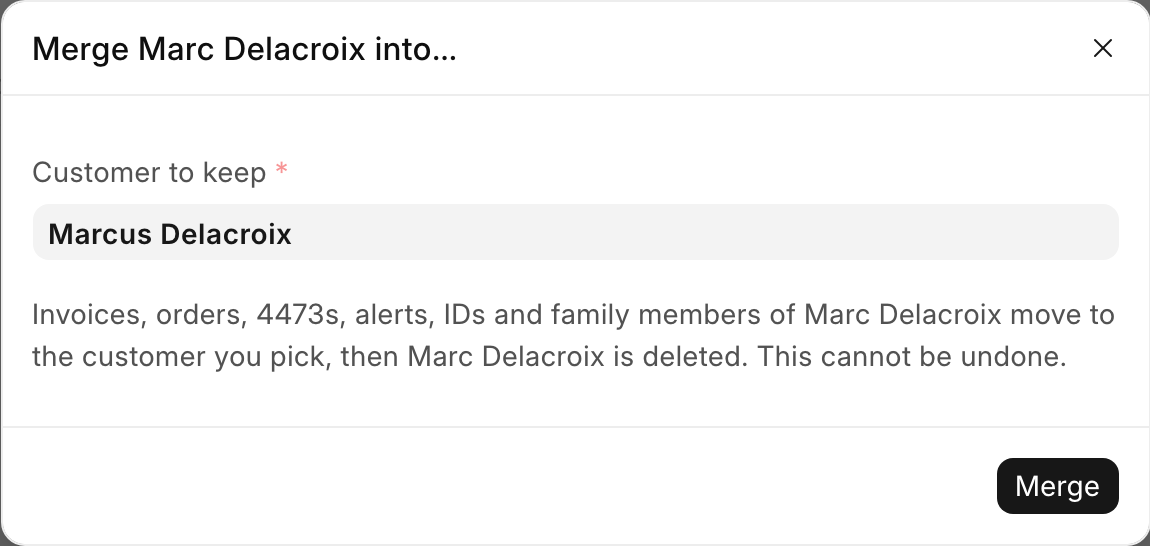
- Open the duplicate, the record that should go away.
- Click Actions, then Merge into….
- In Customer to keep, pick the record that stays.
- Read the warning and click Merge.
This cannot be undone
Invoices, orders, 4473s, alerts, IDs and family members of the duplicate move to the customer you keep, then the duplicate is deleted.
What the merge does:
- Copies the duplicate's alerts and ID documents onto the record you keep, skipping rows that are already there. A date of birth the kept record lacks is filled in.
- A Banned duplicate makes the kept record Banned, with the reason carried over.
- Records the duplicate's email addresses and GunBroker user ID under Merged Emails and GunBroker IDs on the kept record. A later web or GunBroker order from one of those then lands on the kept record instead of starting a new duplicate. Nobody can edit those rows by hand.
- Leaves a comment on the kept record saying who merged what.
The merge is refused for the web store's own customer and the walk-in customer, for a register's default customer, for two FFL dealers with different license numbers, and when it would nest one family inside another. If only the duplicate is an FFL dealer, merge the other way round so the license stays on file.
Troubleshooting
| Message you see | What it means | Fix |
|---|---|---|
| Enter a reason before marking … as Banned. | Banned needs a reason | Fill in Status Reason and save |
| A customer cannot be in their own family. | Family Of names the same customer | Pick the head of the family |
| … is already a family member of … | Families are one level deep | Add the person to the head's family instead |
| … has family members of their own, so they cannot join another family. | A head cannot become a member | Move their members first |
| … has family members (…). on delete | A head with members cannot be deleted | Move the members to another family first |
| A customer cannot be merged into itself. | The same record on both sides | Pick a different customer to keep |
| … is an FFL dealer and … is not. | The dealer record must survive | Merge the other record into the dealer |
| Merged emails and GunBroker IDs are recorded by Merge customers only and cannot be edited. | Those rows are read-only | Leave them; a merge writes them |