Photos
Photos live on two places: the Item, for shots of the model, and each Serial No, for shots of that particular gun. Whoever prices and lists stock usually does this.
Before you start
- Save the form first. Photo actions write to the document directly, so the buttons are disabled while a form is new or has unsaved edits. The hint under the drop zone says which one it is.
- Accepted formats are JPG, PNG, WEBP and GIF, up to 10 MB each, and up to 50 files per upload.
- The Upload Photos by Serial page opens for Stock User, Stock Manager, Item Manager and System Manager.
- Photos added through these tools are made public so the web store can fetch them. Never put a Form 4473, an ID scan or any other document in a gallery.
Uploading to many guns at once
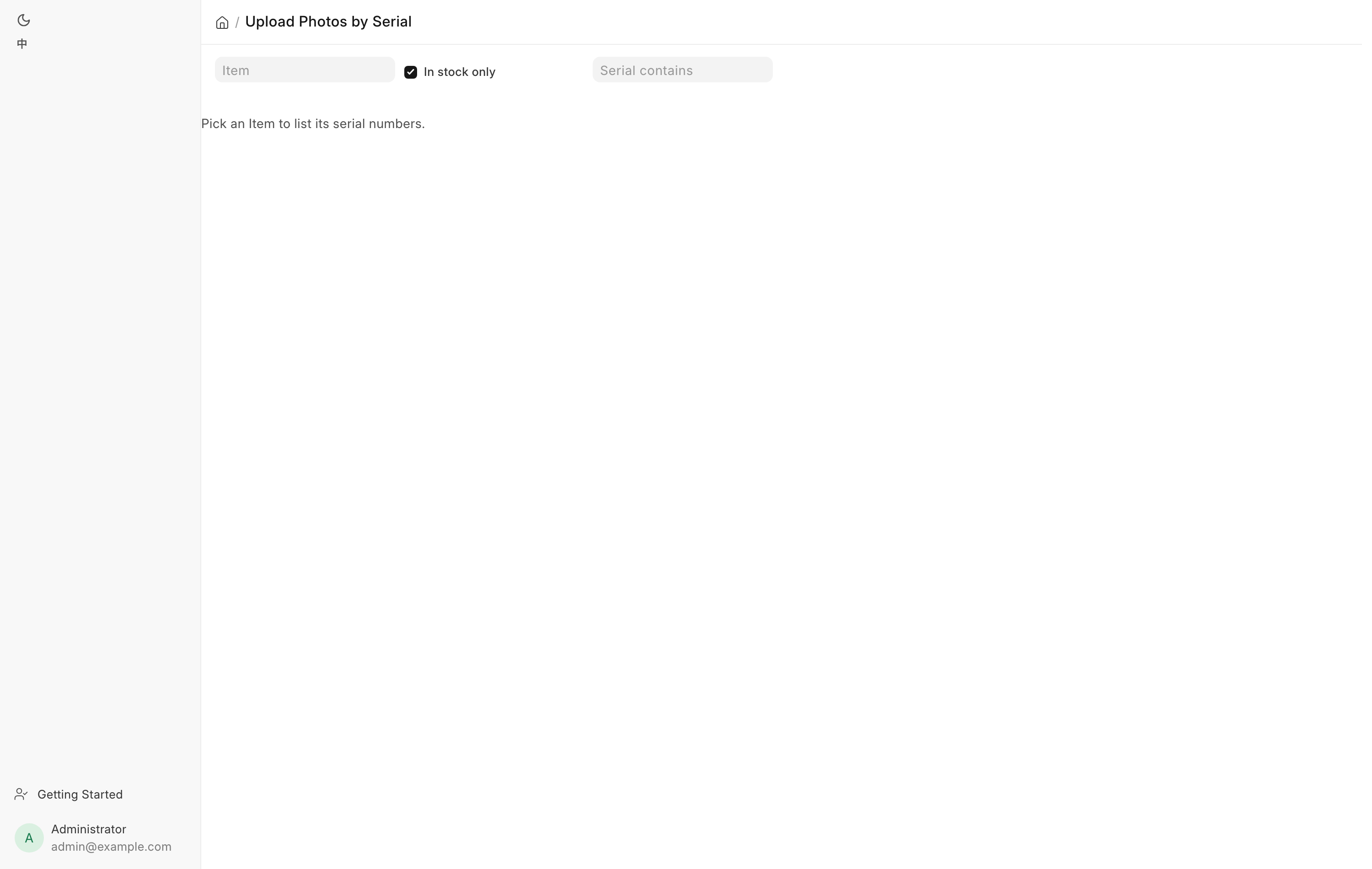
Use Upload Photos by Serial at /app/serial-photos when a batch of used guns
has been received and each one needs its own shots. You can also reach it
from the Item form's photo strip, where the Upload by serial… button carries
the item across.
- Pick the Item. Only serial-tracked items are offered.
- Leave In stock only ticked to hide sold and inactive guns.
- Narrow a long list with Serial contains.
- Each serial gets a card showing its status, warehouse, photo count and thumbnails.
- Drop this gun's photos on its card, or click the card's drop zone to choose files. Several at once is fine.
A green message confirms each batch, and the card's thumbnails refresh.
Ordering, captions and removal are not on this page. Do those on the Serial No form.
Working with one gallery
The photo strip sits at the top of the Item form and the Serial No form. The heading counts what is there, for example Photos (6).
| Control | What it does |
|---|---|
| + Add photos | Opens the file picker. |
| The drop zone | Drop files anywhere on it. Enter or Space works from the keyboard. |
| ☆ | Makes that photo the featured one. |
| ✎ | Sets the Caption (also the alt text), up to 140 characters. |
| × | Removes the photo from this gallery. |
| ⠿ | Drag to reorder. It sits on every photo except the featured one. |
The featured photo is marked ★ Featured and always sits first. It cannot be dragged, because its position is not yours to choose. To feature a different photo, click ☆ on that one.
Removing asks first: "Remove this photo? The file is deleted if nothing else uses it." The same photo can sit on an Item and on one of its serials, and the file is only deleted when no gallery row and no image field anywhere still points at it.
The raw Images table below the strip stays available for row-level inspection and starts collapsed.
Gallery order is publish order
The order you arrange here is the order shoppers see. Every channel reads the same rule: the featured photo leads, then the rest in the order you dragged them.
- WooCommerce promotes the first image to the product's featured image.
- GunBroker promotes the first picture to the listing thumbnail.
So the first photo is the one that has to sell the gun. Put the best full-side shot there and let condition close-ups follow.
Changing the order or the featured photo does not republish on its own. The next push to that channel carries the new order.
Private files
Photos uploaded through the photo strip or the Upload Photos by Serial page are made public on the way in, and that is what lets the web store fetch them.
A photo attached some other way can end up private, sitting under
/private/files/. WooCommerce fetches every image anonymously, so a private URL
answers with a permission error and the whole product push fails. The push tries
to fix this for you by flipping that one file public, and it only ever touches
files referenced by the image field or a gallery row. It never touches the
document's other attachments, which is why a 4473 or an ID scan stays private.
When the flip cannot be done, the push stops and writes a message naming the file into Woo Sync Error on the item or the serial, for example:
Serial No S1 gallery row 1: could not make image /private/files/gun.jpg public — <reason>
Remove the photo and add it again through the photo strip, which uploads it public from the start.
Note
Two pushes running at once can race the first flip and report that the file cannot be found on disk. The next push finds the public URL and succeeds, so retry once before investigating.
Troubleshooting
| Message you see | What it means | Fix |
|---|---|---|
Save first, then add photos. |
The form has never been saved. | Save the document, then upload. |
Save the form first — photo actions write to the document directly. |
There are unsaved edits. | Save, then upload. |
<file> is not a photo (allowed: .jpg, .jpeg, .png, .webp, .gif). |
Wrong file type. | Convert it, or pick a different file. |
At most 50 photos per upload. |
Too many files in one go. | Split the batch. |
Pick an Item to list its serial numbers. |
No item chosen on the upload page. | Pick one in the Item box. |
No serials match. |
The filters exclude everything. | Clear Serial contains, or untick In stock only. |
A Woo Sync Error naming a /private/files/ image |
The photo is private and could not be published. | Remove it and re-add it through the photo strip. |
Related pages
- Items and serials for where the galleries sit on each form.
- WooCommerce and GunBroker for how the photos are published.