Receiving from a partner store
A partner store that runs this same POS can send you its guns to sell. Stock managers receive them on the Consignment In page, counter staff sell them like any other gun, and you pay the partner store only once a gun sells.
Before you start
- In the sidebar, click Consignment → Consignment In, or go to
/app/osa-receive-consignment. Sales User, Sales Manager, Stock Manager and System Manager can open it. Use that address, not/app/osa-consignment-in, which opens a plain list instead. - Receiving guns and sending them back need the Stock Manager or System Manager role. Connecting a partner store needs System Manager.
- The OSA Consignment extension must be on. See Consignment.
- The partner store must be connected once. See Connecting a consignor store.
In this channel the partner store is the consignor: it owns the gun until you sell it. Your store is its dealer. On its own POS, your store appears on its Consignment Out page, and its shipments to you are pushed straight onto your Consignment In page. Nobody signs in anywhere.
Connecting a consignor store
A System Manager does this once per partner store, together with the partner on the phone. The partner runs Connecting a dealer for your store on its own POS. Each side then gives the other a login.
- Click Connect a consignor store at the top right of the page.
- Type Their FFL number.
- Type Login email for their POS (a store mailbox). This becomes the login their POS reports with. Nobody signs in with it.
- If the store is not yet one of your suppliers, you can set Store name (new Supplier only).
- Under Their POS — where we report receipts and sales, fill in Their POS URL (https://…), API key they issued us and API secret they issued us. The partner reads these off the Their API credentials — shown once card of their own wizard. You can leave them blank and enter them later on the partner's supplier record.
- If the store is already one of your suppliers, tick Turn on pay-on-sale for this supplier. Read the warning below first.
- Click Connect.
- The dialog shows Their API credentials — shown once: Login, API key and API secret. Read them to the partner. They enter them in the Partner POS card for your store on their Dealer Onboarding page.
- Click Done.
What the system does
- Creates the partner's Supplier record from its ATF record, or reuses the one that exists, and marks it an FFL dealer with Pay on Sale (settle at sale) on.
- Creates a login holding only the OSA Consignment Peer role, which has no Desk access and no permissions on any record. Its only job is to accept the partner's shipments and price changes.
- Saves the partner's POS address and credentials in the Partner POS (OSA Consignment) section of the supplier record.
There is no button yet to issue a new secret for a consignor's login. If the partner loses it, ask a System Manager.
Pay-on-sale applies to everything from that supplier
Pay-on-sale is a setting on the whole supplier. If the partner store is already one of your suppliers, turning it on means a gun you later buy from it outright also waits in Stock Received But Not Billed until it sells. Decide that with your bookkeeper before you tick the box.
Reading the page
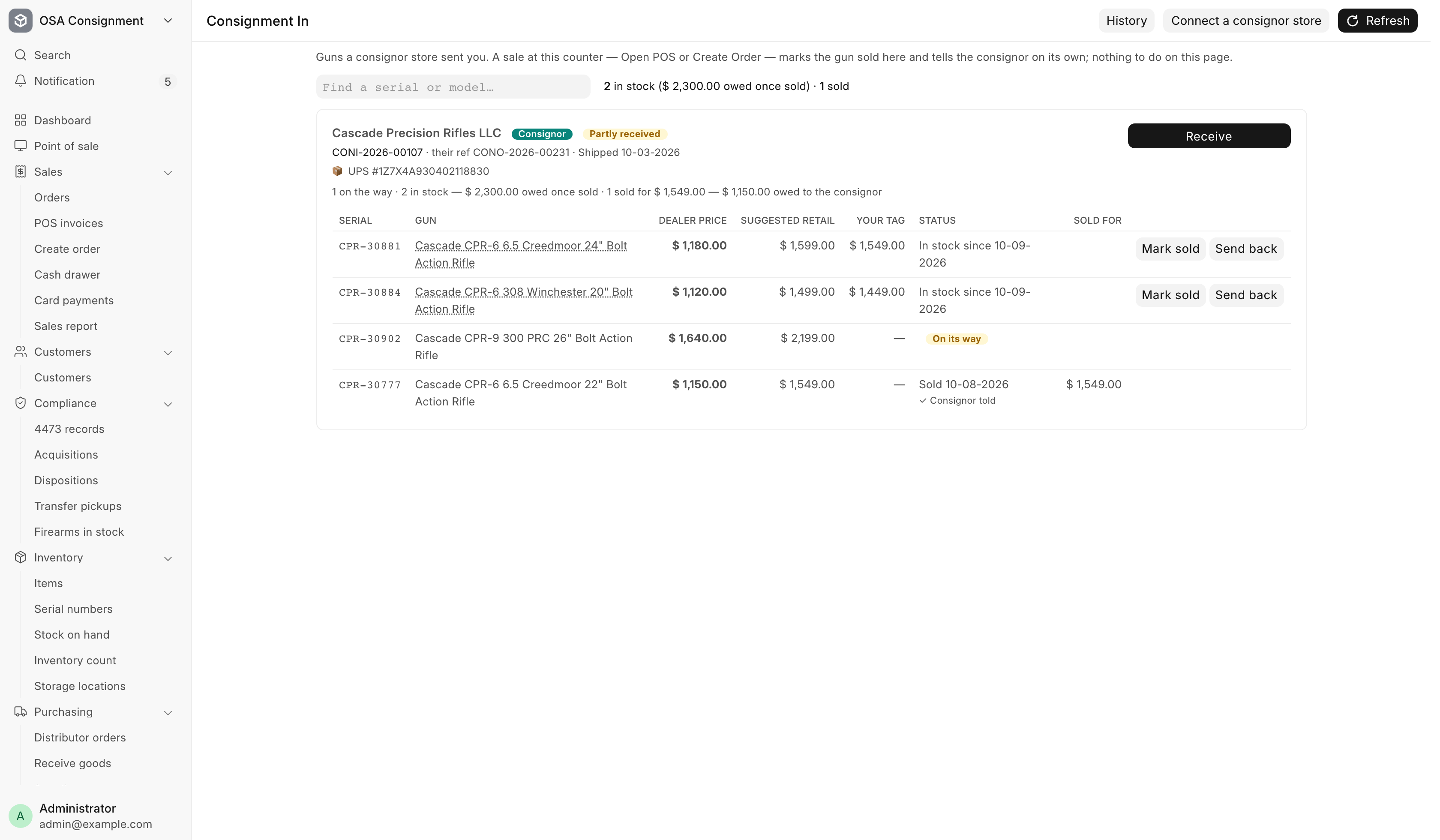
The line at the top reads "Guns a consignor store sent you." The search box finds a serial or model across every card. Next to it a summary counts what is in stock and what you will owe once it sells, and what has sold. Refresh reloads the page. History also shows closed cards.
Each card is one shipment. It shows the partner's name with a Consignor tag, the card's state, their shipment reference, the ship date and the tracking number. A Track ↗ link follows the number when the partner sent a tracking link.
| Card state | Meaning |
|---|---|
| Incoming | Nothing received yet |
| Partly received | Some guns received, some still on their way |
| Received | Every gun that is coming has been received |
| Closed | Every gun is sold, sent back or not coming |
| Report to consignor failed | At least one report did not reach the partner's POS |
Each gun has its own row.
| Column | What it shows |
|---|---|
| Serial | The gun's serial number |
| Gun | The partner's title for it. Click it to open the gun's serial record. |
| Dealer price | What you owe the partner once the gun sells |
| Suggested retail | The partner's suggested price |
| Your tag | Your selling price. Red when it is below the dealer price. |
| Status | On its way, In stock since a date, Sold with the invoice, Sent back, or Not coming |
| Sold for | What you sold it for |
"Not coming — the consignor voided or recalled it" means the partner took that gun off the shipment before you received it. Nothing is needed from you.
Under a gun's status, the report to the partner shows as "Telling the consignor…" with Send now, "Consignor not told yet — trying again by itself" with Try now, or "✓ Consignor told". A failed report retries every ten minutes by itself. Send now and Try now only skip the wait.
Receiving a shipment
When the box arrives:
- Click Receive on its card.
- The dialog lists every gun on its way, all ticked. Untick any gun that is not in the box.
- Click Receive. The message reads "… gun(s) received into stock."
The dialog does not ask where each gun goes. Received guns show on the Not placed tab of the store map until you place them.
What the system does
All of it happens together, or none of it does:
- Books a purchase receipt from the partner store at the dealer price. The gun is your stock, and its cost waits in Stock Received But Not Billed until it sells.
- Books an Acquisition in the bound book from the partner's FFL, and pushes it to FastBound.
- Matches each gun to one of your items by item code, UPC, or manufacturer, model and caliber. If none matches, it creates a new item from the partner's description in the same item group.
- Copies the partner's title and description for each gun onto your serial record, ready for the website. A title or description you already wrote yourself is kept. Photos are not copied.
- Tells the partner's POS the guns arrived.
If the partner's shipment names a gun you already hold from it, received before the two stores were connected, that gun is marked received at once without a second receipt.
Selling a partner store's gun
Sell it at the register or through Create Order, like any other gun. When the sale is submitted, the gun turns Sold on this page and the partner's POS is told the price. There is nothing to mark by hand. The partner bills you its dealer price, whatever you sold the gun for.
Mark sold on an in-stock row is only for a sale this POS made while the consignment extension was turned off. It finds the invoice that took the gun out of stock and reports it. If no sale is found, it refuses with "Not sold here yet". Sell the gun at the counter instead.
Refunds and returns
A cancelled sale, or a return or credit note that lists the gun, puts the gun back in stock here and tells the partner it is unsold. Their side follows on its own.
For a price adjustment or a goodwill refund, do not list the gun on the refund. Listing it un-sells the gun on both stores' books.
If the gun later comes back to you another way, such as a trade-in after its sale, that later sale is yours alone. The partner is not told.
Sending a gun back
A stock manager can return an in-stock gun to the partner store.
- Click Send back on the gun's row.
- The dialog, titled "Send … back to …", says the gun leaves your stock and bound book now. Type a Tracking number (optional) if you have one.
- Click Send back. The message says the partner is being told.
The gun leaves your stock at the cost parked for it, so nothing is owed or reversed. The system books a Return disposition to the partner's FFL in the bound book and pushes it to FastBound. On the partner's POS the gun shows as Coming back, and they book it in when the box arrives.
A gun cannot be sent back while a sale holds it, such as a web or GunBroker buyer or a counter order. End that sale first. A gun you consigned on to another dealer must be recalled first.
Undo next to a sent-back gun's status puts it back in stock, if you clicked the wrong gun and it never left. It needs the same stock manager role. It asks the partner's POS first. Once they have received the gun back, Undo is refused. A card whose guns all went back stays on the page for 14 days, so Undo is still there.
Use Send back, not a purchase return
Do not return a partner store's gun with a Purchase Return. That path does not book this return correctly in the bound book, and the partner's POS is never told. Send back does both.
Troubleshooting
| Message you see | What it means | Fix |
|---|---|---|
| … is not a pay-on-sale supplier — turn Pay on sale on for it first | The partner's supplier record lost pay-on-sale | A System Manager reconnects it, or turns Pay on Sale (settle at sale) back on. |
| … came with no cost; ask the consignor to set one before receiving. | The partner sent a gun with no dealer price | Ask them to set a price, then receive again. |
| Serial … is already in stock here. | That serial number is already in your stock | Check the gun and the serial. Ask a manager before receiving. |
| Item Group … does not exist here — create it, then receive … again. | No matching item, and the partner's item group is unknown here | Have a manager create the item group, then receive again. |
| Not sold here yet | Mark sold found no sale of that gun | Sell it at the counter. |
| … is out on consignment at another dealer. Recall it first, then send it back. | You consigned it on | Recall it, then send it back. |
| Ask your bookkeeper | The gun's cost changed after it arrived | The bookkeeper corrects the cost, then send it back. |
| Already back with the consignor | Undo after the partner received the gun back | Nothing to undo. They can ship it to you again. |
| Try again shortly | Undo could not reach the partner's POS | Try again in a few minutes. |
| No ATF record for … — a consignor can't be set up without one. | The FFL number is wrong or not on the ATF list | Check every digit against their license. |
| … is already a supplier here and is not pay-on-sale. | Connecting would change an existing supplier | Read the pay-on-sale warning, then tick the box if you agree. |
| … is a staff login; use a store mailbox for the consignor. | The email belongs to a staff account | Use a store mailbox. |
| … already reports for … One login, one consignor. | That email is another partner's login | Use a different store mailbox. |
| Their POS URL was not saved — fix it on the Supplier. | The partner's POS address was refused | Correct it in the supplier's Partner POS section. |