Special orders
A customer wants something the store does not have on the shelf. Take a deposit now, order it in, and collect the balance when they come back. Counter staff run both halves from the register.
Before you start
- You need Sales User, Stock Manager or System Manager.
- A shift has to be open on the register.
- Have the customer record ready, or create one on the spot.
Taking the order and the deposit
- At the register, pick the customer.
- Click Special Order in the toolbar, next to Trade-in.
- Leave Mode on New Order.
- Check Customer. It is prefilled from the cart and you can change it.
- In Add Item, search for what they want. The search covers the store's own items and the distributor catalog. Picking a catalog product creates the item record for you.
- Set Qty and Unit Price ($). A suggested price fills in when there is one. Repeat for as many lines as the order needs. The running list appears below with an ✕ on each row.
- Enter Deposit ($).
- Check Expected Arrival. It defaults to two weeks out.
- Add Notes if there is anything to remember. They are saved as a comment on the order.
- Click Create Order & Collect Deposit.
A Sales Order is created to track the order, and a deposit invoice drops straight into the cart. Take the money the normal way, cash or card, and click Complete Order. The customer gets a receipt.
The deposit is not a sale
The deposit is booked to a Customer Deposits liability account, not to income, because nothing has been handed over yet. It carries no sales tax for the same reason. Revenue and tax are recognized at pickup. Month-end reports are not inflated by deposits.
The deposit has to be more than zero and cannot exceed the order total.
Tracking the order
The Open Special Orders tile on the Gun Shop workspace is the board to scan every morning.
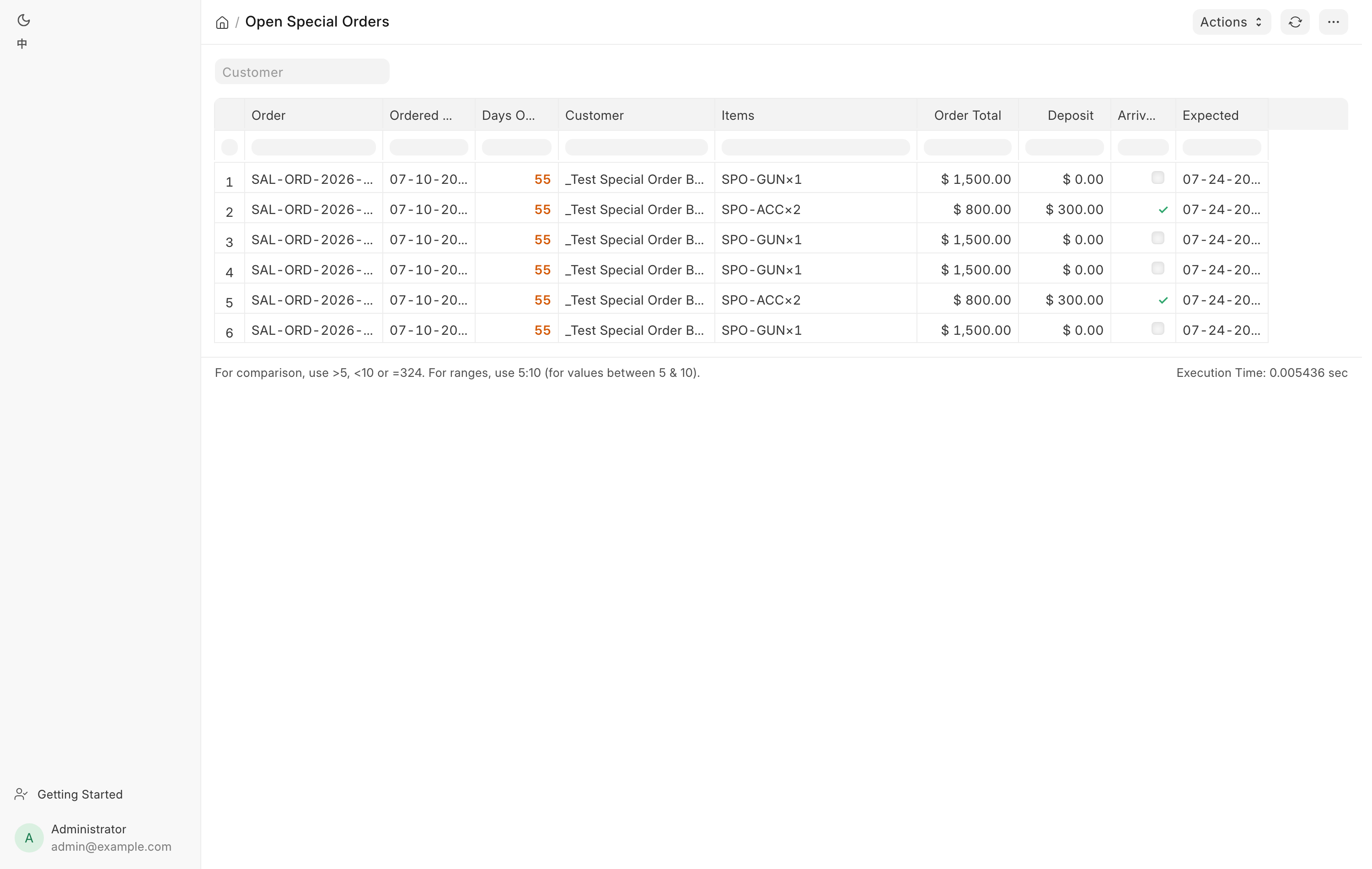
| Column | What it shows |
|---|---|
| Order | The Sales Order tracking this special order |
| Ordered On and Days Open | When it was placed and how long it has been waiting |
| Customer | Who to ring |
| Items | What was ordered, with quantities |
| Order Total and Deposit | The full price and the deposit actually collected |
| Arrived | Ticked once every ordered item is on hand in the order's warehouse |
| Expected | The expected arrival date |
When the goods turn up, receive them through Receive Goods as usual. Firearms go into the bound book on the way in. Arrived ticks itself once stock covers the order.
Pickup day
- At the register, click Special Order.
- Set Mode to Pickup. The dialog lists open orders with a dot for arrival: green means everything is in, orange means something is still outstanding.
- Click Pickup on the customer's order.
The pickup invoice is built and loaded into the cart:
- Every ordered item at full price, taxed normally.
- One negative Special Order Deposit line releasing the deposit.
- The cart total is therefore the balance owed.
If the order is for a firearm, open the cart line and pick the serial of the gun you are actually handing over, then run the 4473 exactly as in Selling a firearm. Click Complete Order to take the balance. The Sales Order closes itself and leaves the board.
The deposit line is locked
Its amount must equal the unused deposit balance, a deposit can only be used once, and a deposit line added to a cart by hand is refused at submit. Do not try to build a pickup ticket manually.
If a customer's order shows Collect Deposit instead of Pickup, the deposit invoice was created but never paid. Click it to load that invoice back into the cart, take the deposit, then reopen the Pickup list.
Changing or abandoning an order
There is no edit. To change what was ordered, cancel the order and create a new one.
If the customer walks away from the order, refund the deposit as a POS return against the deposit invoice, then open the Sales Order in the desk view and close it by hand. If your store's policy is to keep the deposit, ask your accountant how it should be booked before you do anything.
Out-of-state and tax-exempt orders
Sales tax follows where the goods are handed over, not where the customer lives. The system decides from the shipping address on the document, and it does so on its own.
| Situation | Tax |
|---|---|
| Collected in store, including a special-order pickup | Charged at the normal rate |
| Shipping address inside Texas | Charged at the normal rate |
| Shipping address in another US state | Zero, using the Out of State Sales template |
| No shipping address on the document | Charged at the normal rate |
Points that matter at the counter:
- The test is the shipping address. A customer visiting from another state who buys over the counter pays Texas tax, and that is correct. Do not change it by hand.
- The state can be written
TXorTexas, in any case. Both are understood. - Choosing the right Shipping Address when the order is created is the whole job. The tax follows.
- A register sale can never be tax-exempt this way. If the zero-rate template ends up on a POS Invoice without an out-of-state shipping address, the system refuses the submit and tells you to switch the template back.
- Shipments outside the United States are not covered by this rule. They are taxed normally, and an exception is a question for your accountant.
Selling a gun to a licensed dealer in another state is a different flow again. See Web and channel orders and FFL verification.
Troubleshooting
| Message you see | What it means | Fix |
|---|---|---|
| Pick the customer placing the order. | No customer selected | Choose one in the dialog or on the cart |
| Add at least one item. | The line list is empty | Search for the item and add it |
| Deposit exceeds the order total | The deposit is larger than what was ordered | Check both amounts |
| No open POS shift found — open the POS first. | No shift is running | Open the register, then retry |
| The deposit for an order has not been collected yet | The deposit invoice was never submitted | Use Collect Deposit in Pickup mode |
| The deposit has already been applied | This order's deposit was used on an earlier pickup | Check Recent Orders for the pickup invoice |
| No deposit invoice on a Pickup row | The order has no deposit invoice at all | A manager should look at the Sales Order |